
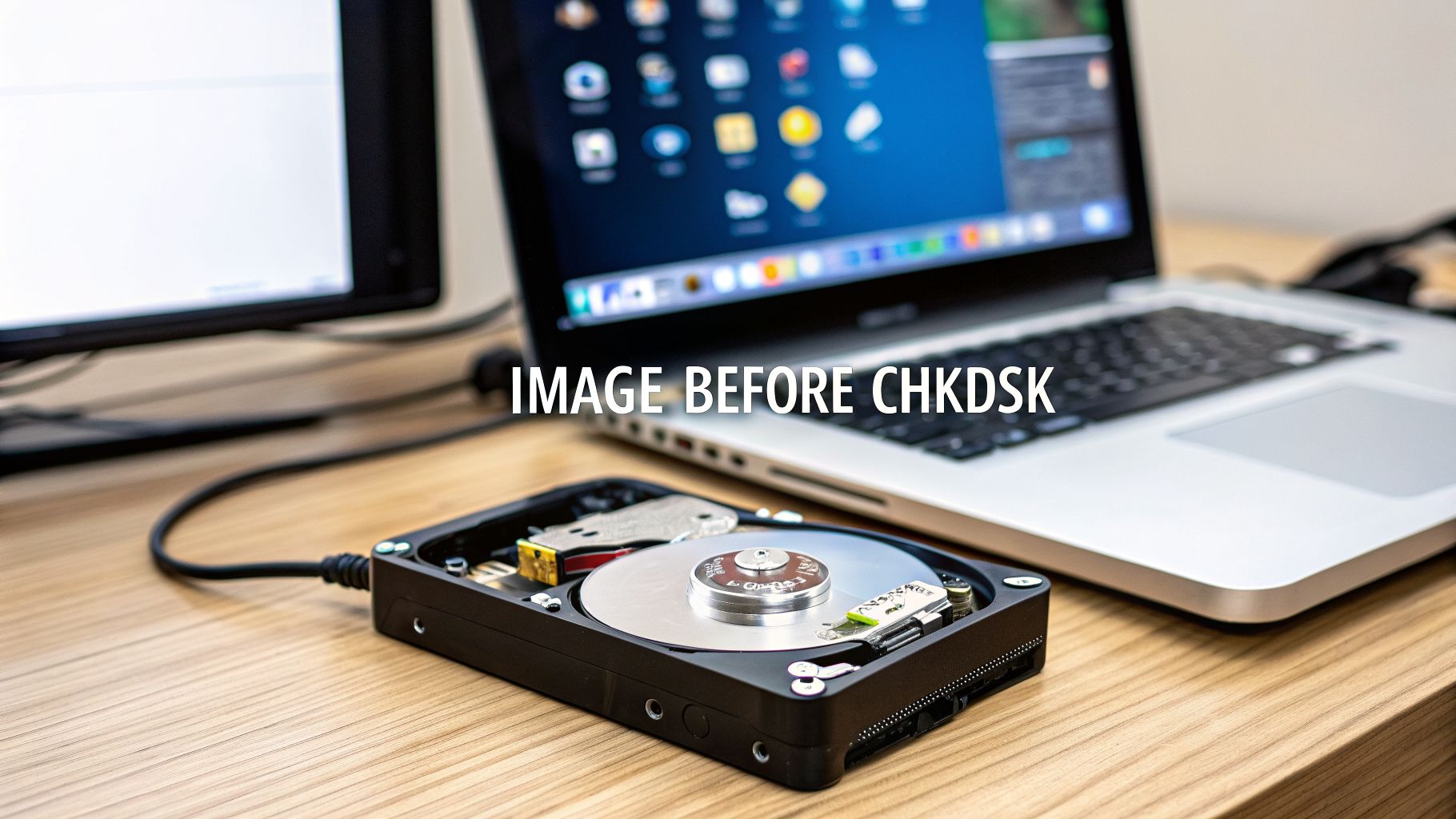
Let’s get one thing straight right away: running chkdsk on a RAW drive is a terrible idea. You might be tempted, especially if Windows suggests it, but the chkdsk command is built for filesystems it recognizes, like NTFS or FAT32. A RAW drive is, by definition, a drive with a filesystem Windows doesn't recognize.
Trying to force the issue can scramble your data even further, turning a recoverable situation into a permanent loss. Your absolute first priority should be getting your files back, not trying to fix the drive itself.
So, What Exactly Happens When a Drive Goes RAW?
Imagine your drive is a massive library, and the filesystem is the card catalog. When a drive goes RAW, it's like someone snuck in overnight and torched the entire catalog. All your books—your photos, documents, and videos—are almost certainly still sitting on the shelves, but the operating system has no idea where to find anything. It can't see the structure, the folders, or even the file names.
This state of filesystem amnesia can happen to anything from a brand-new NVMe SSD to that trusty old USB stick you've had for years. It's a communication breakdown between the OS and the drive's logical map.

Common Culprits Behind a RAW Filesystem
So how does this happen? It’s usually caused by a sudden interruption or corruption. I’ve seen it hundreds of time, and it almost always comes down to one of these culprits:
- Yanking the Cord: Pulling out a USB drive without using the "Safely Remove Hardware" option is the classic cause. If the drive is in the middle of a write operation, you can corrupt the filesystem metadata instantly.
- Sudden Power Loss: A power outage or a hard reset can do the exact same thing, scrambling the partition table before it's properly updated.
- Malware Infections: Some nasty viruses specifically target the Master Boot Record (MBR) or partition table, effectively erasing the drive's roadmap and turning it RAW.
- Corrupted System Files: Less common, but sometimes the problem is with your OS. A corrupted driver or system file responsible for reading drives can fail, making a perfectly healthy drive appear RAW.
- Physical Damage: Bad sectors on a hard drive, particularly where the filesystem information is stored, can make the drive's structure unreadable.
How to Spot a RAW Drive
Your computer will throw up some pretty alarming, but very distinct, error messages when it encounters a RAW drive. The most infamous one is blunt: "CHKDSK is not available for RAW drives."
You might also see other scary prompts, like:
- "You need to format the disk in drive X: before you can use it."
- "The volume does not contain a recognized file system."
- "X: is not accessible. The parameter is incorrect."
The real gut-punch is when you check the drive's properties and it shows 0 bytes of both used and free space. It’s unnerving, but take a breath. This doesn't mean your data is gone; it just means the OS can't see it anymore. While hard data on how often this happens is scarce, you can get a sense of how common data recovery topics are in this detailed video guide.
Critical Takeaway: A RAW drive means the organization is broken, not that the data is erased. What you do next is what matters most for a successful recovery.
To help you be certain you're dealing with a RAW partition, I've put together this quick-reference table. It connects the confusing error messages to what's actually happening behind the scenes.
Decoding RAW Drive Symptoms and Their Causes
| Symptom You See | What's Likely Happening | Impact on Your Files |
|---|---|---|
| "You need to format the disk…" | The OS can't find a valid filesystem (like NTFS or FAT32). It's offering to create a new one, which means wiping everything first. | Your files are still on the drive but are totally inaccessible. Do not format it. |
| The drive shows 0 bytes of data | The Master File Table (MFT) or partition boot sector is corrupt. The OS has no record of the files or how space is used. | The raw file data is still on the disk, but all the pointers that locate and assemble that data are gone. |
| "CHKDSK is not available…" | The CHKDSK tool itself is confirming it can't read the filesystem, officially diagnosing it as RAW. | CHKDSK is useless here. Trying to force it to run will only risk overwriting your lost data. |
| Slow or unresponsive access | Your computer is struggling to read a damaged partition table or is hitting physical bad sectors right where that crucial data was stored. | File access is impossible. Repeatedly trying to access the drive could worsen any physical damage. |
Seeing these symptoms is a clear signal to stop, take a breath, and shift your focus from repairing the drive to recovering the data.
Why Running Chkdsk on a RAW Drive Is a High-Stakes Gamble
When a drive suddenly becomes inaccessible and shows up as RAW, the knee-jerk reaction for many is to run chkdsk. It seems like the right move—after all, it's Windows' own tool for fixing drive errors. But here’s a hard-earned piece of advice: running chkdsk on a RAW drive is one of the worst things you can do. It often turns a recoverable problem into permanent data loss.
The issue is that chkdsk is a mechanic built for a specific kind of engine. It knows how to fix filesystems like NTFS or FAT32, but when it sees a RAW drive, it's like asking it to fix a machine it has never seen before. It doesn’t recognize the parts, understand the layout, or have the right tools.
Instead of seeing a damaged but potentially fixable filesystem, chkdsk sees a total mess of unorganized data. Its programming forces it to "fix" this chaos by writing a new, clean filesystem on top. This "fix" almost always overwrites the critical data structures—like the Master File Table (MFT)—that held the keys to all your files.
The Anatomy of a Chkdsk Disaster
Let's walk through a real-world scenario I've seen play out too many times. An external SSD, holding years of family photos and a critical wallet.dat file for a Bitcoin wallet, suddenly goes RAW after a power surge. In a panic, the owner opens Command Prompt and runs chkdsk /f.
Here's what happens under the hood:
- Misinterpretation: Chkdsk scans the drive, finds no valid NTFS or FAT32 structure, and assumes everything on it is just corrupted garbage. The original data that organized your folders and files is treated as an error.
- Destructive "Repairs": The
/fcommand gives chkdsk full authority to "fix" what it finds. It begins wiping what it thinks are bad sectors and building a brand-new, empty filesystem structure from scratch. - Catastrophic Overwriting: During this process, the original pointers that told the operating system where each photo and that precious
wallet.datfile began and ended are completely destroyed. The raw data of the files might still exist on the platters, but the map leading to them has been burned.
The drive might even show up in Windows Explorer again, which gives a devastatingly false sense of success. But when you click on it, you'll find it's either completely empty or filled with a jumble of useless FILE####.CHK fragments. The photos are gone, and the wallet.dat file is almost certainly damaged beyond repair, locking away the crypto forever.
Running
chkdskon a RAW drive is like trying to fix a torn manuscript by gluing the shredded pieces together in a random order. You’re not repairing it; you’re making the original text impossible to ever read again.
Why Standard Advice Fails You Here
You'll find plenty of advice on forums and even some tech blogs suggesting you run chkdsk. This is dangerously wrong when it comes to RAW drives. The problem is so specific that you won't find broad statistics on chkdsk failures, as most official documentation is written for general troubleshooting, not deep data recovery scenarios. For more context on why expert opinions often diverge from standard IT advice, you can find a wealth of discussions on data recovery topics found on YouTube.
Here's the critical takeaway: chkdsk is a filesystem utility, not a data recovery tool. Its primary job is to ensure the integrity of a known filesystem, even if that means deleting data to stabilize it. On a RAW drive, where the filesystem is gone, it acts with a blind and heavy hand.
Understanding the Aftermath
If you've already run chkdsk on a RAW drive, your chances of a simple recovery have dropped dramatically. It's not always impossible, but the game has changed. Professional data recovery labs may still be able to piece some files back together with advanced forensic tools, but the process becomes exponentially harder and more expensive.
The damage is concentrated on the drive's metadata—the "table of contents" for your data. Without it, most recovery software has no map to follow. This is especially devastating for complex files like databases, videos, or crypto wallets, which need perfect structural integrity to work. The only safe path forward is to avoid this gamble entirely. Treat a RAW drive like a delicate crime scene, not a simple repair job.
The First Non-Negotiable Step: Imaging Your RAW Drive
Before you even think about running a recovery tool or trying any command-line magic, stop. There is one step that is absolutely, unequivocally non-negotiable: you must create a sector-by-sector image of the RAW drive.
Rushing past this is the single biggest—and most common—mistake people make. It often leads to permanent data loss.
Think of your RAW drive as a fragile crime scene. The data is almost certainly still there, but its organizational structure is shattered. Every action you take, from a simple read attempt to running a recovery program, risks altering this delicate scene. Trying to recover files directly from a failing or logically damaged drive puts immense stress on it, which can easily cause more corruption or even a complete hardware failure.
This is why creating a drive image, also known as cloning, is the professional standard. It involves making a perfect, bit-for-bit copy of the entire drive—including all the so-called "empty" space and the inaccessible data—and saving it as a single large file on a separate, healthy drive.
This isn't just backing up your visible files. It's creating a perfect digital replica of the entire drive's current state. Once that image file is safely stored, you can put the original damaged drive away. All your recovery attempts from this point on will be performed on the image, not the physical hardware.
This one action completely insulates your original data from any potential mistakes. If a recovery attempt on the image file fails or corrupts it, no problem. You can just make a fresh copy from your untouched original drive and try a different approach. Without an image, you only get one shot.
Why Direct Recovery Is So Risky
Jumping straight to recovery software on the original RAW drive is a gamble. Here’s what you're risking:
- Physical Stress: A drive that turned RAW due to bad sectors or failing mechanics can be pushed over the edge by the intensive scanning process of recovery software.
- Logical Damage: Some recovery tools make small write operations to the drive. This can overwrite crucial file fragments, making a full recovery impossible.
- Accidental Formatting: A simple misclick in a complex recovery tool could lead you to accidentally format the very drive you’re trying to save.
By working from an image, you eliminate all these risks. It's the ultimate safety net, allowing you to experiment with different tools and techniques on the image file with zero danger to your original data.
The flowchart below shows exactly what happens when you ignore this crucial safety step and run a command like chkdsk directly on a RAW drive.

As you can see, bypassing the imaging step and using the wrong tools directly on the drive is a path straight to a destructive outcome.
How to Create a Safe Drive Image
Several excellent tools can create a sector-by-sector image. For this guide, we'll focus on reliable, widely used free software. The most important thing is to select an option that creates a "forensic" or "sector-by-sector" image to ensure every single bit is copied.
Here’s a general rundown of the process using a tool like Macrium Reflect Free or FTK Imager:
- Get a Destination Drive: You need a healthy drive with enough free space to hold the entire capacity of the RAW drive. For example, to image a 1TB RAW drive, you need at least 1TB of free space on your destination drive.
- Install the Imaging Software: Download and install your chosen tool on your main computer. Do not install it on the RAW drive itself.
- Select the Source Drive: Open the software and carefully select the RAW drive as the source. It will likely be identified by its size and lack of a proper filesystem label. Double-check you've picked the right one.
- Choose the Destination: Select the healthy drive where you want to save the image file. Give it a clear, descriptive name (e.g., "RAW_Drive_Image_2024-10-26.img").
- Start the Imaging Process: Begin the cloning. This can take a very long time—several hours for large or slow drives—so be patient. It's crucial not to interrupt this process once it starts.
Once the image is created and verified, safely disconnect the original RAW drive and put it somewhere safe. You are now ready to start recovery attempts on the image file, knowing your precious data is protected. For those dealing with drives that have suffered from more severe issues, you can learn more about how to recover data from a hard disk failure in our detailed guide.
Proven Recovery Methods That Actually Work on RAW Drives
Alright, you've safely created a perfect, bit-by-bit image of your RAW drive. Now for the moment of truth. You can finally set the original, problematic drive aside and focus entirely on recovering data from the image file you made. This is the pro approach—it lets you throw different recovery methods at the problem without ever risking more damage to your actual data.
We're going to look at two main paths forward. One is a seriously powerful, command-line tool for the more technically adventurous among us. The other involves much friendlier commercial software that does the heavy lifting for you through a simple graphical interface.
The Technical Path: Getting Hands-On with TestDisk
If you're comfortable in a command-line environment, TestDisk is a legendary, open-source recovery tool you need to know about. It's not just a file scavenger; it's more like a digital archaeologist. TestDisk is designed to analyze and repair the fundamental structure of the drive, like a busted partition table or a corrupted Master File Table (MFT).
It works by digging through your drive image, looking for the "ghosts" of the old partition structure. It can often find the remnants of the original NTFS or FAT32 filesystem and completely rebuild it. When this works, it's the holy grail of recovery—you get your entire folder structure back, filenames intact, just like it was before the disaster.
But all that power comes with a catch: a steep learning curve. The interface is entirely text-based, and one wrong move could mess up the image file you're trying to save. It's an incredible tool, but it demands your full attention and a bit of confidence.
The User-Friendly Path: Commercial Recovery Software
If a wall of text in a command prompt sounds like a nightmare, don't sweat it. There’s a much more accessible route using well-regarded commercial data recovery software. Tools like EaseUS Data Recovery Wizard or MiniTool Power Data Recovery are built for everyone else, with clean, point-and-click interfaces.
These programs take a different approach. Instead of trying to fix the broken partition, they perform a "deep scan" on your drive image. They hunt for file signatures—unique digital fingerprints that identify different file types. For example, the software knows exactly what the beginning of a JPEG or a PDF file looks like and scoops it up.
The whole process is much simpler:
- First, you'll need to mount your drive image file so that Windows sees it as a regular drive letter.
- Next, open up your recovery software, point it to that new drive letter, and kick off a scan.
- Finally, the software will show you a list of everything it found, often with handy previews. Just pick what you need and save it to a completely different, healthy drive.
This method is fantastic for pulling individual files out of the wreckage. The main trade-off is that it might not restore your original folder structure or filenames. You could end up with a folder full of recovered files named something like file001.jpg, file002.doc, and so on.
Here's the bottom line: Your choice really depends on your goal. If you're trying to resurrect the entire drive structure exactly as it was, TestDisk is your best shot. If you just need to grab specific, important files and don't mind reorganizing them later, commercial software is the safer and easier way to go.
Choosing Your RAW Drive Recovery Tool
To help you decide, think about what you’re trying to save. Pulling a few vacation photos off a drive is one thing; recovering a corrupted database or a cryptocurrency wallet file is a whole different ballgame. With high-stakes data like a wallet, perfect file integrity is everything. The kind of filesystem corruption that leads to a RAW drive can be a serious threat, and it's worth understanding why standard tools like chkdsk just won't cut it. You can find good explanations from resources that explore how to handle RAW drives on powerdatarecovery.com.
This comparison will help you select the best recovery method based on your technical comfort level, budget, and the type of data you need to save.
| Recovery Tool | Ideal User | Key Strengths | Potential Downsides |
|---|---|---|---|
| TestDisk | Technically confident users, IT pros. | Can restore the entire original partition structure, folders, and filenames. It's completely free. | Steep learning curve, text-only interface. A mistake could damage the image file you're working on. |
| Commercial Software | Home users, anyone less technical. | Super easy to use with graphical interfaces and file previews. Great at finding individual files. | Often won't restore original filenames or folder structures. The full versions require a paid license. |
No matter which path you take, the golden rule never changes: Always, always work on the drive image, never the original RAW drive. That one precaution is the single most important part of any successful data recovery job.
Recovering Crypto Wallets from a RAW Drive
When a drive goes RAW, it's always a headache. But when that drive holds a cryptocurrency wallet, the problem shifts from frustrating to potentially life-altering. Losing photos or documents is bad enough, but losing a wallet file means losing direct access to your financial assets. This isn't just another file; it's the digital key to your funds.

Unlike pretty much any other file on your computer, a crypto wallet file has zero tolerance for corruption. One incorrect byte in a wallet.dat, a JSON keystore, or a mobile wallet backup can render it completely invalid. The cryptographic integrity of that file is everything.
The most common way people accidentally destroy their own wallets is by running chkdsk. As we've covered, chkdsk can overwrite data structures in its attempt to "fix" the filesystem. For a wallet file, this is the kiss of death. It’s like trying to fix a delicate Swiss watch with a hammer—the tool is just not built for that kind of precision.
Why Standard Recovery Methods Often Fail for Wallets
Even if you do everything right and create a safe disk image, standard data recovery software can still come up short. These tools are fantastic at recognizing common file signatures for things like JPEGs or PDFs, but a wallet file often lacks a standard, easily identifiable signature.
To a generic recovery program, a wallet file can look like a random chunk of data. This makes it incredibly easy for the software to overlook it entirely or misidentify it.
Worse yet, even if the software finds a file with the right name (like wallet.dat), the recovered version might be "repaired" with incorrect data fragments. You'll get a file back, but when you try to open it, your wallet software will reject it. Your funds remain locked.
The Specialized Approach Required for Crypto Assets
This is the point where the job needs to pivot from general data recovery to a highly specialized, almost forensic, process. Once you have a secure, bit-for-bit image of the RAW drive, the absolute safest next step is to stop. Don't run any more scans or DIY tools, especially if the stakes are high.
After creating a drive image, any further action you take could compromise the delicate data structure of the wallet file. The wisest move is to hand that image file over to specialists who understand the unique anatomy of crypto wallets.
Professionals who focus on wallet recovery use methods that go far beyond what off-the-shelf software can do. Their techniques include:
- Pattern Recognition: Using advanced algorithms to scan the raw data for the specific, unique patterns that define different wallet file types, even with no filesystem to guide them.
- Forensic Reconstruction: Meticulously piecing together fragmented or partially overwritten wallet data, literally byte by byte, to restore its original structure.
- Integrity Verification: Constantly checking the cryptographic integrity of the reconstructed file at every step to ensure it will ultimately be accepted by the wallet software.
These specialized methods are designed to maximize your chances of a successful recovery while minimizing the risk of causing more damage. If you're staring at a RAW drive with your crypto on it, this specialized path isn't just a better option—it's often the only one that has a real chance of working.
For a situation this critical, getting professional help with crypto wallet recovery is the most prudent course of action to protect your assets.
Answering Your Questions About RAW Drives and Chkdsk
When a drive suddenly shows up as RAW, it’s natural to feel a wave of panic. Questions start flying. Let's cut through the noise and get straight to what you need to know to handle this without making a bad situation worse.
Should I Run Chkdsk on My RAW Drive to Fix It?
I’m going to be blunt here: absolutely not. This is the single most common mistake people make, and it’s often a fatal one for their data.
chkdsk is built to find and fix errors within a known file system, like NTFS or FAT32. When it looks at a RAW drive, it doesn't see a familiar structure. It just sees a mess. Its "fix" is to try and write a new, basic file system over the top, which can obliterate the very file pointers you need to get your data back.
Windows Is Telling Me to Format the Drive. Should I?
No. Resist the urge. Windows sees an unreadable drive and offers the only solution it knows: format it and start fresh. But formatting is like bulldozing a house to find a lost set of keys inside. It erases the old file system completely, making any chance of a simple recovery disappear.
What Is the Safest First Step?
Before you do anything else, create a sector-by-sector image of the RAW drive. This is the golden rule of data recovery. It creates a perfect, bit-for-bit clone of your failing drive onto a healthy one.
Once that image is created and verified, you can put the original RAW drive aside. From now on, you'll work only with the clone. This way, if a recovery attempt goes wrong, your original data remains untouched and safe.
Key Takeaway: Working from a drive image is what the pros do for a reason. It's your safety net. It gives you unlimited attempts to recover your files without ever risking the original drive.
Can My Files Actually Be Recovered from a RAW Drive?
In most cases, yes. A RAW drive usually means the "table of contents" (the file system) is gone, but the actual "pages" (your data) are still there on the disk, waiting to be found.
Your chances of success depend almost entirely on what you do next.
- High Chance of Recovery: You immediately stop using the drive, create that all-important bit-for-bit image, and run a tool like TestDisk or other specialized recovery software on the image file.
- Low Chance of Recovery: You run
chkdsk /f, try to save new files to the drive, or format it. Each of these actions actively writes over and destroys the data you're desperately trying to save.
What If I Already Ran Chkdsk?
Okay, if you’re reading this after running chkdsk, take a deep breath. The situation is more serious, but not always hopeless. chkdsk has likely overwritten some of the critical file system data, which makes a simple software-based recovery much less likely to succeed.
The best thing you can do now is stop. Don't try anything else yourself. Create an image of the drive in its current, post-chkdsk state and get in touch with a professional data recovery service. They have forensic tools that can sometimes piece files back together even after chkdsk has done its damage, but your chances are definitely lower.
When it comes to irreplaceable files like crypto wallets, the stakes are too high for guesswork. Wallet Recovery AI uses specialized, AI-driven techniques to meticulously reconstruct damaged wallet files directly from drive images, giving you the best possible chance of getting your assets back. Learn more and get expert help at https://walletrecovery.ai.
Leave a Reply