
When your Acer machine starts acting up—whether it’s failing to boot or running at a snail's pace—your first move is an Acer disk recovery. This process uses a built-in tool called Acer Recovery Management, which can restore your computer to its original factory settings from a hidden partition on your drive. Think of it as your first line of defense against critical system errors.
Your First Steps in Acer Disk Recovery
That moment your laptop won’t turn on or slows to a crawl can be stressful. But before you panic, a calm and methodical approach is your best bet. Your go-to tool is Acer Recovery Management, a utility designed specifically for these kinds of situations.
The first thing to figure out is whether you can even get to the tool. If your computer still boots into Windows, you're in luck. Just search for "Acer Recovery Management" in the Start menu and launch it.
If it won't boot, you'll need a different trick. As soon as you see the Acer logo during startup, press Alt + F10. This key combination is designed to launch the recovery environment directly. If it works, it’s a great sign that your hidden recovery partition is intact.
Diagnosing the Problem
Before you jump into a full system restore—which will wipe your personal data—it’s smart to get a handle on what’s actually wrong. Different symptoms point to different root causes, and therefore, different solutions.
To make things clearer, here’s a quick table to help you match common symptoms with their likely causes and the best first step to take.
Acer Disk Problem and First-Line Solution
| Symptom | Potential Cause | Recommended First Step |
|---|---|---|
| Laptop is slow but still boots | Software bloat, minor corruption, or malware | Run Acer Recovery Management from within Windows for a "Refresh" or "Reset." |
| "No Bootable Device" error | Hard drive not detected or boot order is wrong | Check BIOS/UEFI settings first. If the drive is missing, it could be a hardware failure. |
| Windows fails to load (blue screen) | Corrupted system files or driver conflicts | Attempt to boot into the recovery environment using Alt + F10 for a system restore. |
| Laptop is completely unresponsive | Power issue or catastrophic hardware failure | Check power adapter and outlet first. If nothing, it's likely a hardware issue needing professional diagnosis. |
This table should help you quickly pinpoint where to start without causing more harm.
This flowchart gives you a visual path to follow for the most common boot issues you might face with your Acer.
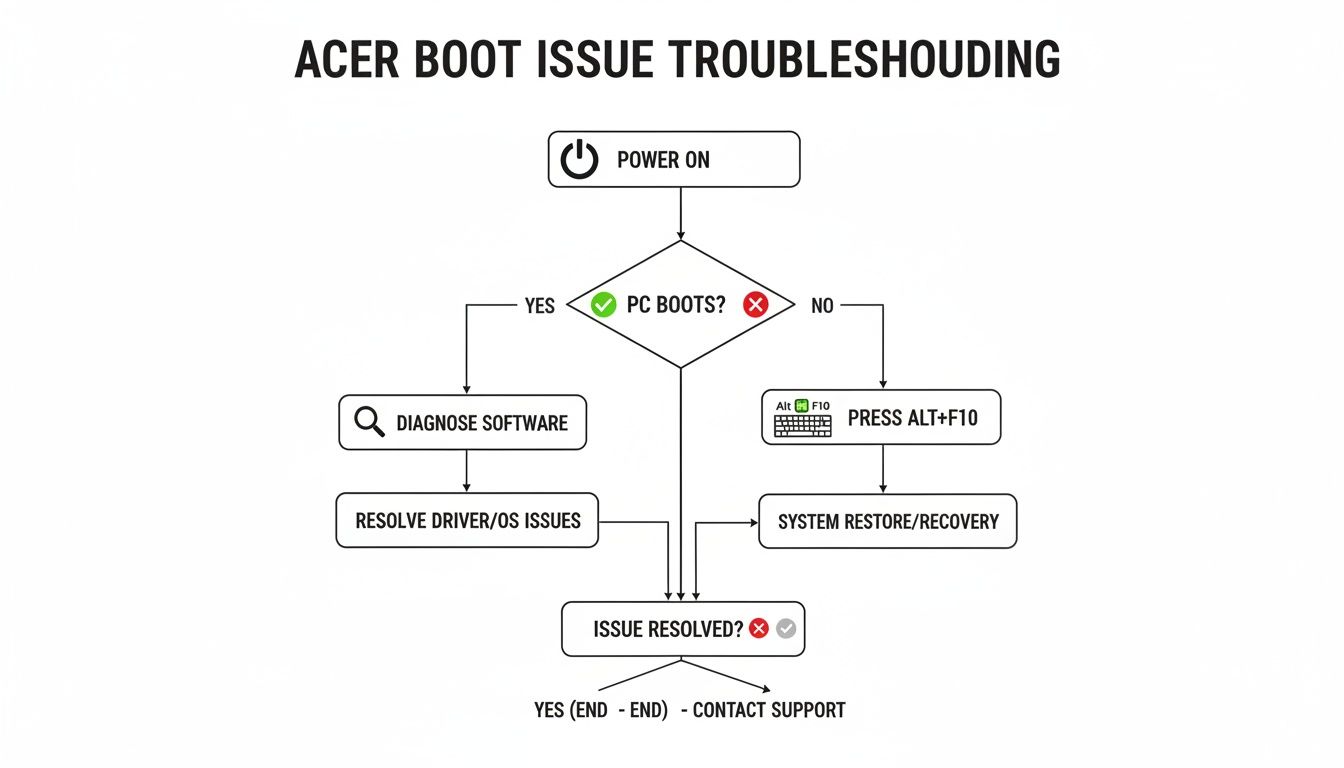
The flowchart highlights a critical decision point: if your PC boots, your work starts inside Windows. If it doesn't, you immediately pivot to the Alt + F10 recovery method.
Key Takeaway: The health of your recovery partition determines your next move. Successfully launching the recovery environment saves you the hassle of creating external recovery media. If it fails to launch, you might be looking at a more serious hard drive problem.
The need for reliable recovery tools became obvious back when Acer was shipping over 12.4 million units in a single quarter, making it the world's second-largest PC vendor. With that many devices in the wild, disk failures were inevitable, making built-in systems like Acer's an absolute necessity.
If you have a gut feeling the problem is more than just a software glitch, it might be a physical issue with the drive itself. For those cases, our guide on how to recover from hard disk failure can help you tell the difference. Knowing this will help you decide whether to proceed with a software reset or to stop and get professional help before you accidentally make things worse.
Creating and Using Acer Recovery Media
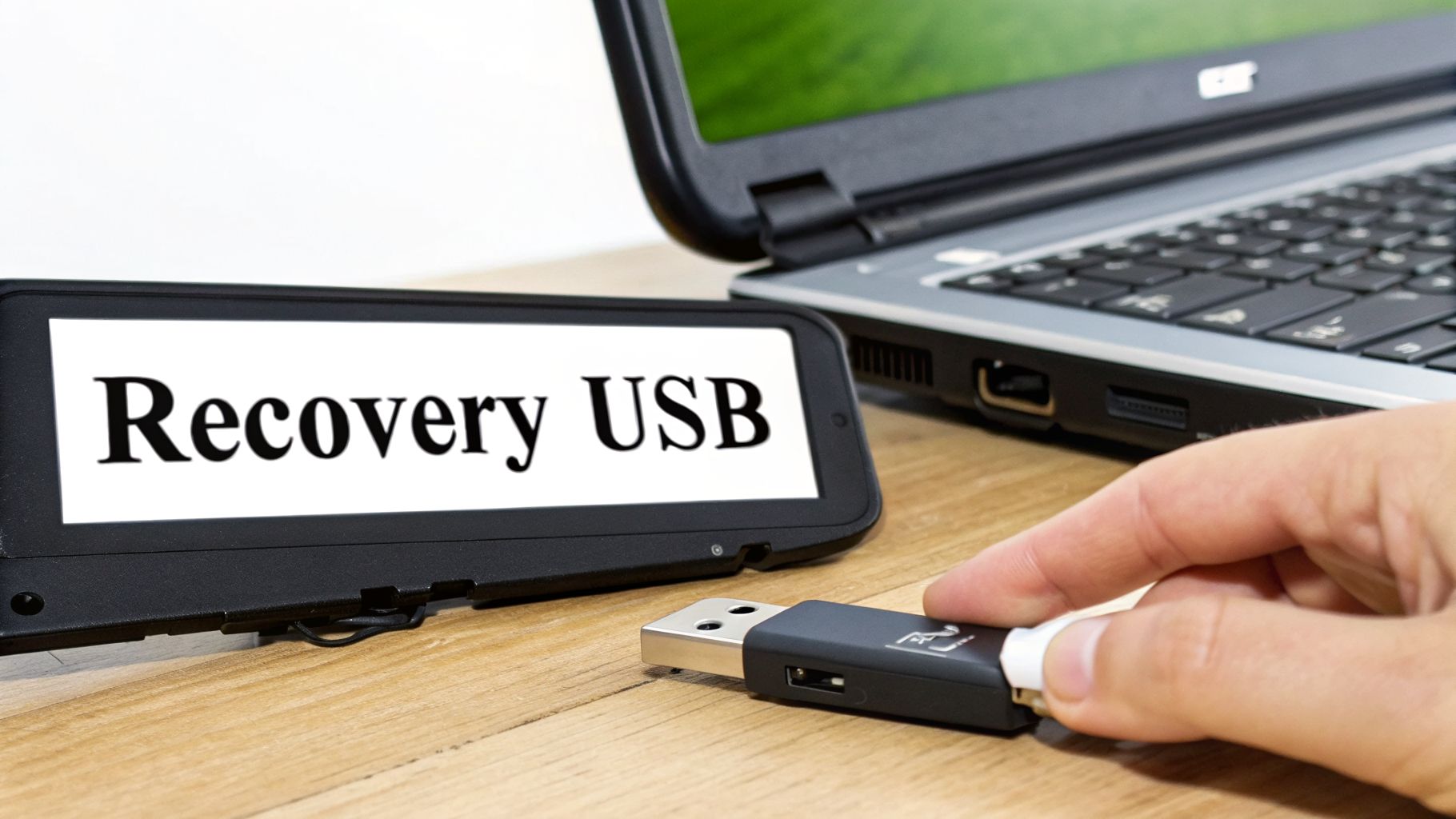
If the built-in recovery partition fails to respond to the Alt + F10 command, don't panic. Your next line of defense for a complete Acer disk recovery is a bootable USB drive. Think of it as a self-contained rescue kit you prepare before disaster strikes.
You’ll create this drive using the Acer Care Center software that came pre-installed on your laptop. For this, you just need a blank USB flash drive.
I’ve found that while a 16GB drive can sometimes work, it's cutting it close. I always recommend using a 32GB drive to be safe—it ensures all the recovery files fit without a problem. It’s a tiny investment that can save you a world of trouble.
How to Create the Recovery Drive
Open up the Acer Care Center and head over to the "Recovery Management" section. Your goal is to find the option that says "Create Factory Default Backup." The software does a good job of walking you through it.
When prompted, insert your USB drive. Just be absolutely certain there's nothing important on it, because this process will wipe it clean. The creation can take a while—sometimes up to an hour—so plug your laptop in and let it work.
Pro Tip: I've seen this happen more than once: never, ever create a recovery drive on battery power. If the laptop shuts down midway through, the USB drive can get corrupted and will be useless when you need it most.
Once the process is finished, label the drive something obvious like "Acer Recovery – [Your Model]" and put it somewhere safe. You now have your safety net.
Using the Drive for Restoration
So, the worst has happened, and your PC won't boot. Grab that recovery USB you made—it's time to put it to work. The first thing you need to do is tell your computer to boot from the USB drive instead of its own internal drive.
To do this, you'll need to jump into the BIOS/UEFI settings.
- First, shut down your Acer laptop completely.
- Next, plug in your recovery USB drive.
- Now, power the laptop on and immediately start tapping the F2 key. On some models, it might be the Del key. This gets you into the BIOS/UEFI menu.
Once you're in, use the arrow keys to find the "Boot" tab. You're looking for the boot order or boot priority list. You need to move your USB drive to the very top of that list.
After changing the order, save your settings and exit. Your laptop will restart, but this time it will boot directly from the recovery media, launching the Acer recovery environment. From there, just follow the on-screen instructions to restore your system.
Advanced Recovery Beyond Built-In Tools
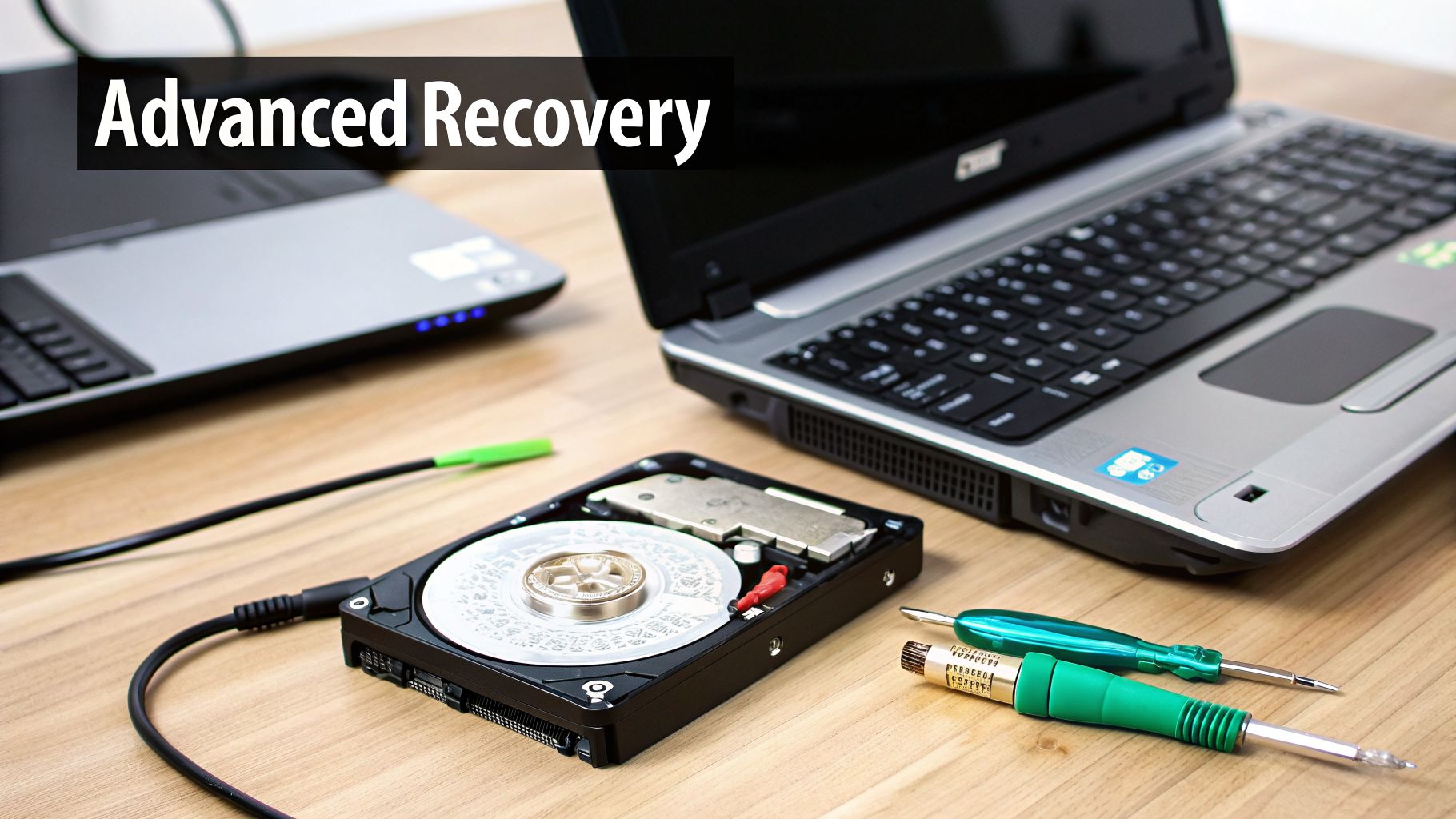
When the Alt + F10 trick doesn't work and your recovery USB reports a dead end, you're likely facing something more serious than a simple software glitch. This usually points to a corrupted recovery partition or, worse, a failing hard drive. Acer’s built-in tools just aren’t equipped for this fight.
At this point, your focus has to change. It's no longer about restoring Windows; it's about saving your files.
This is where specialized data recovery software becomes your best friend. These tools are built to run deep scans on a drive, even one that Windows refuses to see. They bypass the damaged file system and hunt for raw data and file signatures directly on the disk, giving you a fighting chance to pull your data back from the brink.
Choosing the Right Recovery Software
The market is flooded with data recovery tools, but they are far from equal. Picking the right one is critical. A bad choice could mean wasting money, or even causing more harm to your already fragile data.
So, what should you look for?
- Bootable Media Creation: This is non-negotiable. You absolutely cannot run recovery software from the same damaged drive you're trying to fix. A good tool will let you create a bootable USB drive to run the software safely.
- File System Support: Your Acer laptop almost certainly uses the NTFS file system. Make sure any software you consider explicitly supports it.
- Deep Scan Functionality: Look for terms like "deep scan" or "raw scan." This is the powerful feature that digs past the corruption to find files that standard scans would miss.
- Preview Before Recovery: Never buy software that doesn't let you preview the files it finds. A preview function is your proof that the tool can actually see and recover your data.
I’ve seen cases where free tools only find a fraction of the files, while a premium option recovered nearly everything. Don't let price be your only guide; focus on features and reviews from trusted tech sites. This is one area where a small investment can save irreplaceable data.
Directly Accessing the Hard Drive
If even bootable recovery software can't see the drive, you have one last DIY option: pulling the drive out entirely. By connecting it to another working computer, you can sometimes bypass the problem laptop's hardware and access the data directly. To do this, you’ll need a simple SATA-to-USB adapter.
The process involves carefully opening your Acer, disconnecting the drive, and plugging it into the adapter. You then connect the USB end to a healthy computer. If the drive’s electronics are still functional, it should pop up as an external drive, allowing you to simply copy your files to safety.
A word of caution: this is an advanced maneuver. You need to ground yourself to avoid static electricity, which can instantly kill computer components. More importantly, if the drive makes any clicking, grinding, or whirring noises, unplug it immediately. That's the sound of physical failure, and keeping it powered on will destroy it for good. If you hear those sounds, professional data recovery is your only path forward.
The best way to handle Acer disk recovery? Avoid it entirely.
Moving from scrambling to fix a dead drive to having a solid protection plan is the single biggest leap you can make. It’s the difference between a minor hiccup and a full-blown data catastrophe.
While we’ve covered the steps to revive a drive, building a smart backup system is infinitely more powerful. The gold standard for this has always been the 3-2-1 backup rule. It’s a straightforward strategy that’s saved my bacon—and that of my clients—more times than I can count.
The idea is simple: always keep three copies of your crucial data, store them on two different types of media (like an external drive and a cloud service), and make sure one copy is kept off-site.
This builds layers of protection. If your laptop’s internal drive dies, you have your backup on an external SSD. If a fire, flood, or theft takes out both your laptop and that external drive, your off-site cloud backup is still safe and sound.
Choosing Your Backup Tools
Putting the 3-2-1 rule into practice means picking the right tools for the job. Your decision will come down to a mix of cost, convenience, and how much data you’re actually trying to protect.
A student writing essays might get by just fine with a free Google Drive or OneDrive account to keep their work safe off-site. But for a photographer or video editor dealing with massive files, a large external SSD is a much more practical primary backup. The cloud then becomes a secondary safehouse for just the most critical, irreplaceable project files.
Pro Tip: Don’t just back up your files—automate it. Nearly all modern backup software and cloud services let you schedule everything. Set it up once, and it will run in the background, making sure your protection is always up to date without you having to think about it.
With Acer consistently ranked in the top-5 for global PC shipments, millions of new drives are put into use every year. This scale brings a harsh reality into focus: data loss hits 20-30% of users annually, according to industry data. You can dig deeper into these market trends in a recent IDC report.
This creates a massive need for reliable, confidential ways to get data back. It's a situation surprisingly similar to the crypto world, where someone with a locked Ledger or MetaMask wallet needs a specialized service like Wallet Recovery AI to regain access. In both cases, the user needs a clear, trustworthy path forward when critical digital assets are on the line.
Ultimately, a good backup strategy transforms a potential disaster into a simple task. When your Acer drive eventually gives out—and believe me, all drives fail eventually—your main worry won't be about losing your life's work, but just the minor hassle of restoring it to a new machine.
When to Call a Professional for Your Acer Drive
Sometimes, the smartest move in data recovery is knowing when to stop. While the tools we've covered are great for software-level problems, pushing forward on a physically failing drive can quickly turn a recoverable situation into permanent data loss.
The most urgent warning sign? Your ears will tell you. If your hard drive starts making any kind of unusual noise—clicking, grinding, or a high-pitched whir—that’s your cue to power it down immediately.
Critical Takeaway: Those sounds mean the drive’s internal parts are failing. Every click could be the read/write head scratching the platters where your data lives, literally scraping your files into oblivion. Unplug the drive and do not turn it on again.
Hardware vs. Software Failure
It’s crucial to know what you’re up against. A software issue, like a corrupt file or a virus, is often fixable with Acer's tools or recovery software. A hardware failure, on the other hand, is a mechanical problem that needs specialized equipment.
Here are the clear signs you're dealing with hardware failure and need a professional:
- Strange Noises: Clicking, grinding, or buzzing are the classic tells of a mechanical breakdown.
- The Drive is a Ghost: If the computer’s BIOS/UEFI doesn’t even see the drive (and you've double-checked the cables), its electronics have likely given out.
- Recovery Software Fails: When recovery scans find nothing or crash repeatedly, the corruption might be too deep for consumer-grade tools to handle.
- Environmental Damage: Any drive that’s been exposed to water, fire, or a hard drop needs expert attention in a controlled lab setting.
These scenarios almost always require a cleanroom environment—a sterile lab designed to prevent even microscopic dust particles from contaminating the drive's sensitive internals. Our guide on cleanroom data recovery breaks down why this is absolutely essential for physically damaged drives.
The need for this level of expertise is growing. The refurbished PC market is projected to reach USD 10.54 billion by 2026, and with an estimated 20-40% of those machines requiring some form of data service, the value of professional help is undeniable. This is similar to the crypto space, where experts are essential for protecting high-value assets. You can dig into the numbers yourself by reading the full market analysis on Mordor Intelligence.
If your data is truly irreplaceable, don't take the risk. It's time to let the pros take over.
Frequently Asked Questions About Acer Disk Recovery
When you're staring down the barrel of a disk recovery, a million questions probably pop into your head—especially when your personal files are on the line. Let's clear up some of the most common worries I hear from people going through this exact process.
Will Acer Disk Recovery Delete My Personal Files?
Let’s get straight to the point: Yes, a full Acer disk recovery is a factory reset. It wipes the slate clean.
Think of it as returning your laptop to the exact state it was in the moment you first took it out of the box. All your photos, documents, installed programs, and custom settings will be gone. This is why backing up your data before you start is absolutely non-negotiable.
If your computer is dead in the water and you can't boot into Windows, you'll need to get those files off before initiating the recovery. A simple SATA-to-USB adapter is often the go-to tool for connecting the drive to another machine to pull your data to safety.
How Do I Start Acer Recovery If Windows Won't Load?
If you can't even get to the Windows login screen, there's a built-in back door. As soon as you power on your laptop and see the Acer logo, start repeatedly pressing Alt + F10.
This key combination is your ticket into the hidden recovery environment on most Acer models.
Expert Tip: Don't panic if
Alt + F10doesn't work on the first try. It can be a bit finicky with timing. But if you’ve tried several times and get nothing, it’s a good indicator that the recovery partition itself is damaged or missing. In that case, your next move is to use a USB recovery drive.
What If I Don't Have A Recovery Partition Or USB?
So, the built-in partition is gone and you never made a recovery USB? You’re not out of luck. Your best option is to head over to Microsoft's official website and grab the Windows Media Creation Tool.
This free utility lets you create a bootable USB with a fresh, clean copy of Windows. Just be aware that this installs a generic version of Windows—it won't have any of the special Acer drivers or bundled software your laptop came with. You'll have to hunt those down on Acer's support site after you're back up and running.
How Long Does The Acer Disk Recovery Process Take?
Patience is key here, and the time it takes really depends on what kind of recovery you're doing. A quick "Refresh" that preserves your files (if the option is available) might only take 30-60 minutes.
A complete factory reset from scratch, however, is a much longer haul. You should plan for it to take anywhere from 1 to 3 hours, especially if you're running it from a USB drive.
The single most important rule? Make sure the laptop is plugged into a reliable power source. A power cut in the middle of this process can corrupt the whole installation, leaving you in a worse spot than when you started. Do not interrupt it.
When standard recovery methods fail, especially with valuable digital assets, specialized help is essential. For complex issues like recovering locked crypto wallets, Wallet Recovery AI offers a secure and confidential path forward. Learn more about how we can help at https://walletrecovery.ai.
Leave a Reply