
We’ve all been there: locked out of an account, knowing the password is saved somewhere in Google Chrome but not sure exactly how to find it. The good news is that accessing it is straightforward. You just need to head into your Chrome settings, find the "Autofill and passwords" section, and open the Google Password Manager. This is your central hub for viewing, editing, or deleting any credential you've saved.
Your Guide to Viewing Saved Passwords in Chrome
That moment of panic when you forget a critical password is a familiar feeling. Whether you're juggling dozens of daily logins or, more critically, trying to access a crypto wallet, Chrome's built-in password manager is your first line of defense. This guide gets right to the point, showing you exactly where to look for those stored credentials.
The best part? It’s not just limited to the device you’re on. Because your passwords sync across your Google account, they're available pretty much anywhere you can log in.
The diagram below maps out the three primary ways you can access your saved passwords.
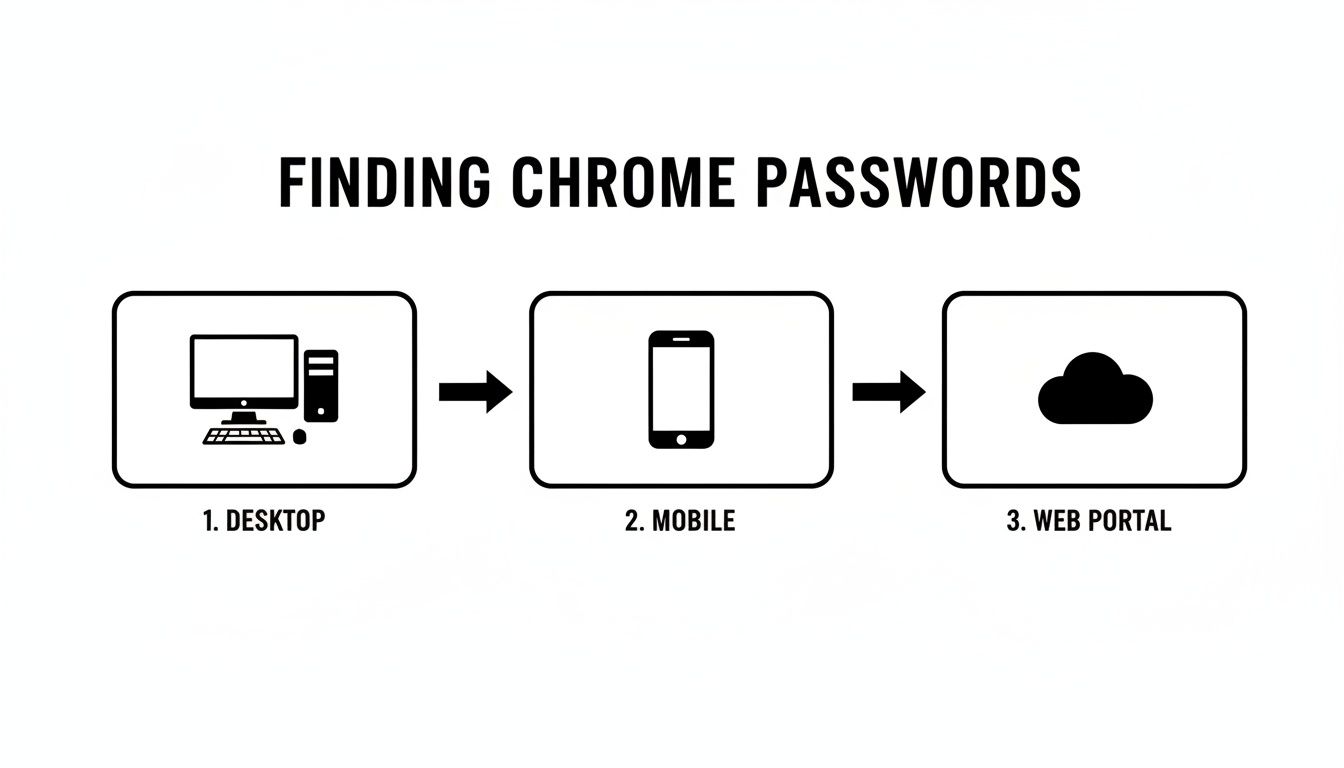
As you can see, your passwords are secure but accessible whether you’re on your desktop, your phone, or even a different computer using the web portal.
Quick Guide to Finding Your Chrome Passwords
For a quick overview, this table breaks down how to get to your passwords on the most common platforms. Think of it as a cheat sheet for finding what you need, no matter which device is in front of you.
| Platform | Access Method | Notes |
|---|---|---|
| Desktop | Go to chrome://settings/passwords or navigate through Chrome settings. |
This is the most direct method when you're on a computer. |
| Mobile | Open the Chrome app > Settings > Password Manager. | You’ll need to authenticate with your device's PIN, Face ID, or fingerprint. |
| Web Portal | Visit passwords.google.com from any browser. |
Extremely useful if you aren't using your own device. |
It's important to recognize that this convenience comes with security trade-offs you can't afford to ignore. If you’re managing high-value assets, like cryptocurrency stored in a MetaMask wallet, understanding this balance is fundamental to good digital security. While Chrome’s manager is a great tool for everyday use, specialized services like Wallet Recovery AI become crucial when standard access methods aren't enough for your most critical assets.
Finding Saved Passwords on Your Desktop
When you need to find a password on your desktop, there's a direct path that cuts right through the menu-clicking. Forget navigating through settings; you can get there with a simple command.
Just open a new Chrome tab, type chrome://settings/passwords into the address bar, and hit Enter. This shortcut lands you directly inside the Google Password Manager.
You’ll immediately see a list of every site with saved credentials. While you can scroll through it, the search bar at the top is your fastest option for finding a specific login.
Managing Your Credentials
Let's say you're on a new device and need the password for your crypto exchange. Simply type the exchange’s name into the search bar. The correct entry will pop up, showing your username and the hidden password.
To see the password, just click the eye icon. This is where Chrome’s security kicks in.
Security Checkpoint: Before revealing anything, Chrome will prompt you for your computer’s login password or PIN. This is the same credential you use to unlock your device, and it’s a critical step to block anyone else from accessing your saved passwords on an unlocked machine.
Once you’ve authenticated, the password appears in plain text. You can click the copy icon next to it, which puts the password on your clipboard, ready for you to paste. You also have options here to edit the entry or delete it completely if you no longer need it.
This process allows you to not only know your saved password in Google Chrome but also to keep your credential list clean and up-to-date. For a broader look at this topic, you can read more about finding saved passwords on your computer.
Accessing Chrome Passwords on a Mobile Device
We do just as much on our phones as on our computers, so knowing how to pull up a saved password on the go is a must. The steps are nearly identical for Android and iOS, with just a slight difference in where you tap.
On your phone, just open up the Chrome app. Find the three-dot menu (or on iOS, it might be three horizontal lines) and head into Settings. From there, you’ll see the Password Manager, which is where Chrome keeps all your saved credentials.
Secure Access on Android and iOS
Let’s say you’re trying to log into your MetaMask wallet app on your phone, but you can’t for the life of you remember the password. If it’s saved in Chrome, your phone is all you need.
When you tap on a login to see the actual password, your phone will stop and ask you to prove it’s you. This is a simple but powerful security check that uses your device’s built-in lock.
- On iOS: You'll be asked to use Face ID or your passcode.
- On Android: You'll use your fingerprint, face unlock, or the PIN/pattern you use to unlock your phone.
This little step is a big deal. It means even if someone gets ahold of your unlocked phone, they can't just browse through your list of passwords. It's a quick, effective barrier that keeps your logins safe from prying eyes.
This authentication prompt is a hard requirement, not an optional setting. It’s your phone's way of verifying your identity before it shows a password, giving you an essential layer of security when you need to access your accounts away from your desk.
The best part is how this all works together with Chrome Sync. Any password you save on your desktop is instantly and securely available on your phone, and vice-versa. It gives you seamless access to everything without making you jump through hoops.
Using the Google Password Manager Web Portal
What happens when you need a password but aren't on your own computer? Maybe you're at a library or using a friend’s laptop. For exactly these situations, you can turn directly to the Google Password Manager web portal.
Just head over to passwords.google.com in any browser. It's a central dashboard for every single password saved to your Google Account. Think of it as your personal password vault in the cloud, accessible from anywhere as long as you can sign in to your Google Account.
Safely Accessing Your Passwords Remotely
While this portal is incredibly handy, you need to be smart about using it on a shared or public computer. A little bit of caution goes a long way in keeping your account locked down.
- Always use a private window. Before you log in, open an incognito or private browsing session. This one step prevents the browser from saving your login details or history.
- Sign out when you’re done. Don’t just close the tab—that’s not enough. You need to actively log out of your Google Account to make sure the next person using the computer can't get into your stuff.
It's surprising, but even with tools like this, many people still rely on risky methods like writing passwords on paper. In fact, recent data on security habits and trends for 2026 at mynewitguys.com shows only 34% of U.S. adults are using built-in browser managers. For truly sensitive accounts, like crypto wallets, I always recommend adding a sync passphrase in Chrome. This adds a layer of encryption that not even Google can break, giving you full control.
Using the Integrated Password Checkup
The web portal also gives you direct access to Google's Password Checkup tool, one of its most valuable features. It’s an automated scanner that keeps an eye on your saved credentials for you.
The Password Checkup tool is your personal security advisor. It flags credentials that are weak, have been reused across multiple sites, or have appeared in a known data breach, providing actionable steps to fortify your accounts.
This feature gives you a simple, prioritized to-do list for strengthening your passwords. It takes the guesswork out of digital security and helps you focus on what needs fixing first.
Security Best Practices for Your Saved Passwords
Finding a saved password is one thing, but keeping that entire list secure is a different challenge. Your Google Account is the master key to this digital vault, so its protection should be your absolute top priority—especially if you have high-value assets like crypto wallets tied to those credentials.
Just knowing how to know saved password in Google Chrome isn’t sufficient. You need to be proactive. The single most important step is to enable Two-Factor Authentication (2FA) on your Google Account. This requires a second form of verification, stopping anyone who might have stolen your password from getting in.
Eliminate Your Weakest Links
Password reuse is one of the biggest security risks we see. It’s a widespread problem—studies show 80-85% of people reuse passwords across different websites. When a minor, insecure site gets breached, attackers can use that same password to try and access your more important accounts.
In fact, analysis of malware logs shows an infected device holds an average of 44 passwords. Attackers then systematically test these credentials against high-value targets like Gmail. You can see more data on these attack vectors in this detailed report on password statistics from deepstrike.io.
Pro Tip: Make a habit of using Google’s built-in Password Checkup tool. It automatically scans your saved passwords for three critical risks: reuse, weakness, and exposure in known data breaches. The tool then gives you a straightforward list of what needs to be fixed.
Know When to Use Specialized Solutions
Chrome's password manager is great for convenience on everyday sites, but it's not designed for your most critical credentials. Never save things like private keys for a crypto wallet or the master password to your primary banking portal directly in a browser.
High-value assets require a higher level of security, like an offline password manager or specialized recovery services. Think of it like a physical safe for your digital valuables. Knowing how to securely recover those assets is just as crucial as protecting them. For a deeper look into system-level credential management, you might find our guide on how to find Windows passwords useful.
What to Do When Chrome Doesn't Save a Password
It’s a frustratingly common problem. You sign up for a new service, you’re certain you saw the "Save password?" prompt, but when you return, the login fields are empty. Chrome simply didn't save it.
This usually boils down to one of two things. Either the website itself is actively blocking password managers, or a setting in your own browser is getting in the way.
Some sites, especially banking or financial platforms, deliberately prevent browsers from storing your credentials. They do this for security reasons by adding autocomplete="off" to their code, a signal that tells Chrome to back off. In these cases, the site is in control, and you'll need to remember that password the old-fashioned way.
More often than not, though, the problem is a simple setting you might have changed without realizing it.
Check Your Chrome Password Settings
If a website isn't saving, your first stop should always be the Google Password Manager. A quick look at your settings here can almost always fix the issue.
First, you need to make sure the main feature is actually turned on.
- "Offer to save passwords": This is the master switch. If this toggle is off, Chrome will never ask to save a new password, period.
- "Auto sign-in": This setting won't prevent passwords from being saved, but keeping it enabled creates a much more seamless experience for the sites you've already saved.
The most common culprit I see is the "Never Saved" list. It’s surprisingly easy to accidentally click "Never" on the save prompt and forget about it. Scroll to the bottom of the Password Manager settings, and you'll find every site you've told Chrome to ignore. If the site you're having trouble with is on that list, just click the "X" beside its name to remove it. Problem solved.
Common Questions About Managing Passwords in Chrome
Once you get comfortable with saving passwords in Chrome, a few key questions always seem to pop up. Let's tackle the most common concerns about security, access, and what to do when things go wrong.
Is It Really Safe to Store Passwords in Chrome?
For your day-to-day sites—news portals, forums, social media—it's reasonably secure. Google does encrypt your saved credentials. But when the stakes are high, you need more than "reasonably secure."
For your most critical accounts like your primary email, banking portals, or crypto wallets, you absolutely should not rely on a browser-based manager. A dedicated, standalone password manager provides far more robust security features and is the only smart choice for your most valuable logins.
Can I Move My Passwords to Another Manager?
Yes, and it’s a straightforward process. You can export all your Chrome passwords into a single .csv file. Just head to your Google Password Manager, click the Settings gear icon, and look for the 'Export passwords' option. Clicking "Download file" will save everything.
Crucial Security Warning: This exported
.csvfile is just a simple spreadsheet, completely unencrypted. Anyone with access to it can see every single password in plain text. You must handle this file with extreme care and delete it securely the moment you’re finished importing it elsewhere.
What Happens If I Lose Access to My Google Account?
This is the single biggest risk. If you forget your Google account password and can't get back in through recovery, all the passwords you've saved in Chrome are gone. Permanently. There is no backdoor or secret way to retrieve them.
This is exactly why setting up Two-Factor Authentication (2FA) and robust recovery options on your Google account isn't just a suggestion—it's non-negotiable.
The risk is real. Credential theft is rampant, with studies showing nearly 30% of people have had passwords stolen, often due to reusing them across different sites. With Chrome holding 65% of the browser market share, its built-in password manager is a massive, high-value target for attackers. You can read more about these password trends and statistics on huntress.com.
If you've lost the password to a critical crypto wallet that was saved in Chrome, the standard recovery methods won't work. Wallet Recovery AI provides a specialized service focused on helping you regain access to your assets securely and discreetly. You can learn more about our AI-driven recovery process at https://walletrecovery.ai.
Leave a Reply