
It’s a feeling we’ve all had—that gut-wrenching moment your Windows password just won't work. The good news is, you're almost never permanently locked out.
The right way to get back in completely depends on what kind of account you're using. If it's a Microsoft account, you'll use their online reset tool. For an old-school local account, you’ll need a password reset disk you made earlier. If you don't have one, don't panic. There are other ways in.
Regaining Access When You're Locked Out
Staring at a login screen that won't accept your password feels like hitting a brick wall. But getting back into your PC is usually more straightforward than you’d think.
The whole game changes depending on whether you're using a modern, cloud-based Microsoft account or a traditional local account that lives only on that specific machine. A Microsoft account uses your email or phone to prove it's you, while a local account relies on things you've set up on the computer itself. Nailing this difference is the first step to getting back to your desktop.
Your Recovery Game Plan
To make this simple, we can break down the recovery paths into a quick decision. The very first thing you need to figure out is: am I using a Microsoft account or a local one?
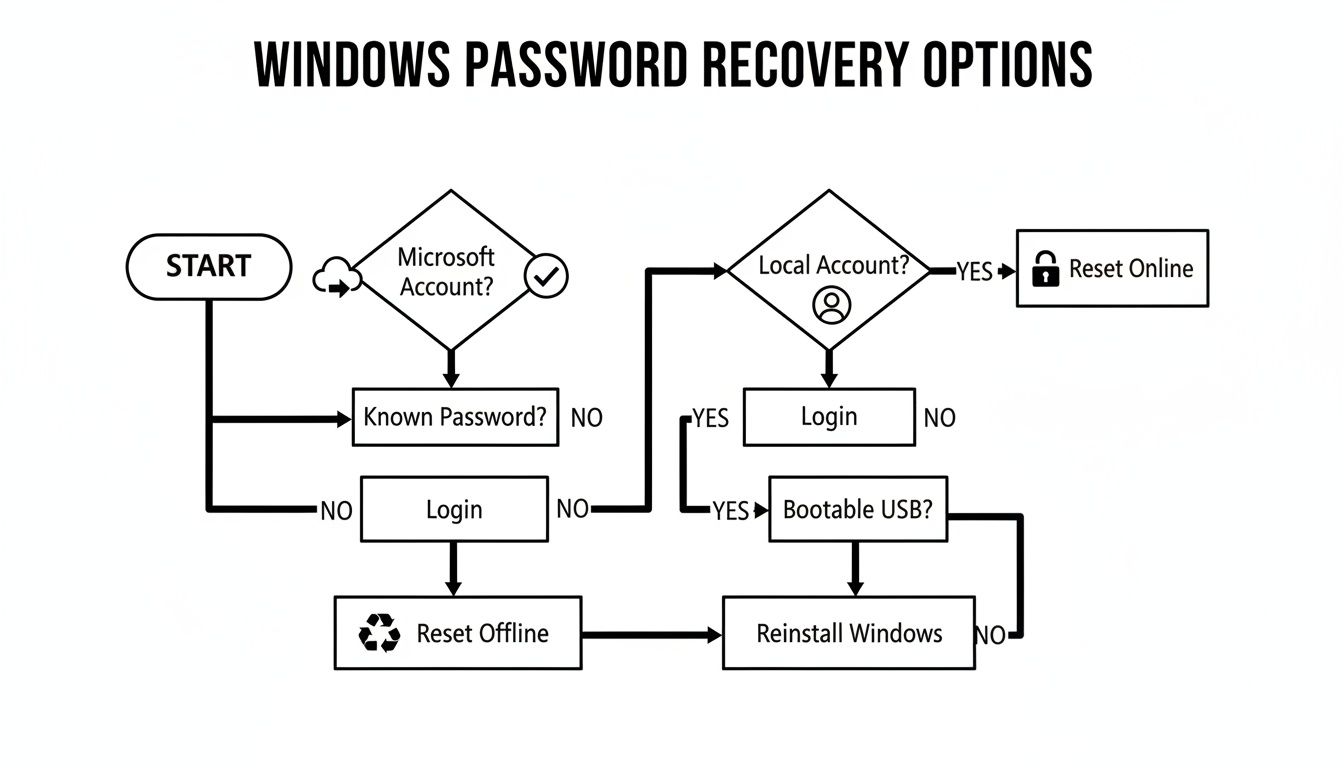
As you can see, the path splits immediately. Choosing the right branch from the start saves a ton of time and frustration.
This guide is your map. We'll walk through every option, from the simple online resets to the more technical methods for local accounts. If you're curious about the deeper mechanics, we cover the technical details in our article on how to find Windows passwords.
Your account type is the single most important piece of the puzzle. Microsoft accounts are reset online. Local accounts require offline solutions like a reset disk, security questions, or other tools.
Your Windows Password Recovery Options
To help you find the best route fast, this table lays out your options. Just find your situation to see the recommended method, what you'll need, and how hard it's likely to be.
| Recovery Method | Account Type | What You Need | Typical Difficulty |
|---|---|---|---|
| Online Password Reset | Microsoft Account | Access to another device and your recovery email/phone | Easy |
| Password Reset Disk | Local Account | A pre-created USB password reset disk | Easy |
| Security Questions | Local Account | Correct answers to your security questions | Easy |
| Command Prompt (Admin) | Local Account | Windows Installation Media (USB/DVD) | Moderate |
| Bootable Recovery Tool | Local Account | A separate PC and a USB drive | Advanced |
With the right approach, you'll be back in your account in no time. Let's get started.
Microsoft Account Recovery: Your Easiest Path Back In
If you’re locked out of a Windows 10 or 11 machine, there’s a very good chance you’re using a Microsoft account to log in. This is actually great news. Unlike old-school local accounts that store your password only on that specific computer, your Microsoft account lives in the cloud.
That means you can reset the password from literally any device with an internet connection—your phone, a tablet, or a friend’s laptop. It's by far the most straightforward way back into your PC.
Kicking Off the Online Recovery
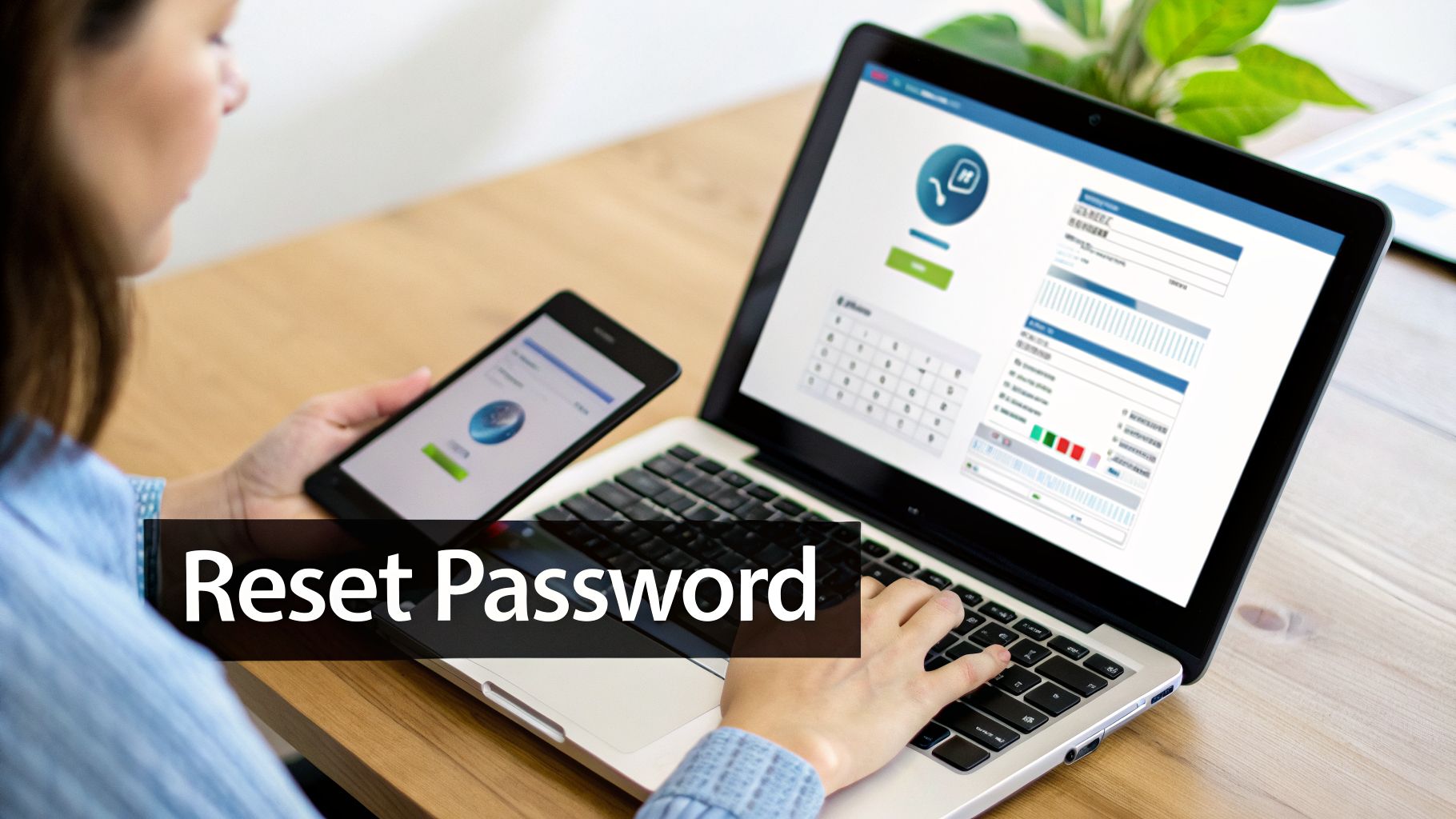
First, grab a separate device. From any web browser, head over to Microsoft’s official account recovery page. The first thing it will ask for is the email, phone number, or even the Skype ID tied to your account.
Once you enter it, Microsoft will give you options to prove it’s really you. This is the crucial part.
- Email a code to your backup address.
- Text a code to the phone number on file.
- Use an authenticator app like Microsoft Authenticator for a quick approval notification.
Pick the one you can access, grab the code they send, and punch it into the recovery page. Once verified, you’ll be prompted to set a new password right away. As long as your locked PC is online, it will accept this new password almost instantly.
What If You Can't Access Your Recovery Info?
It happens. Maybe you no longer have that old phone number or can't get into the backup email account. Don't panic. On the verification screen, look for the link that says, "I don't have any of these." This is your escape hatch.
Clicking it will take you to a more detailed account recovery form. It's a bit more work, but it's designed for this exact situation.
Microsoft's recovery form is your last line of defense. The more accurate and detailed information you can provide, the higher your chance of success. Treat it as if you're proving your identity to a bank—every detail counts.
This form is your chance to prove ownership through things only you would know. An automated system will check your answers against the data Microsoft has on file for your account.
How to Ace the Recovery Form
Success here comes down to memory and precision. Before you even start, try to gather as much information as you can.
They'll ask for details like:
- Personal Info: Your full name, date of birth, and the country where you created the account.
- Old Passwords: Any previous passwords you can remember using for the account. Even partial or very old ones can help.
- Email History: Think about the subject lines of recent emails you’ve sent or the exact email addresses of people you’ve corresponded with.
- Billing Details: Have you ever bought an Xbox game, an Office 365 subscription, or anything else from Microsoft? The name on the credit card and the last four digits will be incredibly helpful.
Be as exact as you can. If you're not sure about a subject line, it's better to leave it blank than to guess wrong. After you submit the form, the system will review your answers and typically send a result to the new contact email you provide within 24 hours.
Local Account Passwords: Your Offline Recovery Plan
If you’re not using a Microsoft account, your entire password recovery strategy shifts offline. A local account keeps its password stored right on your computer’s hard drive, which means there’s no website you can visit to reset it. To get back in, you have to work directly with the machine itself.
This might sound more intimidating, but it just means we need a different set of keys. The easiest path forward involves a tool you hopefully created ahead of time. But even if you didn't, there are still some solid, reliable methods to get you past that lock screen.
The Password Reset Disk Lifeline
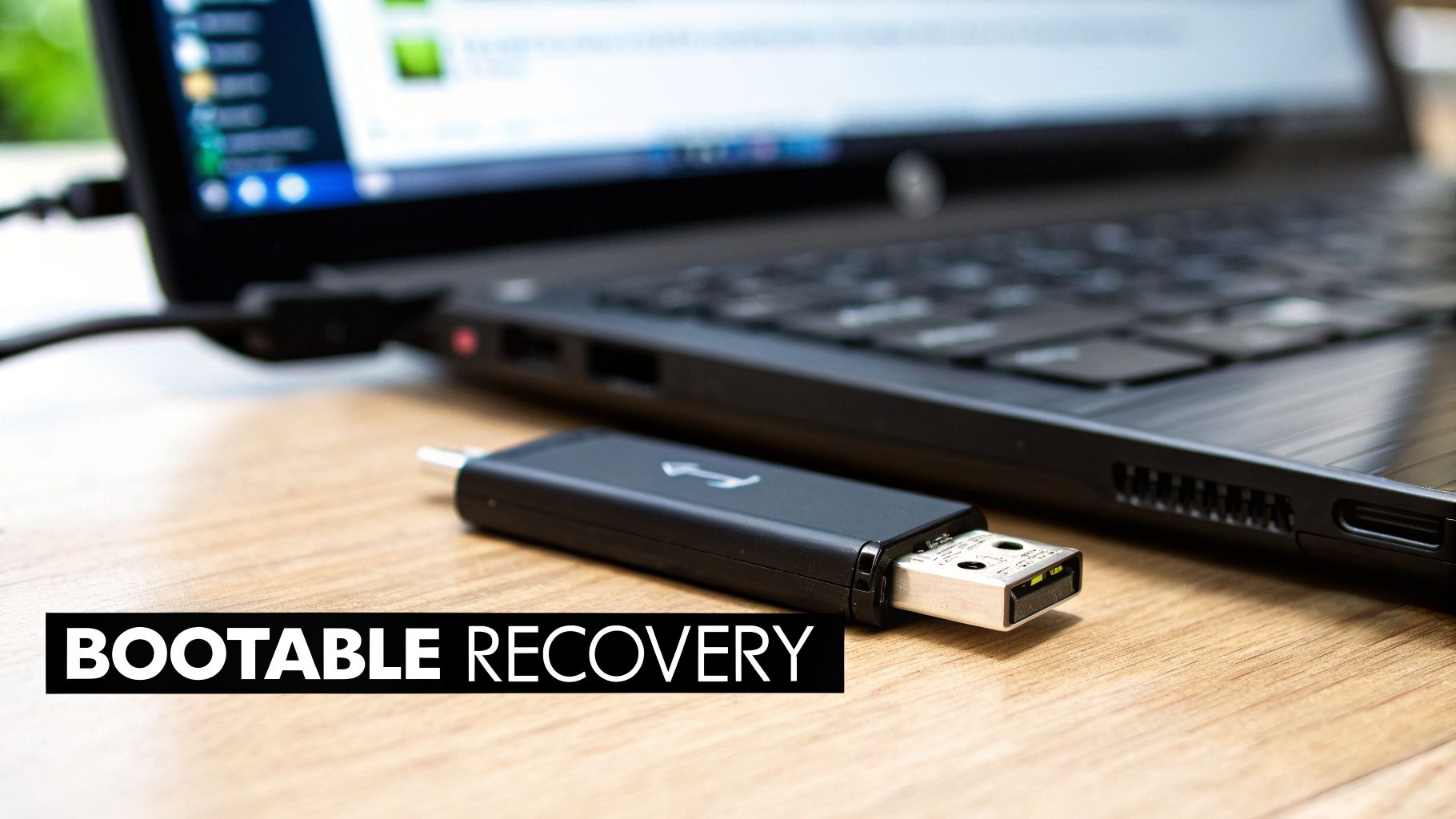
The absolute best-case scenario is having a Password Reset Disk. This is a special USB drive you can create while you still have access to your PC, and it acts as a master key for that one specific user profile.
If you have one, the process is incredibly straightforward.
- On the Windows login screen, just enter the wrong password on purpose.
- Windows will give you an error, and you'll see a "Reset password" link appear below the input field. Click it.
- The Password Reset Wizard will pop up. Insert your reset disk when it asks.
- Just follow the prompts to create a new password and hint.
That's it—you're back in. This is by far the safest and most direct solution, which is why I always tell people using local accounts to make a reset disk before they ever need it.
Using Security Questions for Access
What if you never made a reset disk? Your next hope lies with the security questions you might have set up when you created the account, a feature available in Windows 10 and 11.
Similar to the disk method, start by typing an incorrect password at the lock screen. You should see that same "Reset password" link appear.
Clicking it will present you with the security questions you chose. If you can answer them correctly, Windows will let you set a new password on the spot. The trick here is remembering your exact answers—capitalization and spacing can sometimes trip people up.
A common hang-up I see is forgetting the precise phrasing. Did you write "New York" or "new york"? If you can't recall the answers, this method is a dead end, and it’s time to move on to a more technical approach.
Advanced Recovery with the Command Prompt
When you don't have a reset disk and can't remember your security answers, it's time to roll up your sleeves. This technique uses the Command Prompt from the Windows Recovery Environment to either change your password or, even better, create a new administrator account.
This sounds technical, I know. But if you follow the steps carefully, it’s a very effective way to regain control. You will need a Windows installation USB or DVD to make this work.
The goal here is simple: we're going to temporarily replace one of the accessibility tools on the login screen (utilman.exe) with the Command Prompt (cmd.exe). This clever trick lets you open a command window with full system privileges right from the lock screen, no login required.
First, boot your computer from your Windows installation media. This usually means changing the boot order in your PC's BIOS or UEFI settings so it starts from the USB or DVD drive first.
When you see the Windows Setup screen, don't click "Install." Instead, press Shift + F10 on your keyboard. This opens a Command Prompt window where you'll run a few commands to swap the files.
After the swap is done, restart the computer normally. Now, back on the login screen, click the Ease of Access icon. Instead of the usual tools, a Command Prompt will open. From there, you have two options:
- To change an existing password: Type
net user YourUsername NewPasswordand hit Enter. Be sure to replaceYourUsernamewith your actual user name andNewPasswordwith your desired password. - To create a new admin account: My preferred method. First, type
net user NewAdmin MyPassword /add, then runnet localgroup administrators NewAdmin /add. This creates a brand new administrator named "NewAdmin" with the password "MyPassword."
Once the command runs successfully, you can log in with your new password or the new admin account. It is absolutely critical that after you're in, you boot from the installation media one more time to reverse the file swap. This restores utilman.exe and keeps your system secure and working correctly. This method is powerful, but it demands caution.
Advanced Recovery With Bootable USB Tools
When you've exhausted all the built-in Windows recovery methods, it's time to call in the heavy artillery: bootable USB tools. These are specialized, third-party apps that operate completely outside of your locked Windows environment.
This is their secret weapon. By running from a USB stick, they can get their hands on system files that are normally locked tight when Windows is active. It's like having a master key when you've lost the key to the front door.
How These Tools Actually Work
The core job of these tools is to get at the Security Accounts Manager (SAM) file. This is a small, encrypted database where Windows keeps your local account credentials, including the password hashes. A bootable tool allows you to safely access the hard drive and directly edit this file, letting you do things like blank a password or even promote a regular user to an administrator.
Think of it this way: you’re using a working PC to create a special "key" on a USB drive. You then tell your locked computer to start up using that USB key instead of its own hard drive.
To do this, you’ll have to jump into your computer's BIOS or UEFI settings (usually by hitting keys like F2, F12, or Del right after you power it on) and change the boot order. Once you boot from the USB, the recovery software fires up its own mini-operating system. From there, it scans your drive, finds the Windows installation, and gives you a simple interface to reset the password for any local account.
The whole process usually looks something like this:
- Make the bootable drive. On another computer, download a reputable recovery tool and use it to create a bootable USB.
- Boot the locked PC. Plug the USB into the locked machine, restart it, and enter the BIOS/UEFI to set the USB as the first boot device.
- Launch the tool. Your PC will load the software from the USB, which will find your Windows installation for you.
- Reset the password. The software will show you a list of local user accounts. Just pick the one you’re locked out of and choose the option to reset or clear its password.
- Reboot and log in. Once the tool gives you the all-clear, pull out the USB, restart, and you should be able to log straight into your account with no password.
Finding Reputable Recovery Software
A quick search will show you dozens of tools promising to get you back into Windows, but you need to be careful. Some are completely useless, and others are just a front for malware. Stick with well-known options that have a long track record.
The best tools in 2026 have years of development behind them and come with clear, easy-to-follow instructions. They are built to do one thing and do it safely. If your problem is more than just a lost password and involves a failing drive, you might also want to read our guide on how to recover data from a hard disk failure, which touches on similar data safety principles.
The real power of these tools isn't "cracking" in the traditional sense. It's more like a surgical bypass. They edit the SAM file to simply remove the password requirement, giving you instant access without ever needing to know the original.
A Quick Word on GPU Acceleration
While most tools you'll use at home focus on resetting passwords, the professional side of this field has become incredibly powerful thanks to GPU acceleration. Instead of just resetting a password, high-end forensic tools can actually crack the original password by brute-forcing the hash from the SAM file.
Windows stores passwords as a hash, primarily using the NTLM hash encryption algorithm. Modern graphics cards are absolute beasts at the repetitive math needed to guess passwords at blinding speeds. To put it in perspective, a single NVIDIA 2080ti GPU can churn through roughly 19 billion password attempts per second. You can get a deeper technical look at how this data is pulled from the Windows Registry in this excellent article from Passware.
This is exactly why security experts are always telling you not to use simple, common passwords. For a home user locked out, just resetting the password is the fastest and most practical solution. But knowing what's possible on the cracking side of things really highlights why these bootable tools are so effective—they give you total control over the very files that are supposed to keep you out.
Getting back into a locked Windows account is one thing, but preventing the lockout from happening in the first place is the real goal. A few proactive steps today will save you a massive headache later.
Think of it as building a few safety nets for your digital life. These aren't complicated procedures; they're smart habits that ensure your files are always within reach, no matter what happens with your password.
Get a Password Manager
Trying to juggle dozens of unique, complex passwords in your head is a losing game. The single most effective way to prevent lockouts is to use a dedicated password manager.
You only need to remember one strong master password. The manager handles the rest—securely storing, generating, and filling in complex passwords for every account, including your Windows login. This simple change can prevent 99% of lockout situations.
A password manager is your digital key cabinet. Instead of fumbling with a huge, messy ring of keys, you have one master key that gives you instant, organized access to everything else.
This is especially critical in 2026. Attack methods have evolved, and techniques like Rainbow Tables can crack older or weaker password hashes in seconds. These tables compare stolen hashes against huge, pre-computed databases to find a match. You can get a better sense of how this works from this detailed overview of password recovery from OSForensics.
Make a Password Reset Disk
If you’re using a local Windows account, creating a Password Reset Disk is the most important preventive measure you can take. It’s just a simple USB drive that acts as a physical key for your user account. The process takes less than 10 minutes.
Here's how to create one:
- Log in to your local account and insert a USB flash drive.
- Open the Control Panel, type "create a password reset disk" into the search bar, and launch the Forgotten Password Wizard.
- Follow the on-screen steps, selecting your USB drive when prompted and entering your current password.
Once it's done, label that USB stick clearly and put it somewhere safe. This disk will work to reset your password indefinitely, even after you've changed your password multiple times.
Keep Your Microsoft Account Recovery Info Up to Date
For anyone using a Microsoft account to log in, your recovery information is your lifeline. This includes the alternate email address and phone number Microsoft uses to verify your identity. The problem is, most people set this up once and never look at it again.
Get into the habit of reviewing your Microsoft account security settings every six months.
- Is the phone number listed still yours?
- Can you still access the backup email account?
- Have you added more than one recovery option?
If that information is outdated, the online password reset process becomes a dead end. Keeping it current ensures you can always get that verification code when you need it most.
The Ultimate Safety Net: Regular Backups
Finally, nothing beats a good backup. This is your ultimate insurance policy for a true worst-case scenario where all other recovery methods fail or the drive itself dies.
A recent backup ensures your critical files are safe. Even if you're forced to completely reinstall Windows, you won't lose your documents, photos, or project files. Automated services like OneDrive or Google Drive, or even a dedicated external hard drive, can handle this for you, so you're always protected.
Common Questions About Windows Password Recovery
After going through the different recovery methods, you probably still have a few questions. That's completely normal. Most people worry about the same things—losing files, the legality of certain tools, and just understanding what's happening behind the scenes.
Let's clear those up right now.
Will Resetting My Password Erase My Files?
This is the number one concern, and I get it. The good news is, no, the standard recovery methods won't delete your files.
Think of it this way: resetting your password only changes the lock on the door. It doesn't touch anything inside the room. Whether you use a Microsoft account reset, a password reset disk, or the Command Prompt trick, these methods are designed to target just the security credentials. Your documents, photos, and programs are all stored separately and are left alone.
The goal is to get you back into your account, not to torch your data.
Now, there is one major exception. If nothing else works and you’re forced to use the "Reset this PC" function built into Windows, you’ll face a choice. One option, "Keep my files," will try to preserve your data. But if that fails, the "Remove everything" option is a complete system wipe. This is a factory reset, not a password recovery tool, and it absolutely means data loss.
Password recovery and data deletion are two different things. The methods we’ve discussed are built to be non-destructive. They get you in without tearing the house down.
What Is the Difference Between a Local and Microsoft Account?
Knowing which type of account you have is critical because it determines which recovery path you need to take. They store your password in completely different ways.
Local Account: This account is tied to a single PC. The password lives in an encrypted file (the SAM file) right on your hard drive. Since it’s not connected to the internet, you can only recover it with offline methods, like a reset disk or a bootable recovery tool.
Microsoft Account: This is the account you use for all things Microsoft—Outlook, OneDrive, Xbox, and logging into Windows. Your password is tied to your email and stored in the cloud. The big advantage here is that you can reset your password online from any phone or computer, and the change syncs back to your locked PC the next time it connects to the internet.
A local account is like having a physical key for your front door. A Microsoft account is more like a digital key fob that you can reset remotely if you ever lose it.
Are Third-Party Recovery Tools Safe and Legal?
When you’re looking at bootable third-party tools, a healthy dose of caution is smart.
Let’s talk legality first. It's simple: using these tools on a computer you own is perfectly legal. Using them to get into someone else's machine without their explicit permission is not, and it can land you in serious trouble.
Safety, on the other hand, comes down to your source.
Best Practices for Safety:
- Use the Official Source: Always download the tool directly from the developer's official website. Third-party download sites are notorious for bundling junkware or even malware with their installers.
- Stick to Reputable Tools: Go with software that has a long, proven track record. A quick search will show you which tools are trusted by tech professionals and have positive user reviews.
- Avoid "Free" Password Crackers: Be very skeptical of programs that claim they can "crack" or reveal your actual password for free. Most are scams. Legitimate tools work by resetting or blanking the password, not by cracking the encryption.
A well-made recovery tool is precise. It’s designed to modify only the specific system files needed to grant you access, leaving the rest of your operating system untouched. If you get it from a trusted source and use it correctly, it’s a very safe and effective option.
At Wallet Recovery AI, we believe in providing secure access and peace of mind, whether it's for your digital assets or your daily-use computer. If you're facing challenges with crypto wallet access, our specialized, AI-driven techniques can help you regain control discreetly and safely. Learn more about our services at https://walletrecovery.ai.
Leave a Reply