
We've all been there—that heart-stopping moment you’re staring at a login box, and your mind goes completely blank. What was that password again?
The good news is that your password is often saved right where you last used it: inside your web browser. Before you hit that "Forgot Password" link, let's walk through the first and easiest place to check.
Finding Passwords Hidden in Your Web Browser
For most of us, our browser is the command center of our digital lives. It only makes sense that it doubles as a default password vault. Forgetting a login isn’t a personal failure; it’s just a reality when you’re managing dozens, if not hundreds, of accounts.
The sheer number of passwords we're expected to remember is staggering. Projections show the average person will be juggling around 168 passwords by 2025. This digital keychain opens doors to everything from email and banking to crypto wallets like MetaMask. The stakes are getting higher, too. In 2024 alone, a shocking 46% of people had passwords stolen, part of over 24 billion credentials exposed in global data breaches.
For a crypto holder, that’s the stuff of nightmares. A single forgotten wallet password can mean losing access to thousands, or even millions, in assets forever. If you want to dive deeper, you can find more eye-opening security statistics in this detailed video breakdown.
This is exactly why knowing how to find your saved passwords has become a critical skill. It’s not just about convenience—it’s about security and control.
To get you started, here’s a quick-reference table for finding the password manager in the most common browsers.
Quick Guide to Finding Passwords in Major Browsers
This table will point you directly to the password manager in today's most popular web browsers, helping you track down your credentials in just a few seconds.
| Browser | Navigation Path | Key Feature |
|---|---|---|
| Google Chrome | Settings > Autofill and passwords > Google Password Manager |
Built-in Password Checkup to find weak or breached passwords. |
| Mozilla Firefox | Settings > Privacy & Security > Logins and Passwords |
Syncs across devices with a Firefox account. |
| Microsoft Edge | Settings > Profiles > Passwords |
Password Monitor alerts you if your passwords are found in a data breach. |
| Safari (macOS) | Safari > Settings > Passwords |
Uses Touch ID or your Mac's login password for secure access. |
Now that you have the lay of the land, let's dig into the specifics, starting with the browser most people are using right now.
Locate Your Passwords in Google Chrome
With a commanding 65% of the global market share, Chrome's password manager is one of the most-used vaults on the planet. Thankfully, Google has made finding your saved credentials a quick, painless process.
On a desktop computer, here's how to get there:
- Click the three vertical dots in the top-right corner.
- Select Settings.
- On the left-hand menu, go to the Autofill and passwords section.
- Click on Google Password Manager.
You'll land on a searchable list of every website where you've saved a password. Just click an entry, verify your identity with your computer's login password, and click the eye icon to reveal the saved credential. For a more detailed walkthrough, our guide on how to view your saved Google Chrome passwords has you covered.
Pro Tip: Don't just find your passwords—check their strength. Chrome's built-in Password Checkup is a fantastic tool that scans your saved credentials for duplicates, weaknesses, and exposure in known data breaches. Run it regularly to stay ahead of potential threats.
Finding Passwords on an Android Device
If you use Chrome on your Android phone, the process is just as simple. Since your passwords sync across any device logged into your Google account, whatever you find on your phone will be available on your desktop, and vice versa.
Here’s how to find your passwords on Android:
- Open the Chrome app.
- Tap the three vertical dots in the top-right corner.
- Tap Settings, then select Google Password Manager.
From there, you can search for a specific site, view the password, or clean out old entries you don't need anymore. It's incredibly useful when you're on the move.
However, while browser-based password storage is convenient, it's vital to recognize its limits. Relying solely on a browser to hold the key to a high-value crypto wallet can be a huge risk, especially if your device is ever lost, stolen, or compromised. For something that critical, you really should consider a dedicated password manager or secure offline storage for superior protection.
Unlocking Saved Passwords on Your Phone
As our phones become central to everything we do, they've also become the primary vaults for our digital lives. If you're one of the over 1.2 billion people using an Apple device, knowing where to find your saved passwords is a skill you'll need sooner or later.
Apple has been refining this process over the years. Before 2024, finding passwords meant digging through the Settings menu. With iOS 18, Apple finally gave us a dedicated Passwords app, making access much more straightforward.
Still, it's surprising how many people—around 35%—just try to remember their credentials off the top of their head. This is a huge risk, especially for crypto investors. Forgetting the password to a mobile wallet like Trust Wallet can mean your assets are gone for good. You can explore the official Apple Support guide here if you want to dig into all the features.
Finding Passwords on iOS 18 and Newer
If you're running iOS 18 or a more recent version, Apple’s standalone Passwords app is your new best friend. It puts all your credentials in one secure, searchable location.
Just find the Passwords app on your home screen and open it. You'll need to use Face ID or Touch ID to get in—a security step used by 89% of iPhone users. Once you're authenticated, you'll see a full list of every account you've saved.
Inside the app, you can:
- Search for specific accounts: The search bar at the top lets you instantly find logins for services like "MetaMask" or your go-to crypto exchange.
- View password details: Tap an entry to see the username and reveal the password.
- Securely share credentials: You can send a password to a trusted contact using an end-to-end encrypted method, right from the app.
A personal tip I've found invaluable is leveraging Siri. Since iOS 18, you can simply say, "Hey Siri, show my password for Amazon." It's incredibly fast and feels like a superpower when you're in a rush.
Locating Passwords on Older iOS Versions
For those of you still on iOS 17 or an earlier version, your passwords are still safe and sound—they're just tucked away inside the Settings menu.
Go to Settings, scroll until you find Passwords, and tap it. You'll be prompted for Face ID, Touch ID, or your passcode. After that, you’ll see the same alphabetical list of saved logins with nearly identical functionality for viewing and editing your credentials.
No matter which iOS version you have, the Recently Deleted folder is a potential lifesaver. I once accidentally zapped a critical login and was able to recover it from this folder within the 30-day window.
For crypto users, regularly backing up your password list isn't just good housekeeping; it's essential. Exporting your iCloud Keychain gives you a vital fallback if you ever lose your device. But if you’re already locked out of a wallet with no backup, you may need professional help. Our team at Wallet Recovery AI, for instance, has helped over 2,500 Apple users since 2024, using advanced, privacy-focused methods to regain access to inaccessible keystores and wallets.
Checking Your Operating System's Keychain
So you've turned your browser's password manager inside out and come up empty. Don't throw in the towel just yet. We often find that the most crucial passwords aren't even stored in the browser—they're tucked away in your operating system's own secure vault.
Think of it this way: your computer has a master key ring. These "keychains" are designed to hold a much wider range of credentials than a browser, including passwords for desktop apps, Wi-Fi networks, and, most importantly for our work, crypto wallets. Digging into this layer is a vital step when a password seems to have vanished into thin air.
Navigating Windows Credential Manager
If you're on a Windows machine, your next stop is the Credential Manager. It’s a no-frills, built-in utility that sorts your saved logins into two distinct buckets, which helps narrow down the search.
To get there, just pop open the Start Menu, type in "Credential Manager," and launch it. You’ll immediately see two tabs: Web Credentials and Windows Credentials.
The Web Credentials tab is mostly a repository for logins saved through Microsoft’s own browsers, like Edge. But the real treasure is often hidden in the Windows Credentials tab. This is where you’ll find passwords for standalone desktop applications, connected network drives, and other services tied to your Windows profile.
For instance, if you're hunting for a password for an FTP client or a desktop crypto wallet, this is the place to look. Find the entry you need, click to expand it, and select "Show." Windows will ask for your account password or PIN for security, and then reveal the saved credential. For a deeper dive, check out our guide on finding Windows passwords.
Exploring Keychain Access on macOS
For Mac users, the equivalent tool is Keychain Access. This is an incredibly powerful utility that does far more than just store passwords; it’s the central nervous system for your account's security, managing everything from passwords and private keys to certificates and secure notes.
Any time you've saved a Wi-Fi password or allowed an application to remember your login on a Mac, Keychain Access was the tool doing the work behind the scenes. It's especially critical for crypto users, as desktop wallets like Electrum or Atomic Wallet frequently store wallet file passwords and access keys here.
Key Insight: Think of Keychain Access as your Mac’s digital safe. It distinguishes between the "login" keychain (items specific to your user account on that Mac) and the "iCloud" keychain (items synced across all your Apple devices). Checking both is crucial.
You can find Keychain Access by using Spotlight Search (Cmd + Space) or by navigating to the Applications/Utilities folder. Once inside, use the search bar at the top right to pinpoint an entry for a specific app or website. Double-click it and tick the "Show password" box. As with Windows, you'll need to enter your Mac's login password to view the credential.
We see the consequences of poor password habits every day. It's a universal struggle—a staggering 41% of adults admit to writing passwords down, and another 21% just hit "reset" every time they forget. In the crypto world, those habits are a recipe for disaster. When the password for a wallet like Exodus or Blockchain.com goes missing, your OS keychain might just be the lifeline that prevents a total loss of funds.
Accessing Your Dedicated Password Manager Vault
If you're using a dedicated password manager, you've already taken a huge step toward simplifying your digital security. These tools are the single best way to manage credentials, moving them out of scattered browser files and into one heavily encrypted vault.
When you use a dedicated manager like 1Password, LastPass, or Bitwarden, finding a saved password is a straightforward and secure process. The entire system is built to protect your logins, so you’ll follow the same basic steps no matter which device you're on.
Finding a Password: The Basic Steps
Think of your password manager as your single source of truth for every login you have. The only thing you ever need to remember is your one master password. Once you're in, your entire digital life is at your fingertips.
Finding a specific credential almost always follows this simple flow:
- Unlock Your Vault: First, you open the app on your computer or phone and type in that master password. Most modern managers also let you use your fingerprint or face for even quicker access, which is a lifesaver.
- Search for the Account: Don't waste time scrolling. The search bar is your best tool here. Just start typing the name of the site or service—"Coinbase," "MyEtherWallet," etc.—and the right login item will appear instantly.
- View and Copy: Click the entry to see the details. You'll find an option to reveal the password (often a small "eye" icon) and, more importantly, a one-click copy button. This is the best way to use it—you avoid typos and keep the password from being seen by anyone nearby.
Why This Matters: With a password manager, you never have to ask, "Did I save that on my laptop or my phone?" If you saved it in the vault, it's synced and available everywhere you need it.
I once found myself needing a ridiculously complex, randomly generated password for a secondary crypto exchange while traveling. Instead of panicking, I just unlocked my password manager with Face ID and copied the credential in less than ten seconds. That's the kind of practical peace of mind these tools give you.
Go Beyond Basic Password Storage
A password manager is so much more than a list of logins. The real power comes from using its other features to build a comprehensive security system.
You should start thinking of your vault as the secure home for all your sensitive information, not just passwords. This is especially true when you're managing high-value assets like cryptocurrency.
Key Features You Should Be Using:
- The Password Generator: Stop making up your own passwords. Period. The built-in generator creates long, random, and un-guessable passwords. Use it every single time you create a new account.
- Tags and Folders: A messy vault is a useless vault. I organize all my logins with tags like
crypto,finance,work, andsocial. This makes finding what I need incredibly fast. - Secure Notes: This feature is invaluable. A secure note is a fully encrypted text field perfect for information that isn't a login. This is the ideal place to store the recovery phrase for your software wallet (like MetaMask or Trust Wallet) or other critical data.
- Secure Sharing: Need to give a family member the Netflix login or a guest your Wi-Fi password? Don't text it. The secure sharing feature sends the credential in an encrypted, often time-limited, format that's far safer.
Taking a few extra seconds to use these features turns your password manager from a passive storage tool into an active part of your security strategy. Storing a crypto wallet’s seed phrase as a secure note, for example, gives you an encrypted, cloud-synced backup that could absolutely save you from a catastrophic loss.
When You Still Cannot Find Your Password
Alright, you’ve dug through every browser, keychain, and password manager you can think of. You've followed all the steps, but that one critical password is just… gone. It's a frustrating spot to be in, and it's easy to feel a wave of panic, but you're not out of options yet.
For most day-to-day accounts—your email, social media, or that online store you love—the fix is usually just a click away. The "Forgot Password" link is the universal escape hatch. It's so common we barely think about it, but it works because a central company can verify it's you and send a reset link to your phone or email. You're back in within minutes.
In fact, this easy reset process is a big reason why many people don't bother with secure password habits; they just use the "Forgot Password" flow as a crutch.
This flowchart lays out the typical decision-making process. Once you've checked your usual spots, the reset link is the go-to next step.
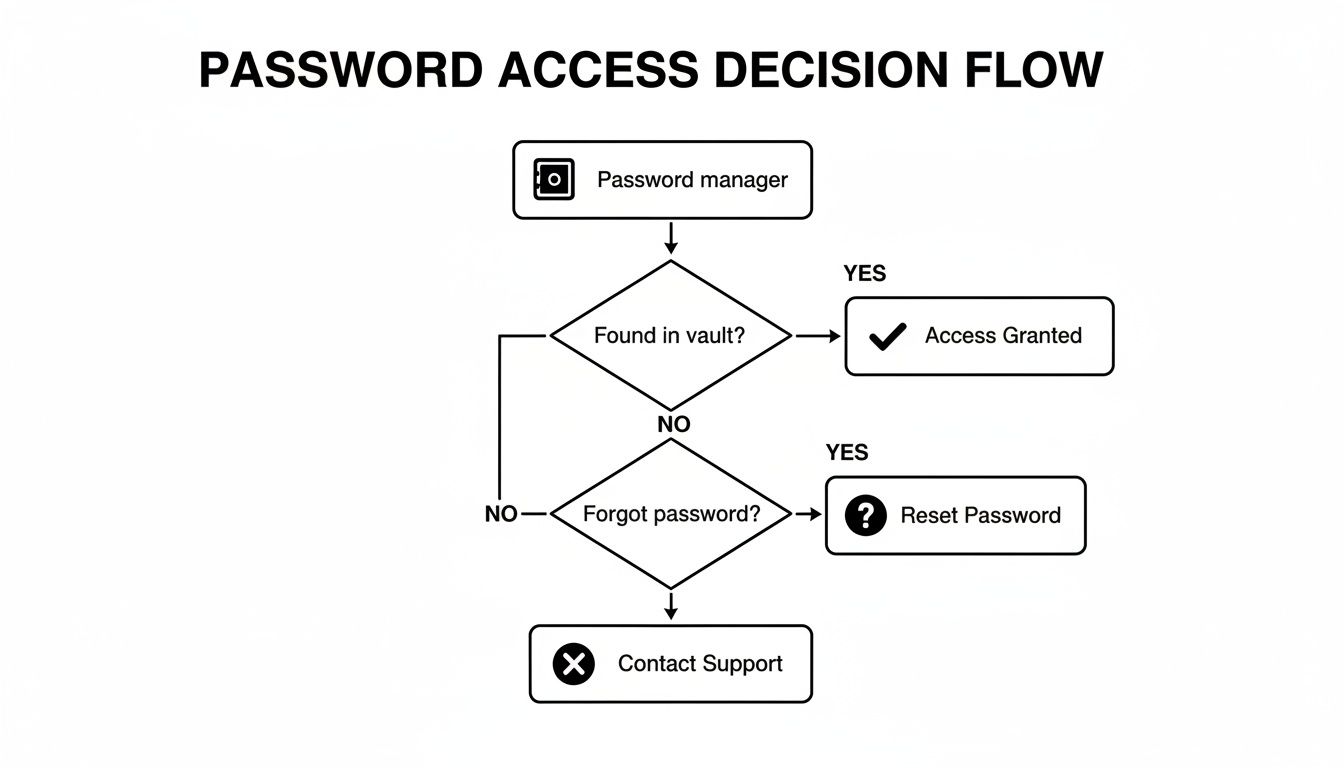
But as you can see, that path hits a dead end when you're dealing with self-custodied assets like cryptocurrency.
When Crypto Changes the Rules
The game is completely different if the password you’ve lost belongs to a non-custodial crypto wallet. Think MetaMask, Trust Wallet, or a hardware device from Ledger or Trezor. There is no "Forgot Password" button. There's no customer service department to call. You are your own bank, and that power comes with some serious responsibility.
Losing a crypto wallet password isn't like losing a Netflix login. It's a much bigger problem. Because of how blockchains are designed, access is controlled only by your private keys. Your password and recovery phrase are the only things protecting those keys.
Key Takeaway: In self-custody crypto, your password isn't just a password—it's the only key to an unbreachable digital vault. If you lose that key and its backup (your seed phrase), whatever is inside is locked away for good. This is where a specialized recovery service becomes your only realistic option.
Calling in the Professionals
So, when does it make sense to bring in an expert? The answer really comes down to what's at stake. You’d never hire a specialist to get back into your streaming account, but for a locked crypto wallet holding a significant amount of money, the calculation changes.
To help you decide, we've put together a quick comparison of what you can do on your own versus when a professional is needed.
Password Recovery Options Self-Service vs Professional
This table compares standard self-service password recovery methods with professional services, helping you decide which path is right for your situation.
| Recovery Scenario | Self-Service Action | When to Call a Professional | Associated Risk |
|---|---|---|---|
| Standard Account (Email, Social Media) | Use the "Forgot Password" link on the login page. | Never. | Low; a new password can be set via email/SMS. |
| Lost Password Manager Master Password | Use account recovery options if you set them up. | If recovery options fail and the vault contains critical, high-value data. | High; without the master password, the vault is permanently locked. |
| Forgotten Hardware Wallet PIN | Enter PIN guesses. After too many failures, the device will wipe. Restore with your 24-word recovery phrase. | If the device is about to wipe and you've also lost the recovery phrase. | Catastrophic; assets will be lost forever if the device wipes and you have no seed phrase. |
Corrupted Wallet File (wallet.dat) |
Attempt to use backup files or repair the file with standard tools. | If backups fail and the file contains significant value. | High; a corrupted file is often unreadable without specialized software. |
| Lost Password with a Known Pattern | Try all password variations you can remember manually. | When you have a good idea of the password structure but can't guess the exact combination. | Moderate; manual guessing is slow and often fails. |
Essentially, you should consider professional help in these high-stakes scenarios:
- You've forgotten your hardware wallet PIN, are on your last attempt before it wipes, and you can't find your 24-word recovery phrase.
- Your Bitcoin Core
wallet.datfile or MyEtherWallet keystore file is corrupted and won't open, but you might know part of the password. - You can't recall the exact password but have a strong memory of its pattern—the base words, numbers, or special characters you tend to use.
- You have an encrypted backup of your wallet, but the password to unlock it is lost.
In these tough situations, services like Wallet Recovery AI use powerful, AI-guided computational attacks. It's not magic—it's a targeted brute-force process that runs through millions or billions of password variations based on your memory fragments. This is how a seemingly hopeless case can turn into a successful recovery, getting you back into your digital assets when all other doors have closed.
A Few Common Questions About Saved Passwords
Okay, so you've tracked down your saved passwords. But finding them is only half the battle. Now come the bigger, more important questions about security and what you should do with what you've found.
I get asked these all the time, so let's clear up a few of the most common points of confusion.
So, Is It Actually Safe to Save Passwords in My Browser?
This really comes down to convenience versus security, a trade-off we make all the time. Letting Chrome or Safari autofill your logins is incredibly easy, and for low-stakes accounts—think online forums or a news site subscription—the risk is pretty low.
The problem is, that convenience has a price. If someone gets access to your unlocked computer, whether physically or remotely, they can waltz right into your browser's settings and view every single password you've saved. This is why a browser's built-in vault just isn't as secure as a dedicated password manager that's sealed with its own master password.
The Bottom Line on Security: When you use your browser's password manager, your computer's login password becomes the master key to everything. Make that password incredibly strong, and for your most important accounts, always add a second layer of defense with two-factor authentication (2FA).
What if I Find a Password That Was in a Data Breach?
Finding out one of your passwords has been exposed in a breach is definitely unnerving. But it's also your chance to lock things down before any damage is done. Breaches are just a fact of life now, with billions of credentials getting leaked every year. If you find one of yours in the wild, you have to move quickly.
Here’s what you do, right now:
- Change the Password Immediately. Log in to the site that was breached and create a new, strong, unique password. Don't even think about using it anywhere else.
- Hunt It Down Everywhere Else. This is the painful part. If you’ve reused that password on other websites (we've all done it), you have to change it on every single one of them. It's tedious, but it's the only way to stop a domino effect of your accounts getting hacked.
- Switch On Two-Factor Authentication (2FA). For that account and any others that offer it, turn on 2FA. It's a lifesaver. Even if a thief has your password, 2FA will stop them cold.
Honestly, think of this as a wake-up call. It's the perfect motivator to finally start using a password generator for every site.
Why Can't I Just "Reset" My Crypto Wallet Password?
This is a big one, and it gets to the heart of how crypto is different from your everyday online accounts. When you forget your Netflix password, you just click a link. Netflix, a central company, can verify it's you and let you back in.
With a self-custody wallet like MetaMask or a hardware wallet like Ledger, there is no central company. You are your own bank. That means you have all the control, but you also have all the responsibility. The password you set is just a local lock on your device; the real key to your funds is your seed phrase (or recovery phrase).
Losing both your password and your seed phrase is the digital equivalent of burying a treasure chest and then losing the only map. The crypto is still there, but it's locked away for good. This is precisely why specialized recovery services are often the only path forward in these situations—and it's why you absolutely must back up your recovery phrase somewhere safe and offline.
When you've tried everything and there are significant assets locked away, it’s time to call in a professional. Wallet Recovery AI uses specialized, AI-powered techniques to help you get back into locked crypto wallets, all done securely and confidentially. You can learn more about our confidential recovery process on our site.
Leave a Reply