
That gut-wrenching moment when your hard drive goes silent—or worse, starts making a terrible clicking sound—is a feeling I know all too well. Before you even think about what’s on it, your first and most important move is to power it down immediately.
Seriously. Unplug it. Continuing to run a failing drive is the fastest way to turn a recoverable problem into a permanent, expensive disaster.
What to Do The Second Your Hard Drive Dies
Your first reaction in that moment of panic will literally make or break your chances of getting your data back. It’s so tempting to keep rebooting, hoping it will magically spring back to life. Don't do it. This is especially true if you hear any strange noises, as you could be causing the read/write heads to scrape across the platters, destroying your data with every rotation.
The hard truth is that hard drives are mechanical beasts, and all machines eventually fail. The numbers don't lie. Backblaze's Q1 2024 drive stats showed an overall annualized failure rate of 1.42%. For some specific models under heavy, constant use, that number can jump to a shocking 9.47%. That’s nearly a one-in-ten chance of failure within a year. You can dig into various data loss statistics to see just how common this is. This isn't a freak accident; it's just a matter of when, not if.
Is It a Physical or Logical Failure?
Your next step is to play detective. You need to figure out if you're dealing with a physical hardware problem or a logical software issue. The recovery path for each is completely different.
-
Physical Failure: This is when the drive itself is broken. Think clicking, grinding, or loud whirring sounds. Sometimes it’s dead silent and won't spin up at all, or your computer's BIOS doesn't even see it. This is a hardware problem, plain and simple.
-
Logical Failure: This is a software-level headache. The drive's hardware is probably fine, but something is wrong with the data structure. This could be a corrupted file system, an accidental format, a nasty virus, or even just mistakenly deleted files. Your computer usually recognizes the drive, but you can't access your stuff.
Spotting the difference early is everything. If you have even the slightest suspicion of a physical failure, stop right there. Your only safe bet is to talk to a professional. Running data recovery software on a physically damaged drive is like trying to fix a flat tire by honking the horn—it's not going to work, and you're just going to make things worse.
The golden rule I tell everyone is this: Stop. Take a breath and assess the symptoms without repeatedly powering on the drive. The worst mistakes are made in those first few minutes of panic, and they often turn a recoverable drive into a paperweight.
This flowchart breaks it down visually, helping you make a quick, safe decision based on what your drive is telling you.
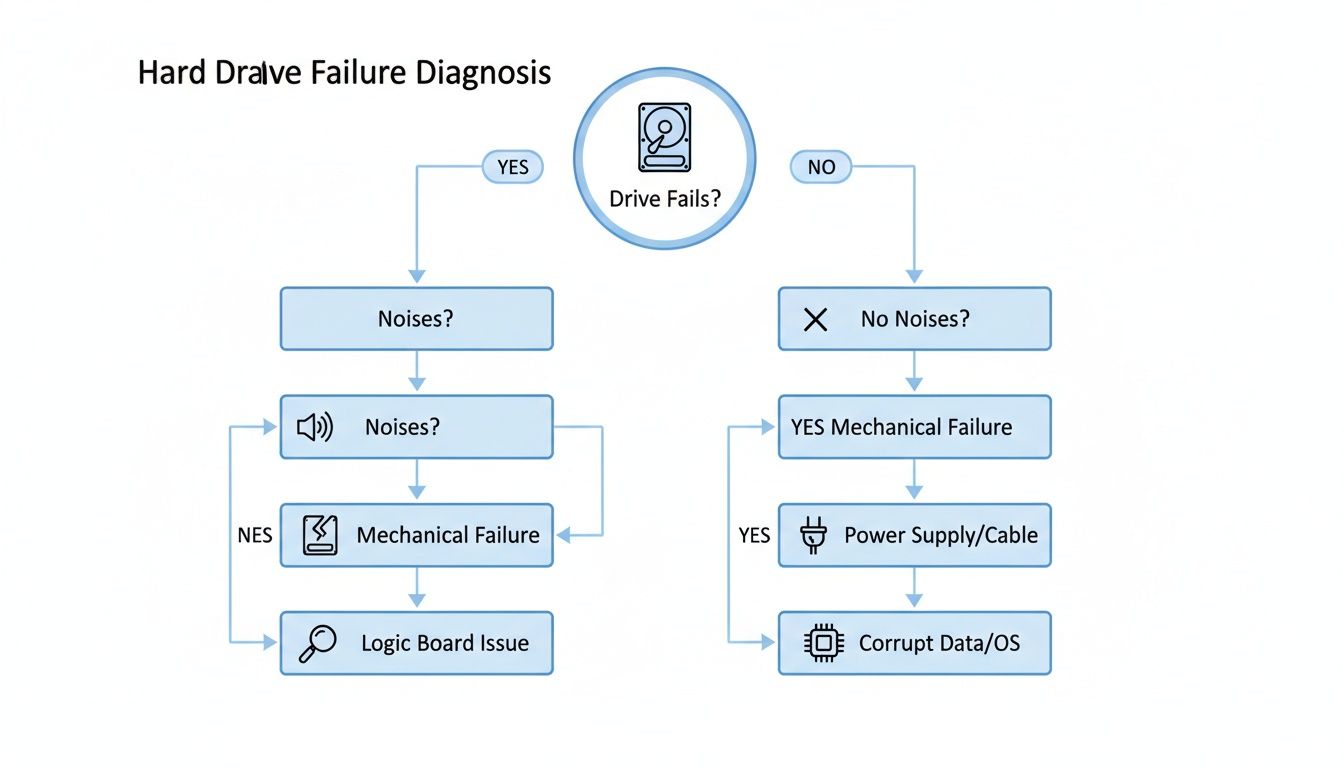
As you can see, any weird noises are a red flag that points directly to a physical problem that needs a pro. A drive that's quiet but won't let you in might just be a logical issue you can tackle with software.
A Quick Guide to HDD Failure Symptoms
Use this quick reference to identify the likely cause of your HDD failure and the immediate action you should take to prevent further data loss.
| Symptom | Potential Cause | Recommended Immediate Action |
|---|---|---|
| Clicking or Grinding Noises | Head crash or platter damage (Physical) | STOP. Power down immediately. Do not run any software. Contact a professional service. |
| No Sound, Not Spinning Up | Failed PCB (electronics) or seized motor (Physical) | Power down. Check power/data cables once. If no change, seek professional help. |
| Drive is Detected, But Data is Missing/Corrupt | File system corruption, accidental deletion, or virus (Logical) | Stop using the drive to prevent overwriting data. Prepare for software-based recovery. |
| Computer is Slow, Freezes, "Blue Screen of Death" | Bad sectors or failing components (Could be Physical or Logical) | Power down. Isolate the drive and test it in another system as a secondary drive to diagnose. |
| Drive Not Recognized by BIOS | Severe electronic failure or physical damage (Physical) | Power down completely. This almost always requires professional intervention. |
This table isn't exhaustive, but it covers the most common scenarios. The key takeaway is always to err on the side of caution.
When the Stakes Are Higher Than Just Photos
Losing vacation photos is one thing. Losing the wallet.dat file for your Bitcoin or the seed phrase for your entire crypto portfolio is a whole different level of catastrophe. When you're dealing with assets like that, stored on a single piece of hardware, the gamble is immense.
The security of your crypto depends entirely on the health of that one drive. When it fails, you don't just need a recovery plan—you need one that puts security and data integrity above all else.
Attempting Data Recovery with Software Tools
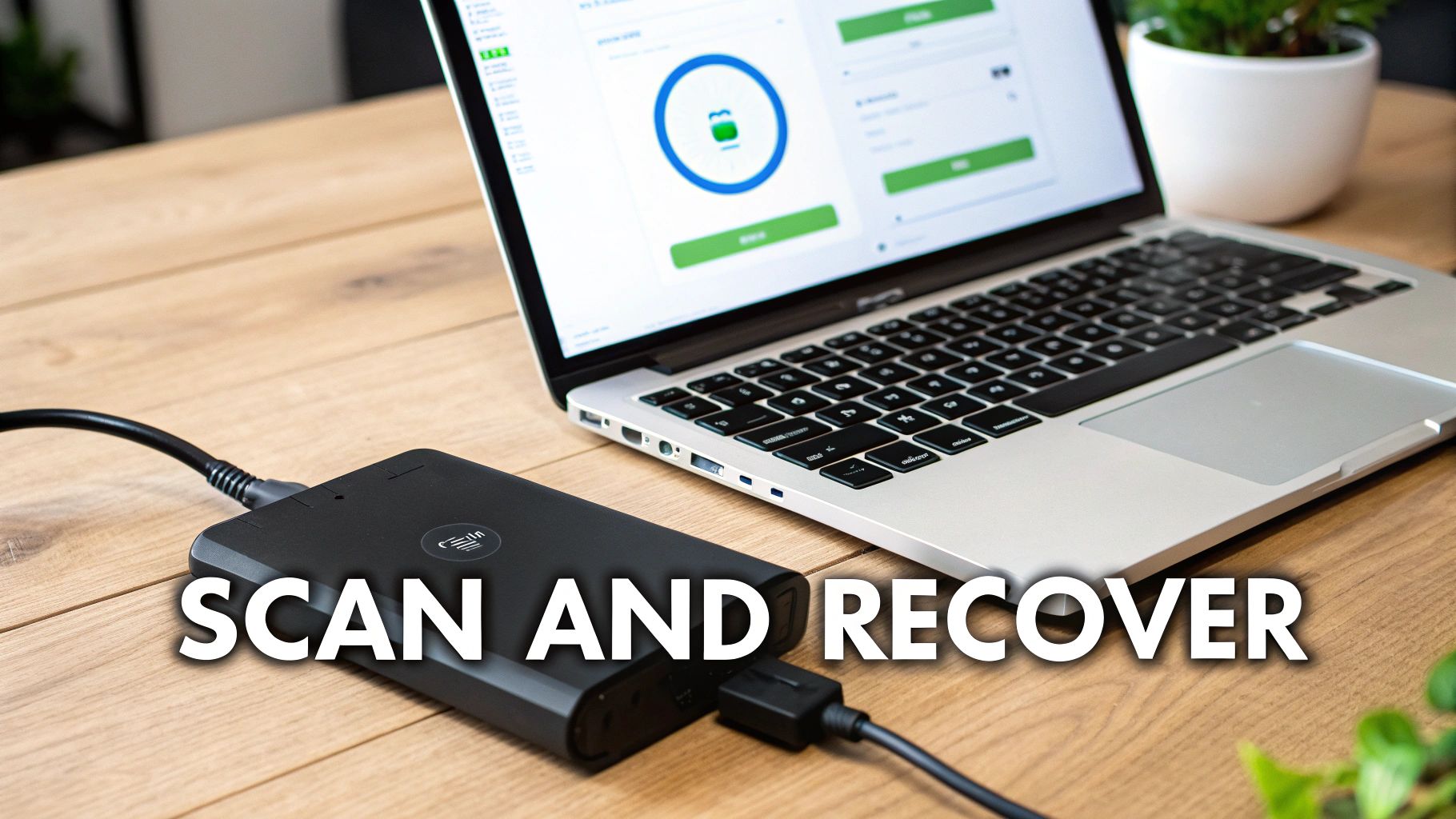
If you've plugged in your drive and your computer still sees it—even if it won't let you access any files—breathe a small sigh of relief. This is a good sign. It usually points to a logical failure, not a physical one, meaning data recovery software is your best first move.
These programs are designed to be digital archaeologists. They bypass the drive's corrupted or broken file system and scan the raw data on the platters directly. They look for file signatures, the unique digital fingerprints that identify a file as a JPG, a DOCX, or an MP4, and then piece everything back together.
Selecting the Right Recovery Software
You'll find a sea of options out there, from free tools to professional-grade suites. Choosing the right one is half the battle.
-
Free Software: Tools like Recuva are great for simple jobs, like undeleting a file you just accidentally sent to the recycling bin. They tend to fall short when dealing with more serious issues like a formatted drive or deep-level corruption.
-
Paid Software: This is where the heavy hitters live. Brands like EaseUS, Stellar, and Disk Drill have much more powerful deep-scanning algorithms. They’re built to tackle nasty situations like RAW partitions and lost file tables. Most offer a free scan that lets you preview what's recoverable before you pay a dime.
Here’s my advice from years of doing this: always start with a free scan from a reputable paid tool. It costs you nothing and shows you exactly what you stand to get back. If you see your priceless photos or critical crypto wallet files in the preview, paying for the license is a no-brainer. If you're dealing with very specific file types, it's worth understanding the finer points of recovering corrupted files from a hard drive.
I can't stress this enough: Never, ever install recovery software onto the failing drive. Doing so writes new data, which could permanently overwrite the very files you're trying to save.
Executing the Recovery Process
Let's walk through a common scenario. Say your 1TB external HDD suddenly shows up as "RAW" and is completely inaccessible. All your family photos and work documents are on it.
First, you need to download and install a trusted recovery program onto your main computer's healthy drive (your C: drive, for instance). Once it's installed, plug in the problem HDD.
The software will show you a list of all connected drives. It’s usually a clean, simple interface designed to get you started quickly.
From here, you simply select the drive and kick off the scan. Be prepared to wait. A "deep scan" on a large or failing drive can take many hours. The software is meticulously combing through every single sector, so grab a coffee and let it work.
When it's done, you'll see a folder structure of everything it found, often organized by file type or, if you're lucky, by the original folder paths.
Saving Your Recovered Data Safely
You’ve found your files. Great! But the next step is just as critical as the scan itself. You must save the recovered data to a different, healthy storage device—another external drive, a separate internal drive, or even a cloud service.
Why is this so important?
- Prevents Overwriting: Saving files back to the source drive is the cardinal sin of data recovery. You're essentially writing over the very data you’re trying to rescue.
- Ensures Integrity: The failing drive is unstable. Trying to write data to it could cause more corruption or push it into complete physical failure.
- Creates a Clean Slate: By recovering to a separate drive, you get a fresh, stable copy of your data. Once the crisis is over, you can back that up properly.
Make sure your destination drive has more than enough free space for everything you plan to recover. Software recovery is an incredibly powerful tool, but you have to use it carefully to avoid making a bad situation much, much worse.
A Few Last-Resort Hardware Tricks
So, the software approach didn't work, and the drive is playing dead. It’s easy to feel that pit in your stomach, but don't give up just yet. Before you box it up for a professional lab, a couple of hardware-level tricks might just save the day.
Fair warning, though: these are hail-mary plays. Think of them as the last thing you try before calling in the pros.
Is It Really the Drive? The Enclosure Swap
I've seen this happen a dozen times. A friend brings me a "dead" external hard drive, convinced all their photos are gone forever. But often, the hard drive itself is perfectly fine—the problem is the little box it lives in.
That plastic or metal case, the enclosure, isn't just a protective shell. It contains a small controller board that acts as a translator, converting the drive's internal SATA connection to the USB port on your computer. When that little board fries, the drive inside goes silent, even though it's perfectly healthy.
The fix can be ridiculously simple: get the drive out of its original case and connect it to your computer a different way.
You have two easy options:
- A SATA-to-USB Adapter: This is a must-have cable for anyone who tinkers with computers. It lets you plug the bare drive directly into a USB port.
- A New Enclosure: You can buy an empty external hard drive case for cheap. Just pop your old drive in, and you've given it a brand-new translator.
If the enclosure's board was the culprit, your drive should pop up on your computer almost immediately. This is a low-risk, high-reward move that has a surprisingly high success rate for "dead" external drives.
An external drive isn't one solid piece of hardware. It's a standard internal drive plus a case with a separate circuit board. When that board fails, the drive inside is often perfectly fine, just trapped.
The Infamous Freezer Trick (Use Extreme Caution)
You've probably seen this one mentioned on dusty old internet forums: the "freezer trick." This is the absolute last-ditch effort for hdd dead recovery data, and it’s surrounded by a ton of myth. Only—and I mean only—try this when professional recovery is not an option and you have absolutely nothing to lose.
The theory behind it targets a specific mechanical problem called stiction. This is when the drive's read/write heads get physically stuck on the magnetic platters, often after a sudden power off or a jolt. The idea is that chilling the drive causes the metal parts to contract just enough to unstick the heads.
So, does it actually work? Rarely. And the risks are massive.
- Condensation: The mortal enemy of electronics. Even in a sealed bag, the temperature shift can create moisture inside the drive. One drop of water on the platters means permanent data loss.
- Electrical Shorts: Moisture can easily fry the printed circuit board (PCB) on the drive's exterior, killing it for good.
- Platter Damage: Even if the heads come unstuck, they might be misaligned. Powering on the drive could cause them to gouge the platters, scraping your data into oblivion.
This is a one-and-done attempt. If it magically works, you might get a 15-30 minute window to frantically copy your most critical files before the drive warms up and dies forever. If it fails, you've likely made the drive unrecoverable, even for a professional lab. Proceed with extreme caution.
When It's Time to Call in the Pros
You've tried the software, maybe even a few hardware tricks, and nothing's worked. Or worse, your drive is now making a rhythmic clicking or a terrifying grinding sound.
Stop. Right now.
Any further DIY attempts are like performing surgery on the side of the road. You're far more likely to cause permanent damage than you are to fix anything. This is the moment a professional data recovery service becomes your only real option for getting your files back.
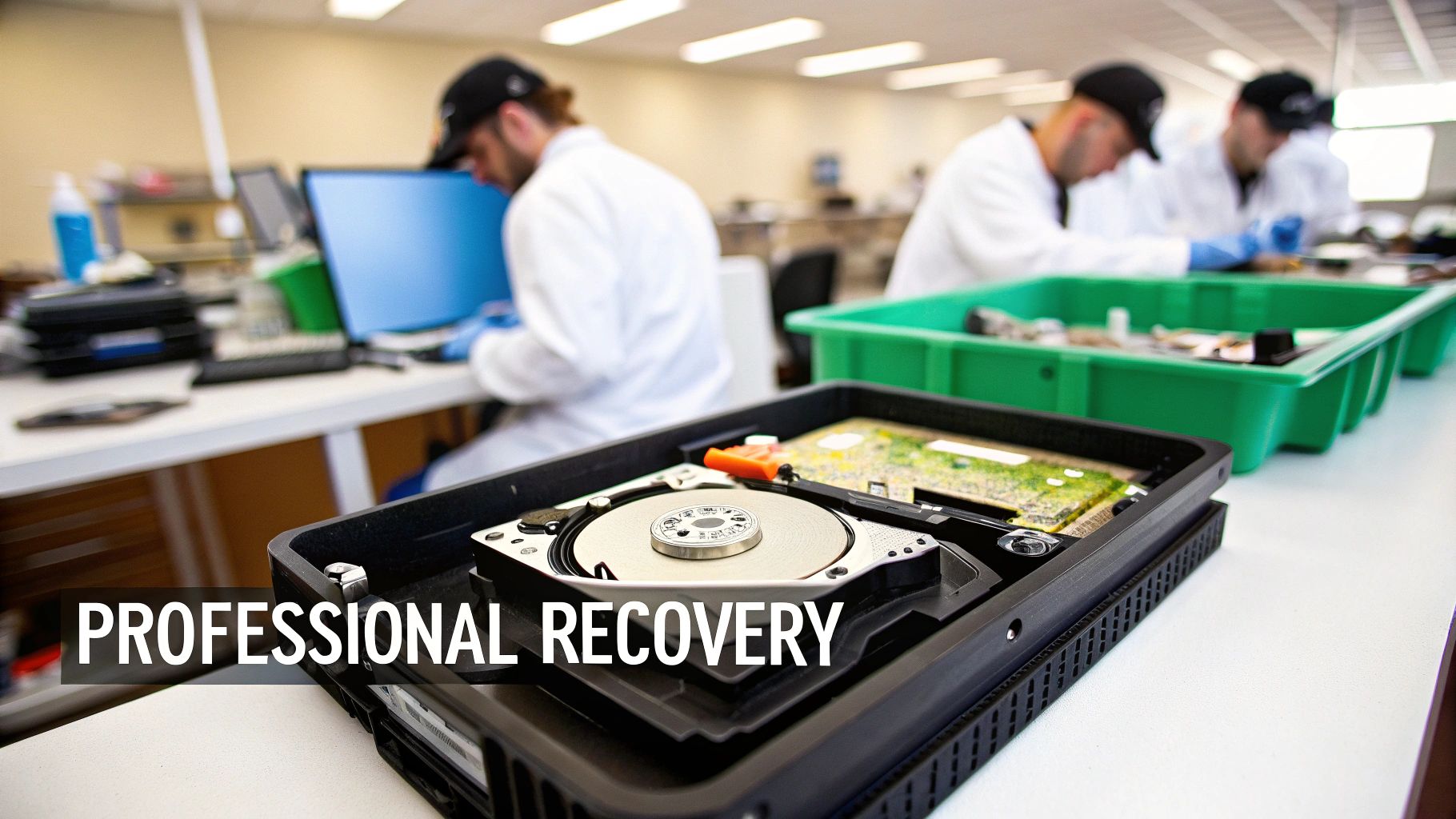
These aren't your local PC repair shops. We're talking about specialists who work in labs that look like something out of a sci-fi movie, performing microscopic procedures on your drive's most delicate components.
A Peek Inside the Data Recovery Lab
When your drive arrives at a proper lab, it doesn’t just get plugged into a computer. It's first taken into a certified cleanroom. This isn't just a tidy room; it's an environment with heavily filtered air to prevent a single speck of dust from contaminating the drive's internal platters.
Why all the fuss? A dust particle that's invisible to you is a giant boulder to the drive's read/write heads, capable of scraping away your data permanently.
Inside this sterile bubble, technicians can safely open up the drive and get to work on incredibly complex fixes:
- Head Stack Assembly (HSA) Replacement: This is the fix for the dreaded "click of death." It involves swapping out the damaged read/write heads with a perfectly matched set from a donor drive.
- Platter Swaps: If the motor that spins the platters has seized up, the platters themselves—the disks holding your data—are painstakingly transplanted into a working drive chassis.
- Firmware Repair: Sometimes the problem is in the drive's own internal software. Technicians use specialized tools to essentially reprogram the drive and bring it back to life.
These procedures require tens of thousands of dollars in equipment, a massive inventory of donor drives for parts, and years of steady-handed experience. To really understand the precision involved, it's worth learning more about clean room data recovery.
How to Spot a Reputable Service
The data recovery world has its fair share of cowboys. Choosing the right lab is critical for both the safety of your files and your wallet. Before you ship your precious drive anywhere, you need to ask some hard questions.
Your Vetting Checklist:
- Do you have a certified cleanroom? Don't just take their word for it. Ask for its ISO class rating. The industry standard is a Class 100 (ISO 5) cleanroom.
- What's your pricing model? The gold standard is a "no data, no fee" policy. This means you only pay if they recover the exact files you need. Run from anyone charging a big, non-refundable diagnostic fee.
- Will I get a firm quote before you start? A good company will perform an evaluation and then give you a fixed price. Vague hourly rates are a huge red flag.
- How do you handle security and privacy? This is non-negotiable, especially if you're trying to recover crypto wallets or sensitive business files. Ask them to walk you through their security protocols for your drive and your recovered data.
Be extremely wary of any company that gives you a single flat-rate price over the phone without even seeing the drive. Every recovery job is unique, and a proper diagnosis is the only way to get an accurate quote.
Setting Realistic Expectations for Cost and Time
Let's be clear: professional data recovery is not cheap. The price reflects the immense investment in equipment, the cleanroom facility, the cost of donor parts, and the years of expertise.
Expect a range from a few hundred dollars for relatively simple logical problems to several thousand dollars for complex mechanical failures requiring donor parts and cleanroom work.
The timeline can also vary. A standard recovery typically takes 5-10 business days, though most labs offer emergency services for a premium. The whole process depends on the severity of the damage and how hard it is to find matching donor parts for your specific drive model.
Shipping Your Drive Safely
The final step is getting your drive to the lab without causing more damage. Tossing it in a padded envelope is a recipe for disaster. It needs to be protected from both static and impact.
The Right Way to Pack Your Drive:
- Place the drive inside an anti-static bag.
- Wrap the bagged drive in at least two inches of bubble wrap on all sides.
- Put the bundle inside a sturdy cardboard box, adding more packing material so it can't shift around.
- Always use a trackable shipping service, and seriously consider insuring the package for its replacement value.
Following these steps gives the technicians the best possible shot at a successful recovery. You've gotten it this far—don't let the final mile be what dooms your data.
Recovering Crypto Wallets From a Dead Hard Drive
Losing a hard drive stings. Photos, documents, memories… it's a painful loss. But losing a hard drive with your crypto wallet on it? That’s a completely different level of disaster. We're not just talking about files anymore; we're talking about the keys to your digital fortune, and the stakes couldn't be higher.
When the HDD holding your wallet.dat file, JSON keystore, or that simple text file with your seed phrase dies, your recovery strategy has to change. Forget everything else. Security and privacy become your only priorities. You’re dealing with the raw ingredients that grant access to your money.
Why Your Local PC Repair Shop Isn't the Answer
A standard data recovery service is built to do one thing: get files back. They might have privacy policies, but their day-to-day processes aren't designed for the extreme sensitivity of private keys. The risk of an accident, a curious employee, or a security lapse might be small, but the consequence is catastrophic—total loss of your funds.
This is where a specialized service, one that actually understands cryptocurrency, is non-negotiable. These experts know a wallet file isn't just another document. They have specific, hardened protocols for handling this exact type of data with absolute discretion.
When you're vetting a recovery service for a job this critical, you need to dig deeper than their five-star reviews.
- Ask about their chain of custody: How is your drive tracked, stored, and physically handled from the moment it arrives? Who, specifically, will have access to it?
- Drill down on data handling: How will the recovered wallet file be delivered back to you? It had better be encrypted. And just as important, how and when will they permanently wipe their copy of your data?
- Verify their internal security: Do they run background checks on their technicians? Is the recovery lab a secure, monitored, access-controlled environment?
A legit service will have clear, immediate answers. If you get any hesitation or vague, corporate-speak responses, hang up the phone. That's a massive red flag.
I once had a client who was about to drop off his failed drive at a generic electronics store. It held a wallet with a life-changing amount of Bitcoin. We stopped him just in time and pointed him to a crypto-aware specialist. The peace of mind was worth every penny of the premium he paid.
The Most Important Step: What to Do After You Get the File Back
Getting your wallet file back is not the end of the story. It’s the halfway point. The second you regain access, you must operate under one assumption: your private keys have been exposed.
It doesn't matter how much you trust the service. The goal now is to make those old keys worthless by moving your funds to a new, pristine, secure wallet. Don't just import the old wallet and keep using it. That's a rookie mistake.
You need to be fast and deliberate to neutralize any risk from the hdd dead recovery data process.
Your Post-Recovery Action Plan:
- Set Up a New, Clean Wallet: Before the recovered file even touches your computer, get a brand-new wallet ready. A hardware wallet like a Ledger or Trezor is the gold standard here. Generate a totally new seed phrase and back it up—offline, on paper or metal, in multiple secure places.
- Sweep Everything. Immediately. As soon as you open the recovered wallet, don’t mess around with small test transactions. Create and sign a single transaction to send the entire balance of every single asset to the addresses generated by your new, clean wallet. This is called "sweeping."
- Burn the Old Wallet. Once the transaction is confirmed on the blockchain and your funds are safe in the new wallet, the old one is dead to you. Consider those recovered private keys compromised forever. Delete the file, shred any backups, and never use them again.
This isn't paranoia; it's just smart security. By doing this, you ensure that even if a ghost of your old private key exists somewhere, it now controls a wallet with a zero balance. You’ve successfully closed the loop on a potential security nightmare and secured your wealth for the long term.
Your Hard Drive Recovery Questions, Answered
When you're staring at a dead drive and panicking about your files, the world of data recovery can feel like a maze. Let's cut through the noise and get straight to the questions I hear all the time.
Can You Really Recover Data from a Completely Dead Hard Drive?
In most situations, yes. It's a common misconception that a "dead" drive means the data is gone forever.
A hard drive that won't power on or show up is usually suffering from a failed component, like its main circuit board (the PCB) or a seized motor. Professional recovery labs can swap out these broken parts in a sterile cleanroom environment. Even in cases of serious physical damage, the data is often perfectly safe on the magnetic platters inside.
Here's the key takeaway: The platters—the shiny discs holding your actual data—are incredibly resilient. Unless they've been severely scratched or shattered, a skilled technician has a very good chance of getting your files back.
What’s the Real Cost of Professional Hard Drive Recovery?
This is the big question, and the answer is always: it depends. There's no flat fee because every single recovery job is different.
- Logical Failures: If the drive works fine but you can't access your files due to corruption or accidental deletion, you're on the lower end of the cost spectrum. Think somewhere in the $300-$700 range.
- Mechanical Failures: This is where things get more involved. Problems like a head crash or a dead motor require a cleanroom and donor parts from an identical drive. Costs for these complex jobs usually start around $800 and can go up to $2,500 or even more.
A non-negotiable rule: only work with a lab that offers a "no data, no fee" policy. They should give you a firm, final quote after they've diagnosed the drive, not before.
How Long is This Going to Take?
Patience is key here. The timeline is dictated entirely by what's wrong with your drive.
A simple logical recovery could be done in just a couple of business days. But if the lab needs to track down a rare donor drive to source parts for a mechanical failure, it could take a week or longer.
A realistic timeframe for a typical professional recovery is about 5 to 10 business days. If you're in a real bind, most labs offer emergency services for a higher price.
Is It Safe to Try Data Recovery Software Myself?
This is a critical one. Data recovery software is a fantastic tool, but only for logical failures. That means the drive is physically healthy, but you've run into issues like accidental formatting, file deletion, or a corrupted partition.
If your drive is making any strange noises—clicking, grinding, beeping—shut it down immediately. Do not run recovery software. Running scans on a physically failing drive forces the read/write heads to move across the platters, which can cause catastrophic scratches and turn a recoverable drive into a paperweight.
Always figure out why the drive failed first. If you have any doubt, step away from the software.
At Wallet Recovery AI, we know that recovering a lost crypto wallet is about more than just files—it's about reclaiming your assets. If your hard drive is holding a wallet you can't access, our specialized, security-first process is built to get it back. Find out more about how we work at https://walletrecovery.ai.
Leave a Reply