
It’s a feeling we all know too well. That moment of panic when you need a password, and it’s just… gone. But before you hit the "Forgot Password" link, your first move should always be to check the places you've already saved it.
Modern browsers and devices are pretty good at keeping our digital keys safe. They act like built-in keyrings, automatically saving login details so you don't have to. More often than not, this is the quickest way to answer the question, "Where on earth did I save that password?"
The First Places to Look for Your Passwords

Before you start tearing your digital life apart or calling in a pro, start with the basics. Every time you've clicked "Save password for this site?" in your browser, you were adding an entry to a built-in vault.
This convenience is a double-edged sword. It's incredibly helpful, but it also means your passwords can be scattered. Some might be in Chrome on your work laptop, others saved directly to your iPhone, and a few more tucked away in Firefox on your home PC. Finding the right one just means knowing where to look first.
To get started, it helps to have a quick mental map of where your passwords might be hiding.
Common Password Storage Locations at a Glance
This table gives you a cheat sheet for the most common digital environments. Use it to quickly pinpoint where your credentials are most likely stored.
| Environment | Primary Location | Best For |
|---|---|---|
| Web Browsers | Built-in Password Manager | Finding website logins saved on a specific computer (e.g., Chrome, Safari, Firefox, Edge). |
| Operating Systems | Credential Manager / Keychain | Locating system-level passwords like Wi-Fi keys, app logins, or network credentials. |
| Mobile Devices | Google Password Manager / iCloud Keychain | Accessing passwords for apps and websites saved directly on your Android or iOS device. |
| Dedicated Managers | Third-Party Vault (e.g., 1Password) | Centralized, secure storage for all your passwords, accessible across all devices. |
| Cryptocurrency | Wallet Files / Seed Phrases | Recovering access to crypto wallets, which use unique keys instead of traditional passwords. |
This overview should help narrow down your search. If you mostly use your phone, start there. If you’re trying to log into a site you only use on your desktop, check that browser first.
Why Are There So Many Passwords Anyway?
The sheer number of accounts we manage is mind-boggling. Think about it: the average person is juggling around 168 personal passwords and another 87 for work. That’s over 250 unique logins, from banking and email to social media and crypto wallets.
It’s a massive security challenge. In fact, nearly 46% of people had passwords stolen in 2024 alone, with password reuse being a huge factor. You can dig deeper into these password statistics and their impact on security. This is why knowing where your passwords live isn't just about convenience—it's fundamental to your digital safety.
Key Takeaway: Your browser and your device's operating system are the most accessible places to find saved passwords. Always start your search there before trying more complex methods.
This guide will walk you through the exact steps, starting with these common locations. We’ll cover:
- Finding passwords in browsers like Chrome, Safari, and Firefox.
- Locating credentials on your Windows PC or Mac.
- Uncovering saved passwords on your Android or iOS device.
Once you’ve mastered these first checks, you’ll be able to solve most forgotten password problems on your own. From there, we’ll dive into more specialized situations, like finding data from third-party managers and recovering critical access keys for your crypto wallets. Let's get started.
Find Saved Passwords in Your Web Browser
When you’re locked out of an account, your first stop should almost always be your web browser. For years, we’ve been instinctively clicking "Save password" on sites we visit, turning browsers like Chrome, Firefox, and Safari into a massive—if slightly disorganized—digital keyring.
This feature is a lifesaver. It’s not just for sites you visit daily; it's a goldmine for credentials you set up years ago and completely forgot about. I once used my old Chrome passwords to regain access to a freelancing platform I hadn't touched in over five years. The login was right there, waiting.
All modern browsers collect these saved credentials in a dedicated "Password Manager," usually found within the settings menu. You'll have to click through a few menus, but the process is quite similar across the board. Expect to verify your identity with your computer's password or a fingerprint scan before you can see the saved data.
Navigating to Your Passwords in Major Browsers
Finding the password menu can sometimes feel like a treasure hunt, but each browser provides a clear path once you know where to look. Your target is always the security or privacy settings, where the password manager is stored.
Here’s a quick rundown for the most popular browsers:
- Google Chrome: Click the three dots (top-right), go to Settings, and choose Autofill and passwords. From there, you'll see a link to the Google Password Manager.
- Mozilla Firefox: Hit the three horizontal lines (the "hamburger" menu), select Settings, then navigate to the Privacy & Security panel. Just scroll down to Logins and Passwords.
- Microsoft Edge: Select the three dots, open Settings, and find Profiles on the left. Click Passwords under your profile.
- Apple Safari (on macOS): Open the browser and click Safari in the top menu bar. Choose Settings (or Preferences on older macOS versions) and go to the Passwords tab.
Once you’re in, you’ll find a searchable list of every website you’ve saved credentials for.
Viewing, Exporting, and Deleting Saved Logins
Your browser's password manager is more than just a list of logins; it’s a control panel for your digital identity. It provides several functions that are critical for maintaining good digital hygiene, allowing you to view, copy, edit, or delete any entry.
For example, the Google Password Manager offers a clean, searchable interface that clearly lists all your accounts. It also flags weak, reused, or compromised passwords—a vital security feature you shouldn't ignore.
If you rely heavily on Chrome, our guide on how to find saved passwords in Google Chrome digs even deeper with more specific tips.
One of the most powerful features is the ability to export your passwords. This creates a
.csvfile with all your saved logins, which is perfect for creating a backup or migrating to a dedicated password manager. But be warned: this file is an unencrypted, plain-text document containing all your secrets.
Handle that .csv file with extreme care. After you've used it, delete it securely from your computer. Leaving it in your downloads folder is like leaving a master key to your entire digital life out in the open. It's also smart to regularly review your browser's password list and delete logins for old, unused accounts.
Find Passwords Stored Directly On Your Devices
Your browser isn't the only place hiding credentials. Both your computer and phone are quietly running their own password-keeping operations in the background. Your operating system (OS) often saves logins for things that never touch a browser, like network passwords, system apps, and other software.
I’ve seen this save the day countless times. I once had a client who couldn't find a critical Wi-Fi password for a remote office they hadn't visited in months. Their browser was a dead end, but their laptop’s OS had it neatly filed away. When you're looking for passwords that aren't for websites, these system-level managers are exactly where you need to dig.
Finding Passwords on Your Windows PC
On a Windows machine, the place to look is the Credential Manager. It’s a bit of a hidden gem, but it's the central vault for network shares, remote desktop connections, and many applications that use Windows for authentication.
Getting there is simple. Just open the Start Menu, type “Credential Manager,” and hit Enter. You’ll find two main sections:
- Web Credentials: This area often mirrors what your browser saves, but it can also hold logins for Microsoft accounts and various desktop apps.
- Windows Credentials: This is where the real gold is. It stores passwords for network drives, system services, and other machine-specific logins you may have long forgotten.
Once you’re in, just click on an entry and select Show next to the password field. For security, Windows will ask for your account password or PIN to prove it’s you before it reveals the credential.
Unlocking Mac's Keychain Access
For anyone on a Mac, your command center is Keychain Access. The name undersells it—this is a powerful, secure database for nearly every secret on your machine, from passwords and private keys to secure notes. If you’re using iCloud Keychain, it seamlessly syncs all this data across your iPhone, iPad, and Mac.
To open it, use Spotlight search (Command + Spacebar) and type “Keychain Access.” Inside, you'll see a searchable list of every stored item. Find the service you need, double-click it, and check the "Show password" box. Just like on Windows, macOS will require your user password to display it.
Keychain is our go-to for recovering Wi-Fi passwords, forgotten app logins, and credentials for email accounts set up in the native Mail app. It’s an essential tool for any Mac recovery case.
Mobile Devices: Your Pocket Password Vaults
Let’s be honest, your phone is probably the device you use most, and it comes with its own powerful password manager built right in.
On an iPhone or iPad, you just need to go to Settings > Passwords. After you authenticate with Face ID, Touch ID, or your passcode, you’ll get a full, searchable list of every password saved in Safari and within your apps. The list is often more comprehensive than people expect.
On Android, this is all tied directly to your Google Account. A staggering 70% of users rely on these built-in managers, with Google’s system securing credentials across more than 2 billion devices worldwide.
To access them, head to Settings and search for "passwords" to open the Google Password Manager. Here you’ll find everything from Chrome autofill data to app-specific logins, all synced with your account. For a deeper dive into the specifics, you can learn more about how Android manages passwords and security alerts.
Recovering Crypto Wallet Access Keys
Losing access to your crypto wallet is a gut-wrenching feeling. Unlike a bank account or an email login, there's no customer service desk to call and no simple "forgot password" link. In the world of crypto, when you're looking for your "password," you're really looking for your keys.
This is a totally different ballgame because you are your own bank. That means all security and, more importantly, all recovery responsibilities fall squarely on you. The terminology can get confusing fast, so let's get clear on what you're actually searching for.
The Three Keys to Your Crypto Kingdom
Knowing the difference between these three things is the absolute first step to getting your funds back. They all sound similar, but only one is the master key that unlocks everything.
- Wallet Password: This is the password you created to lock the wallet app itself—think MetaMask or Trust Wallet. It’s a local password for your device, meant to stop someone from opening the app if they get ahold of your phone or computer. Losing it is a pain, but it’s not the end of the world if you have the next item on this list.
- Seed Phrase: This is the holy grail. Also called a recovery phrase, it’s a specific list of 12 to 24 words that can restore your entire wallet on a brand-new device. If you have your seed phrase, you have your crypto. It’s that simple.
- Private Keys: Your seed phrase is used to generate a nearly endless list of private keys, with one for each "account" or address inside your wallet. For 99% of people, you never need to deal with individual private keys. The seed phrase is your all-in-one backup.
If you’re feeling lost, taking a moment to understand what a wallet seed phrase is and why it matters will give you vital context for the search ahead.
Common Hiding Spots for Your Seed Phrase
Alright, let's start the real hunt. Cast your mind back to the day you set up your wallet. The app almost certainly flashed a big, bold warning telling you to write down your seed phrase and store it somewhere safe. Where could that be?
Security Alert: Be incredibly careful while you're searching. Scammers love to target people in your exact situation. Never, ever enter your seed phrase into a random website or give it to anyone claiming to be "support." The only place your seed phrase should go is directly into your official wallet software when you're performing a recovery.
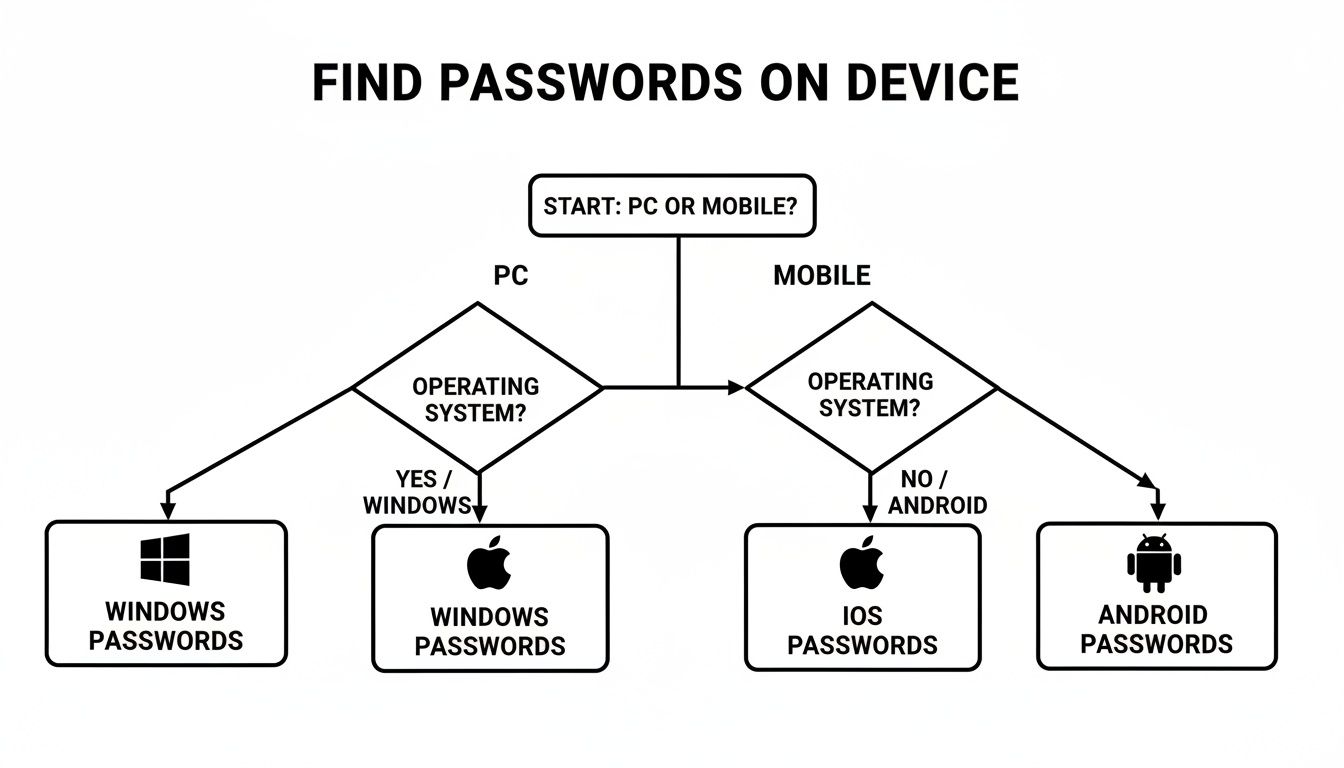
This flowchart can help you organize your search by mapping out the common places passwords get stored on different devices.
Based on our experience helping thousands of users, these are the most common places people stash their recovery phrases:
- Handwritten on a piece of paper and tucked into a desk drawer, a fireproof safe, or filed away with other important documents like passports and birth certificates.
- Saved in a plain text file (e.g.,
notes.txt,wallet_backup.txt) on an old computer, an external hard drive, or a USB stick. - Stored as a "Secure Note" inside a password manager like 1Password or Bitwarden.
- A photo of the words saved in a hidden folder on a phone or uploaded to cloud storage (this is a very risky method, but it happens).
Good news for some: if you still have your wallet unlocked on one device but just can't remember the password for another, you can often reveal the seed phrase right from the settings menu. For example, in MetaMask, you would head to Settings > Security & Privacy > Reveal Secret Recovery Phrase.
So, you've hit a wall. You’ve combed through your browser's password manager, dug into your device’s keychain, and turned every digital stone, but that crucial password is just… gone. When you're staring at a login screen with that sinking feeling, it’s time to face a tough question: what now?
This isn't like forgetting your Netflix password. For high-value assets like cryptocurrency wallets, a lost password can mean a permanent loss of funds. The standard "Forgot Password?" link simply doesn't exist in the decentralized world of crypto.
When You Need a Specialist
If you're dealing with a forgotten crypto wallet password, a corrupted keystore file, or a hardware wallet PIN you can't recall, you're beyond the point of a simple DIY fix. These are complex cryptographic problems that demand specialized tools and deep expertise.
Trying to brute-force a password yourself is almost always a dead end. Worse, you could accidentally corrupt the wallet file for good, locking yourself out forever. This is where professional recovery services come in.
Bringing in a professional isn't admitting defeat—it's using the right tool for a high-stakes job. It can be the one thing that stands between writing off your assets and successfully getting them back.
How Advanced Recovery Actually Works
Think of it as hiring a master locksmith for a one-of-a-kind digital vault. We take the fragments of information you can remember—pieces of an old password, important dates, common phrases you use—and feed them into our systems to intelligently guide the search.
This process involves a few key steps:
- Intelligent Brute-Forcing: Our algorithms don't just guess randomly. They use your hints, common password structures, and massive dictionaries to test logical, patterned combinations.
- Corruption Repair: For issues like a damaged
wallet.datfile for Bitcoin or a faulty Ethereum keystore file, we use specialized tools to repair the file structure and make it readable again. - A Completely Secure Process: We operate under strict NDAs. The entire recovery attempt happens on air-gapped, offline systems to ensure your funds and personal data remain 100% private and secure.
For example, we’ve successfully helped clients regain access to Bitcoin wallets from as far back as 2013, where the password was a long-forgotten phrase. By providing a few clues, our systems reconstructed the password and restored their access.
At Wallet Recovery AI, we use these same secure, systematic techniques to give you the best possible chance of reclaiming your crypto.
Common Questions After Finding Your Passwords
Once the initial search is over, the conversation almost always shifts. Finding your old passwords is one thing; keeping them secure so this never happens again is another.
Here are the answers to the questions I hear most often from clients who want to move from frantic recovery to a solid security plan.
Is It Safe to Store Passwords in My Browser?
It’s convenient, no doubt. But it's not the most secure method.
Browsers like Chrome, Safari, and Edge have gotten better at encryption, but they are a massive target for malware. If your device gets compromised, a malicious script can often hoover up every password stored in your browser in one go.
For serious security, a dedicated password manager is non-negotiable. These tools are built with a zero-knowledge architecture, meaning even the company that makes the software can't see your passwords. They also come packed with features like secure sharing and immediate breach alerts that browsers just can't match.
What if I Find My Password in a Data Breach?
First, don't panic. But you do need to act immediately. The second you confirm your password was part of a breach, you have to assume that account (and any others using the same password) is compromised.
Here’s your action plan:
- Change the password on the breached account right away. Make the new one long, random, and unique.
- Update it everywhere else. This is the painful part, but it's critical. If you reused that password, you now have a list of other accounts to update.
- Enable multi-factor authentication (MFA). This is your best defense. An authenticator app or security key will stop an attacker cold, even if they have your password.
What Is the Safest Way to Store My Crypto Seed Phrase?
This is, without a doubt, the most important security question for anyone holding cryptocurrency. Your seed phrase is the master key to your funds. Protecting it is everything.
Never, ever store it digitally. That means no text files on your desktop, no screenshots in your photo gallery, and definitely no drafts in your email or notes in a cloud drive. Hackers build scripts specifically to hunt for these files.
The only safe way is offline:
- Write the phrase down on paper and store it in at least two different, secure physical locations. Think a fireproof safe at home and a safe deposit box at a bank.
- For maximum peace of mind, consider stamping or engraving your phrase onto a metal plate designed for crypto backups.
Treat your seed phrase like it's a bar of gold—because in the world of crypto, it is.
When you've exhausted all self-recovery options, especially with high-value crypto wallets, you need an expert. Wallet Recovery AI uses advanced, secure techniques to help you regain access. If you're facing a lost wallet password or have a corrupted file, submit an inquiry to begin the confidential recovery process.
Leave a Reply