
It’s that sinking feeling we’ve all had—staring at a login screen, completely blanking on a password you know you’ve used before. Your PC is often an unintentional vault, saving credentials through your browser or system tools without a second thought.
But where do you even begin to look? The quickest spots are usually your web browser’s built-in password manager (like in Chrome or Edge) or the Windows Credential Manager, which you can find right in your Start Menu. Most of the time, your lost password is hiding in one of those two places.
Why Bother Finding Your Saved Passwords?
The hunt for a lost password isn't just about getting back into an old social media account. It’s about regaining control over your digital life. Whether you’re trying to access a forgotten email, a banking portal, or worse, a crypto wallet holding real assets, the frustration is real and the stakes can be high.

Knowing how to unearth these saved credentials is a fundamental skill for anyone living online.
Real-World Scenarios Where This Comes Up
You run into this problem more often than you’d think. Maybe you just got a new phone or laptop and need to move all your logins over. Or perhaps you're the designated "tech support" for your family, trying to help a relative who can’t get into their email.
Sometimes, the online service itself has a clunky or nonexistent password reset process, leaving you no choice but to dig through your computer's memory. And when it comes to things like a MetaMask or Trust Wallet password, losing access isn't just an annoyance—it could mean your funds are gone for good.
It’s no wonder we forget. The modern employee juggles an average of 87 work-related passwords. This has fueled the global password management market, which is expected to jump from $2.94 billion in 2026 to $8.07 billion by 2031. You can learn more about this trend and the growing market for password management.
It’s Also a Security Check-Up
Here's the flip side: while it’s great to know how to find your passwords, you also need to understand the risks. Any password saved locally on your device is a potential target. If your computer ever gets hit with malware or someone gains unauthorized access, those saved credentials are low-hanging fruit for a thief.
This is why learning where your passwords are stored is the first step toward tightening your security. Once you know how to find them, you can also:
- Audit your saved logins and delete any for highly sensitive accounts (like banking or primary email).
- Export them into a dedicated, more secure password manager.
- Spot weak or reused passwords that are just begging to be updated.
Ultimately, mastering these skills isn't just about password recovery. It's about taking proactive control of your digital security.
Let's be honest, your web browser is probably your life's digital filing cabinet. It holds the keys to everything from your Netflix account to your online banking portal. So, when you've forgotten a password, the browser is the first, most obvious place to look. It’s a fundamental skill for anyone using a PC.
All the big players—Google Chrome, Microsoft Edge, and Mozilla Firefox—come equipped with their own password managers. They all do the same basic job: storing your login details and filling them in for you automatically. The good news is they don't just hand over this info to anyone. You'll always be asked for your Windows password or PIN to prove it's really you trying to peek at a saved password.
Finding Passwords in Google Chrome
Most of us live our digital lives in Google Chrome, so it's no surprise that it's often holding the lion's share of our passwords. Getting to them is simple once you know the shortcut.
Sure, you can click through the settings menus, but who has time for that? The fastest way is to just type chrome://settings/passwords directly into the address bar and hit Enter. Boom, you're there.
You’ll land right on the Password Manager page, which looks something like this:
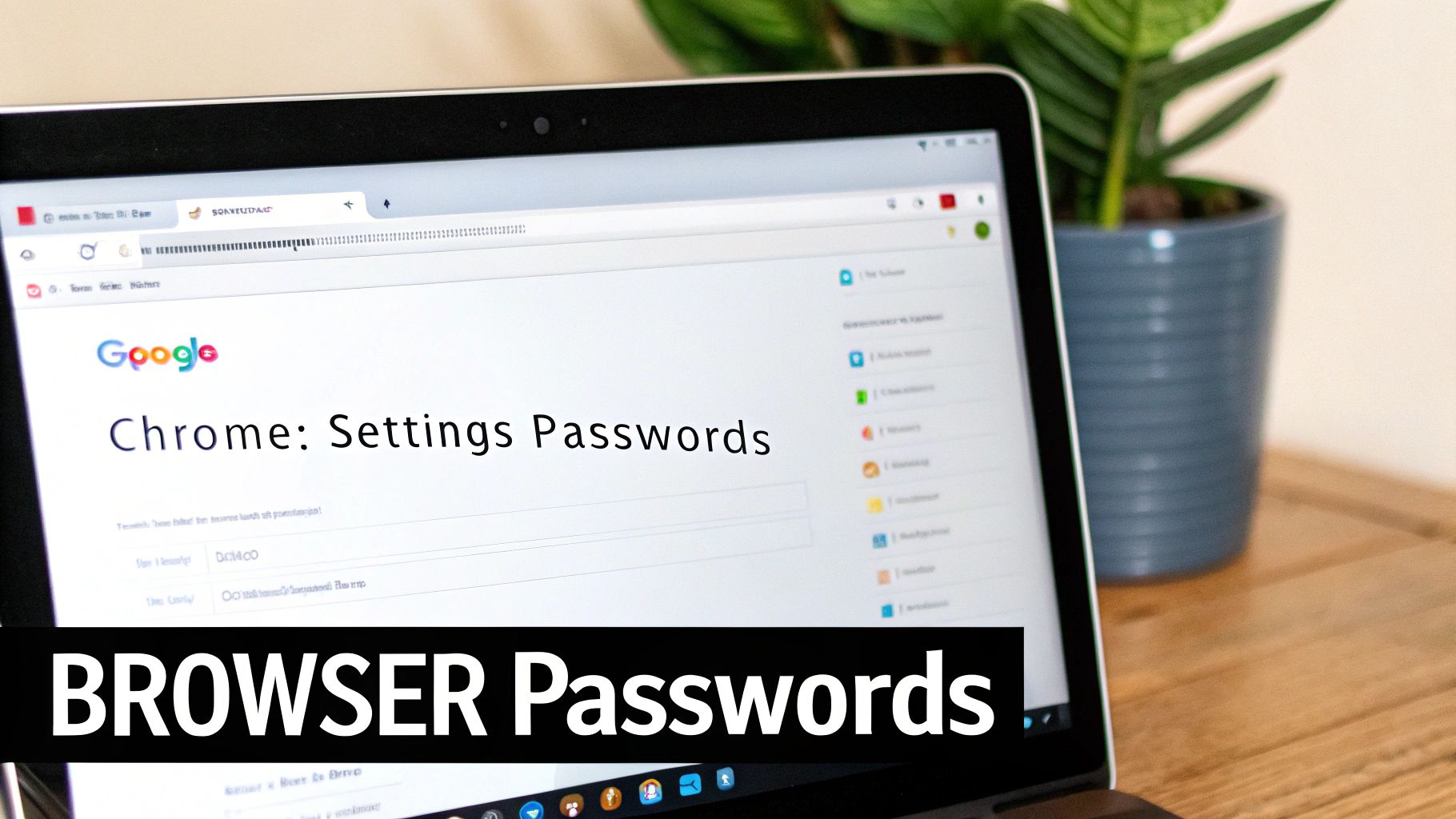
This screen lists every single site you've ever saved a password for, making it dead simple to track down the one you're after.
From here, you can:
- Find a specific site instantly using the search bar.
- Reveal a password by clicking the little "eye" icon (this is where it'll ask for your PC login).
- Export all of them as a
.csvfile. This is incredibly handy if you're finally making the switch to a dedicated password manager app.
Accessing Credentials in Microsoft Edge
Since Microsoft rebuilt Edge on the same foundation as Chrome (Chromium), the experience of managing passwords is very similar. If you know how to do it in Chrome, you'll feel right at home here. The "long way" is through Settings and more > Settings > Profiles > Passwords.
But again, let's take the shortcut. Just type edge://settings/passwords into the address bar. It takes you to the exact same kind of page, and just like Chrome, it’ll prompt you for your Windows credentials before showing you anything sensitive.
Locating Logins in Mozilla Firefox
Firefox has always prided itself on user privacy, and its password manager, historically known as Lockwise, is no exception. Finding your saved logins is just as straightforward.
You can click the menu button (the three horizontal lines) and then select Passwords. For an even quicker route, just pop about:logins into the address bar. This opens up the main interface where you can view, search, edit, or delete any of your saved credentials.
For a quick summary, here's a handy table to get you where you need to go in a hurry.
Quick Access Paths for Browser Passwords
| Browser | Direct Access Path | What You Can Do |
|---|---|---|
| Google Chrome | chrome://settings/passwords |
Search, view, edit, and export saved passwords. |
| Microsoft Edge | edge://settings/passwords |
View, edit, and manage login credentials. |
| Mozilla Firefox | about:logins |
Search, view, copy, edit, or remove saved logins. |
Keep these shortcuts in mind—they'll save you a few clicks and a lot of frustration next time you're on a password hunt.
It’s a scenario I see all the time: someone trying to access an old crypto wallet, but the password is a distant memory. This is especially risky when you consider that 64% of employees admit to reusing passwords. It’s a habit that leaves them wide open to credential-stuffing attacks, which happen globally every 39 seconds. For anyone holding Bitcoin or Ethereum in a wallet like MetaMask, that’s a terrifying thought. The growing awareness of these risks is fueling a massive industry; the global password management market, valued at USD 3.72 billion in 2025, is expected to explode to USD 27 billion by 2035. You can dig into the full report on the password management market to see just how fast it's growing.
Diving Into the Windows Credential Manager
Your PC has a secret password vault, and it's not in your browser. Tucked away inside the operating system is the Windows Credential Manager, a native utility that keeps a log of login details for all sorts of services your browser doesn't even know about. Think of it as your computer’s own little black book of secrets.
This is the place to look when the password you need isn't for a website. It's designed to remember credentials for things like network drives, Remote Desktop connections, and even desktop apps like Outlook. When you've hit a dead end with your browser's password manager, this is your next stop.
Web Credentials vs. Windows Credentials
Once you open up the Credential Manager, you'll see two main categories right away: Web Credentials and Windows Credentials. It’s crucial to know what each one does.
Web Credentials: This is mostly a holdover from the Internet Explorer days, but you might still find logins saved by Microsoft Edge here. While Edge now keeps most of its data neatly inside the browser, some older entries or system-level web logins can still pop up in this section.
Windows Credentials: Now this is where it gets interesting. This area is the vault for a whole range of system-level passwords. Ever connected to a shared drive at the office, set up an email client to talk to a mail server, or accessed another computer remotely? The login info for those connections probably lives right here.
In short, Web Credentials handles a few specific internet logins, while Windows Credentials is all about managing access to the resources your PC connects to on a local or private network.
A classic real-world example is when a mapped network drive at work suddenly asks for a password out of the blue. Nine times out of ten, the culprit is an old, expired password stored in the Windows Credentials section. A quick update here can get you reconnected in seconds, no IT ticket required.
How to Get In and Find What You Need
Getting to the Credential Manager couldn't be easier. Just hit the Windows key, start typing "Credential Manager," and press Enter. You'll be greeted with a no-frills interface showing the two sections we just discussed.
Ready to find a password? Here’s how it works.
- First, click on either Web Credentials or Windows Credentials to browse the saved entries.
- Scan the list for the service or app you're looking for. Entries are usually labeled with a website URL or the name of the network resource.
- Click the little dropdown arrow on the right side of the entry to expand it and see the details.
- You'll see the password hidden by dots, with a "Show" link right next to it. Give that a click.
For your own security, Windows will immediately ask you to enter your computer's password or PIN. Once you've verified it's you, the saved password will appear in plain text.
This little tool is a lifesaver for troubleshooting access problems that go way beyond a simple forgotten website login. If you deal with any kind of complex system access, understanding how to find Windows passwords in the Credential Manager is a fundamental skill. It gives you a much deeper level of control over your PC's security and day-to-day usability.
Advanced Retrieval and Third-Party Tools
So, what happens when the easy methods fail? If you've scoured your browser settings and the Windows Credential Manager with no luck, it's time to roll up our sleeves and dig a bit deeper. This is where we shift from simple lookups to more technical recovery, especially if you’ve exhausted all the obvious options.
We'll dive into how dedicated password managers secure their data and pinpoint the exact files where browsers stash your credentials.
A quick word of caution before we start: these are powerful techniques intended for recovering your own accounts. You need to tread carefully, especially if you think sensitive information, like a crypto wallet password, might be stored locally.
Dedicated Password Managers and Local Vaults
If you use a third-party password manager like Bitwarden or 1Password, you've already made a solid security choice. These tools are built on a zero-knowledge architecture, which is a fancy way of saying your passwords are encrypted on your device before they ever get sent to the company's servers. They can't see your data; only you can, with your master password.
Even with this level of security, these apps often keep an encrypted copy—a local vault—of your passwords on your PC. This is great for offline access, but it's not a file you can just double-click and open. Accessing the contents always requires the one thing you're supposed to remember: your master password.
This flowchart gives a good overview of the different paths you can take to find saved passwords, starting with the most common methods.
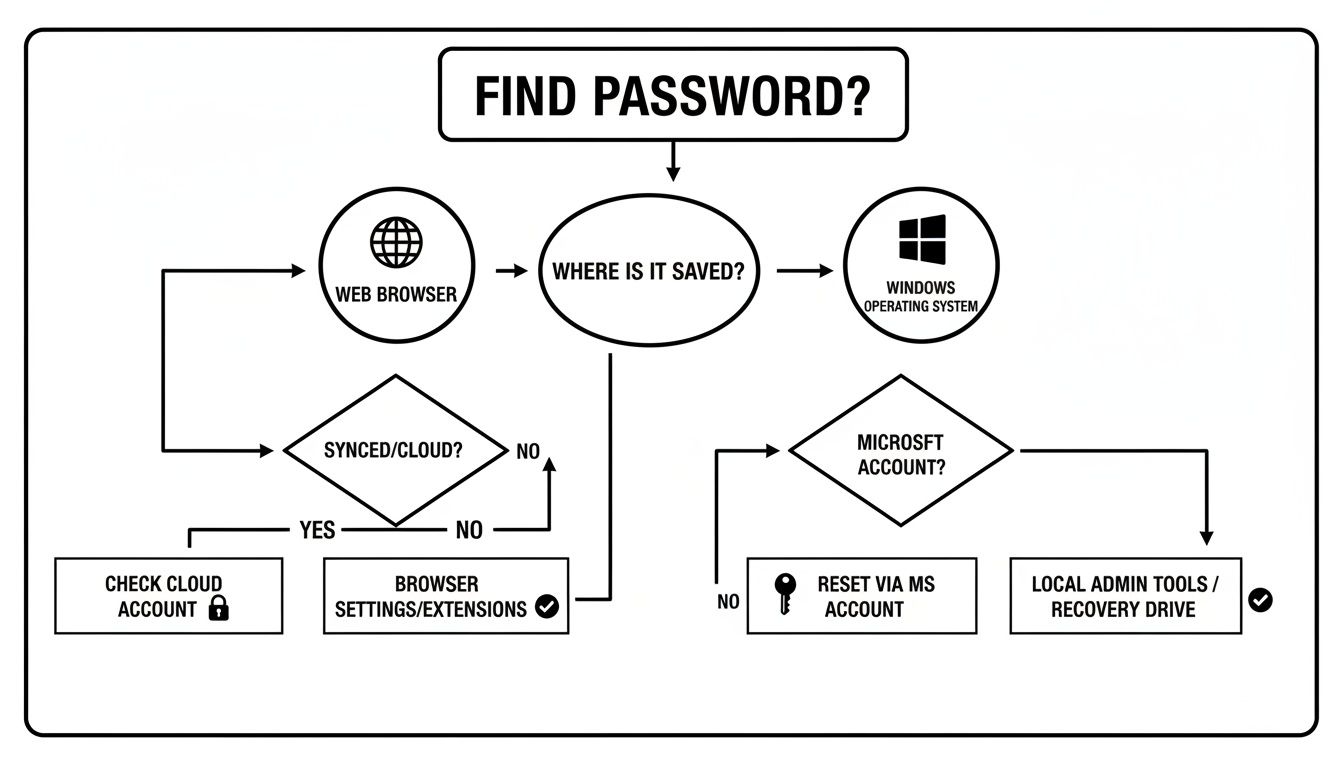
As you can see, it all starts with a choice: are you looking in a browser or somewhere else in the Windows system?
Locating Browser Database Files
For anyone comfortable with a little more tech work, it’s entirely possible to find the actual files where browsers store your login information. These are database files, and they're always encrypted with keys tied directly to your Windows user profile. That means you can't just copy the file to another computer and expect to read it.
Here’s where to look for these files in File Explorer:
- Google Chrome: Chrome stores everything in a file named
Login Data. You can find it by navigating to this path:%LocalAppData%GoogleChromeUser DataDefault - Mozilla Firefox: Firefox splits things into two main files:
key4.db(which holds the encryption keys) andlogins.json(which contains your encrypted credentials). You’ll find them in your Firefox profile folder, usually located here:%APPDATA%MozillaFirefoxProfiles(look for a subfolder with "default-release" in the name).
Security Takeaway: Directly accessing these database files is an advanced move. Without the correct user login and decryption keys from that specific Windows profile, the data inside is completely unreadable. This is a crucial security feature, not a bug, designed to protect your information even if someone gets their hands on the raw file.
While reading these encrypted files is a complex task, just knowing their location is invaluable for data recovery or forensic work. If you're tackling these kinds of challenges, you might also find our guide on how to decrypt encrypted files useful for understanding the core principles.
So, You Found Your Password. Now What?
Okay, so you’ve managed to dig up that lost password. That wave of relief is fantastic, but don't close the tab just yet. Finding the credential is half the battle; the other, more critical half is making sure that account is truly secure going forward. Think of this moment as the perfect opportunity to beef up your digital security.

Your very first move? Change the password you just found. Seriously. If it was just sitting on your PC in a place you could find, it's safe to assume someone else could, too. It’s time to create something new, strong, and completely unique to that one account.
Lock It Down With 2FA
Once you’ve got a new password in place, your next move is a no-brainer: turn on two-factor authentication (2FA). If you haven't done this already, do it now. It is single-handedly one of the most powerful things you can do to protect an account, even if a thief somehow gets their hands on your shiny new password.
Activating 2FA means logging in will require two pieces of proof:
- Something you know (your password)
- Something you have (a temporary code from your phone)
This simple step creates a massive barrier against anyone trying to break in. Most services now support 2FA through authenticator apps like Google Authenticator or Authy, which are a whole lot more secure than getting codes sent to you via SMS text messages.
The panic of a forgotten password is a universal feeling, whether it’s for a social media site or a high-stakes crypto wallet. With over 300 billion passwords in use globally and individuals managing 250+ each, it’s no surprise we lose track. This overload is driving the enterprise password management market, which is projected to hit $9.4 billion by 2033. You can dive deeper into these booming password statistics and see what it all means for your own security.
A Special Warning for Crypto Wallets
Now, if the password you just recovered was for a cryptocurrency wallet, the stakes are a whole lot higher. Digital assets are a massive target for cybercriminals, which means your security has to be rock-solid.
Finding a crypto password saved on your PC should be a major red flag. Those credentials should never be stored in a browser's password manager or a plain text file. Ever. Your next steps are not suggestions; they're essential.
- Immediately transfer your funds to a brand-new, secure wallet.
- Write down your new recovery phrase (seed phrase) and store it somewhere physically secure and offline.
- Never, ever save your seed phrase digitally—not in an email draft, a cloud folder, or even a password manager.
Your seed phrase is the ultimate master key to your funds. Treat it like a bar of gold.
When you're dealing with significant assets and can't afford any mistakes, manual recovery can be a nerve-wracking gamble. This is where a professional service like Wallet Recovery AI becomes the smart play. Experts can navigate the complexities of recovery securely, minimizing risk while keeping your assets and information completely confidential. It's the safest path forward when you simply can't afford to mess it up.
Your Top Questions Answered
When you start digging into saved passwords, it’s natural for some security questions to pop up. Let's tackle some of the most common ones I hear.
Is It Really Safe to Save Passwords in My Browser?
Honestly, while it’s super convenient, saving passwords directly in your browser is a bit of a gamble. Think of it this way: the security of every single one of those saved logins boils down to how secure your main Windows login is. If someone gets past that lock screen on your PC, they can waltz right into your browser settings and see everything.
For your really important stuff—like banking sites, primary email, and especially anything related to crypto wallets—it’s just not worth the risk. A dedicated password manager with its own strong, unique master password is a much, much safer bet.
A browser's password manager is like leaving your keys under the doormat. A real password manager is a bank vault.
Can I Actually Pull Passwords Off an Old Hard Drive?
Yes, it's possible, but this is definitely stepping into expert territory. If you can get the old drive running and connect it to another computer, a tech-savvy person can navigate through the old user profile folders to find the encrypted files from browsers or the Windows Credential Manager.
But this isn't a simple drag-and-drop operation. You're dealing with encrypted databases, and one wrong move could corrupt the data or lose it forever. When valuable assets like crypto wallet keys are involved, this is a job best left for a professional recovery expert.
What Should I Do if I Think My Saved Passwords Were Stolen?
First, don't panic. But you absolutely must act fast and be methodical. If you have any reason to suspect a breach, here’s your immediate action plan:
- Clean Your Machine: Run a deep, comprehensive malware and virus scan on your PC. You need to make sure whatever caused the breach is gone.
- Change Critical Passwords NOW: Don't wait. Start changing passwords for your most vital accounts. Hit your primary email first, then banking logins, and any crypto exchanges or services.
- Turn On 2FA Everywhere: Go enable two-factor authentication (2FA) on every single account that offers it. This is your best defense—it can stop a thief cold even if they have your password.
- Audit and Purge: Once the immediate threat is handled, go through your browser's saved passwords list. Permanently delete any credentials for sensitive accounts to shrink your attack surface for the future.
When high-value assets are on the line, don't leave recovery to chance. For expert assistance in securely regaining access to your crypto wallets, trust Wallet Recovery AI. Learn more about our secure, confidential process at https://walletrecovery.ai.
Leave a Reply