
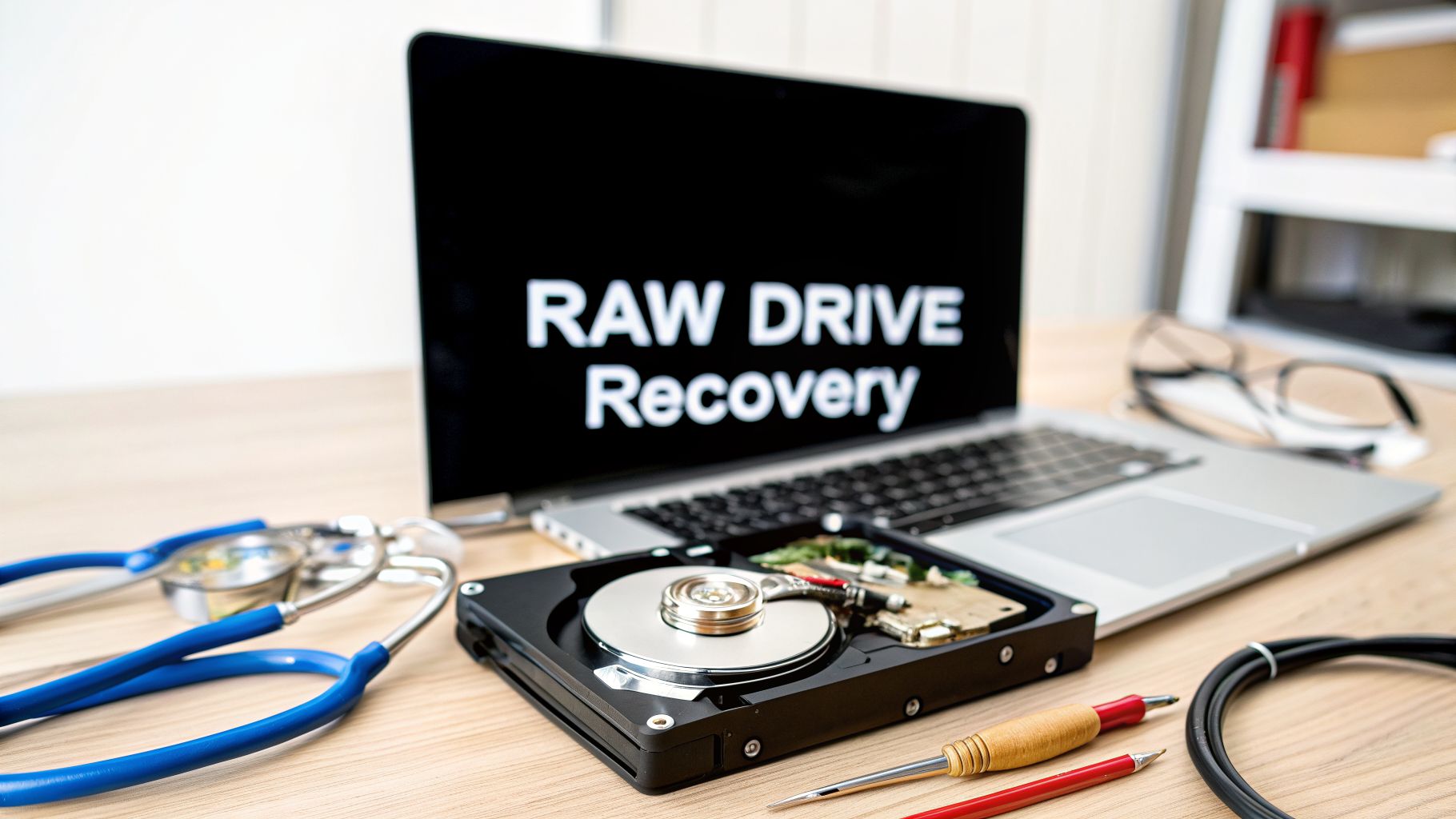
Let's be honest, trying to run the chkdsk command on a RAW drive is a bit of a Hail Mary. More often than not, it throws up its hands and gives you the dreaded "CHKDSK is not available for RAW drives" error. Why? Because a RAW drive means Windows has completely lost the plot—it can't see the file system, so your data is effectively invisible.
Getting a handle on why this happens is the first real step toward getting your files back safely.
So, What Exactly Is a RAW Drive?

That stomach-dropping moment you plug in a drive and it shows up as "RAW" is a problem I’ve seen countless times. Think of your drive’s file system—whether it’s NTFS, FAT32, or exFAT—as a meticulous librarian that knows where every single file is located. When that system gets corrupted or wiped out, Windows just sees a chaotic, unorganized mess of data.
Your files are almost certainly still there, physically sitting on the platters or flash chips. But without that file system map, the computer has no idea how to find them. This is exactly why you get that insistent pop-up begging you to "Format the disk."
Whatever you do, do not format it. Clicking that button is like burning the library's card catalog—it makes finding anything a whole lot harder.
Common Triggers for a RAW Drive
Drives don't just go RAW for no reason. It's almost always a specific event that pushes them over the edge. Knowing the usual suspects can help you avoid this mess in the future.
- Improper Disconnection: This is the big one. Just yanking a USB drive out while it's busy is like pulling a book off the shelf while the librarian is still writing in it. It scrambles the records.
- Sudden Power Loss: A power outage or a system crash can do the same thing, leaving the file system in a confused, half-written state that Windows can't understand.
- Malware or Virus Attacks: Some nasty bits of code are designed to attack the boot sector or partition table, which is the foundational map of your drive.
- Physical Damage or Bad Sectors: Hard drives wear out. Over time, they develop bad sectors, which are tiny dead zones on the storage surface. If critical file system info was on one of those spots, the whole drive can become unreadable.
From what I’ve seen on tech forums and in my own experience, yanking an external drive without using the 'Safely Remove' option is the number one cause. The drive becomes inaccessible, and people immediately jump to chkdsk, only to hit that brick wall. Forum data suggests attempts to use chkdsk on a RAW drive fail over 70% of the time simply because the tool has no recognizable structure to check. You can see more real-world examples of this on Litten.com.
Telltale Signs Your Drive Has Gone RAW
Besides the obvious error messages, there are a few other dead giveaways. If you pop open the drive's properties, you'll almost always see it has 0 bytes of both used and free space. That’s your confirmation that Windows can’t read the allocation table at all.
Key Takeaway: A RAW drive doesn't mean your data is gone. It just means the path to your data is broken. Your mission is to recover the files first, not necessarily fix the drive.
Here's a breakdown of what often causes a drive to turn RAW and the first warning signs you'll notice.
Common Triggers for a RAW Drive
| Cause | Common Scenario | Initial Symptom |
|---|---|---|
| Improper Ejection | Unplugging a USB stick while a file is saving | "Please insert a disk into drive X:" error |
| Power Surge | A sudden blackout causes your PC to shut down abruptly | The drive appears in Disk Management but has no file system |
| Malware Infection | Clicking a malicious link infects the system | Drive letter might change or disappear entirely |
| Hardware Failure | The drive is old and developing bad sectors | Drive properties show 0 bytes of used and free space |
Having these fundamentals down is your best defense. It helps you understand the risks before you even think about running a chkdsk raw drive command and sets you on the right path for safely getting your valuable files back.
Your Data Safety Net Before Attempting Any Fix
Before you even think about opening Command Prompt, stop. Take a deep breath. The single most important rule in any data recovery scenario is simple: do no further harm. It’s so tempting to jump straight into repair mode, but that’s precisely how recoverable data gets permanently wiped out.
Running chkdsk on a RAW drive is a real gamble. It’s a powerful tool, no doubt, but it's built to fix logical file system errors. When a drive goes RAW, the file system is already severely damaged or completely gone. This can confuse chkdsk badly. It might see your raw data, mistake it for file system structures, and try to "fix" it by overwriting your actual files. The result? Your data gets scrambled beyond any hope of recovery.
The Power of a Sector-By-Sector Image
This is why creating a sector-by-sector disk image isn't just a good idea—it's your essential safety net if those files matter. Think of it as a perfect, bit-for-bit clone of your drive, frozen in its current state. This image file has everything on it: the good, the bad, and the corrupted.
Once you have this image, you can work on a copy of it, leaving the original drive completely untouched. If a recovery tool fails or makes things worse, it's no big deal. You just delete the botched attempt, create a new clone from your pristine image file, and try a different method. Your original RAW drive remains safe and sound.
This strategy gives you unlimited do-overs. It’s the single most critical step to take before you run any
chkdsk raw drivecommand or recovery software.
Tools for Creating a Drive Image
You don't need to shell out for expensive software to get this done. A few free, highly reliable tools are more than capable.
Here are a few I've used and can recommend:
- EaseUS Todo Backup Free: A great starting point if you’re not a fan of command-line tools. It has a user-friendly interface with a specific "Disk/Partition Clone" feature that walks you right through it.
- Macrium Reflect Free: This one is a long-time favorite in the tech community for its reliability. Macrium Reflect lets you create a complete image of your RAW drive and even has a verification feature to ensure the image is a perfect copy, which gives you extra peace of mind.
- HDD Raw Copy Tool: This utility does one thing, and it does it exceptionally well. As the name suggests, it’s built to create an exact, low-level copy of a drive, completely ignoring the file system status. It's a powerful, no-frills option that gets the job done.
The Imaging Process: A Quick Guide
While the exact steps will differ slightly depending on the tool, the basic process is the same. You'll need another healthy hard drive with enough free space to hold the entire contents of the RAW drive. So, if your RAW drive is 1TB, you need at least 1TB of free space on the destination drive.
- Install Your Chosen Tool: Download and install one of the imaging tools on your main system drive (your C: drive). Don't install it on the RAW drive or the destination drive.
- Select the Source Drive: Open the software and carefully pick the RAW drive as the "source." This is the most important step—double-check the drive letter and model to make sure you don't clone the wrong disk by accident.
- Choose the Destination: Select your healthy external drive as the "destination" where the image file will be saved.
- Start the Imaging Process: Kick off the sector-by-sector copy. Now, be patient. This can take several hours, depending on the size of the drive and how fast it is. Don't interrupt it.
With this image safely tucked away, you're now free to try chkdsk or other recovery methods on a clone, knowing your original data is completely secure.
So, you're staring at a RAW drive and wondering if the old-school chkdsk command can save the day. It's a common first thought, but this is a real "handle with care" situation.
Most of the time, chkdsk will throw its hands up and give you the frustrating "not available for RAW drives" error. But in those rare cases where the file system is just badly bruised—not completely wiped out—chkdsk might just be able to work its magic. Think of it as a long shot, but one that's worth taking the right way.
Running chkdsk blindly can turn a recoverable drive into a paperweight. That's why the absolute first step is to create a full sector-by-sector image of the drive. No exceptions.
This decision tree lays it out perfectly. It’s the one choice you have to get right before you even think about attempting a repair.

As you can see, skipping the disk image is a direct path to heartbreak. Creating one gives you a safety net, allowing you to try different recovery methods without risking your original data.
Firing Up Command Prompt With Admin Rights
To give chkdsk the power it needs, you have to run Command Prompt with elevated privileges. Standard user permissions just won't cut it for this kind of work.
It’s simple to do:
- Hit the Windows key and type
cmd. - You'll see Command Prompt pop up in the search results.
- Right-click on it and choose Run as administrator.
A User Account Control window will ask for your permission. Click Yes, and you'll be greeted by the black terminal window, ready to go.
Picking the Right Chkdsk Command
When it comes to chkdsk, the two switches that matter here are /f and /r. They do very different things, and it’s critical to know which one to use and when.
chkdsk D: /f
This should always be your first attempt. The /f switch tellschkdskto find and fix logical errors in the file system. It scans what's left of the file system's structure and tries to patch up corruption.chkdsk D: /r
This command is the heavy hitter. The /r switch does everything/fdoes, but it also scans the entire disk surface for bad sectors and attempts to recover readable information from them. This is a much deeper scan and can take hours to complete.
My two cents: Always start with
/f. It's faster and less aggressive. If that fails, you can consider/ras a last resort. But be warned: running an intensive/rscan on a physically failing drive (one that's clicking or grinding) can be the final nail in its coffin.
From my experience, the issues that lead to a RAW drive are all over the map—viruses, unsafe ejection, bad sectors, you name it. Research from places like PowerDataRecovery.com shows that maybe 30-35% of RAW drives caused by simple boot sector corruption might respond to chkdsk /f. But for the other 65-70%, the file system damage is so severe that chkdsk is completely out of its depth.
Reading the Tea Leaves: What Did Chkdsk Say?
Once the command finishes, the text in the terminal window tells you the outcome.
Best-Case Scenario: It Worked
If chkdsk was successful, you'll see a report that says something like, "Windows has made corrections to the file system." If you get this message, pop open File Explorer and check the drive. With a bit of luck, your files will be back.
C:>chkdsk D: /f
The type of the file system is NTFS.
…
Windows has made corrections to the file system.
No further action is required.
Most Likely Scenario: The Famous Error
This is what you'll see most often. The command prompt will simply state the obvious, confirming that this tool can't help you.
C:>chkdsk D: /f
The type of the file system is RAW.
CHKDSK is not available for RAW drives.
The "In-Between" Scenario
Sometimes, chkdsk runs but finds errors it can't fix. It might convert "lost chains" into files, leaving your drive in a weird, partially accessible state. If you can see any of your files after this, copy them to a safe drive immediately before you do anything else.
If you hit that "not available for RAW drives" wall, don't sweat it. It's not a dead end. It’s just a clear signal that the problem requires more firepower than chkdsk can offer. Now it’s time to move on to specialized data recovery software, which we'll dive into next.
What to Do When Chkdsk Fails
So, you ran chkdsk, held your breath, and got the dreaded "CHKDSK is not available for RAW drives" message. It’s a gut-wrenching moment. Your first instinct might be to panic or, even worse, to click that tempting "Format" button Windows keeps shoving in your face.
Don't do either.
This error isn't the end of the road. It’s simply a signal that you need to stop thinking like a mechanic and start thinking like a rescue team. It's time to switch from a repair-first mindset to a recovery-first strategy.
When chkdsk throws its hands up, it's telling you the file system—the digital map to your data—is too mangled for Windows to read. This is precisely where specialized data recovery software becomes your best friend.
Shifting Gears from Repair to Recovery
Think of it like this: chkdsk is a mechanic trying to bang a car's engine back into shape. But what if the car is a total wreck? You wouldn't have the mechanic start hammering away with your priceless cargo still inside.
Data recovery software is the crew that carefully unloads that cargo before anyone touches the engine. It doesn’t try to fix the drive itself. Its entire job is to safely pull your files out of the wreckage.
This approach is fundamentally different and worlds safer. Recovery tools bypass the corrupted file system completely. They dive deep, scanning the drive at a low level to look for file signatures—the unique digital fingerprints that identify a .JPG, a .DOCX, or an .MP4 file. By recognizing these patterns, the software can piece your files back together directly from the raw data, no file system needed.
Your General Recovery Workflow
While every recovery tool has a slightly different interface, the core process for tackling a RAW drive is remarkably consistent.
Install the Software on a Healthy Drive: This is non-negotiable. Never install recovery software onto the RAW drive you're trying to save. Put it on your main C: drive or another working disk to avoid writing new data over your lost files.
Select and Scan the RAW Drive: Launch the program and find the RAW drive in the list of available disks. Always choose a "deep scan" or "full scan" for the best results. Get comfortable, because this can take a while, especially on a large drive.
Preview Your Recoverable Files: This is the moment of truth. Good software will let you preview the files it finds before you recover them. This is how you verify that your photos, documents, and videos are actually intact and not just corrupted garbage.
Save Everything to a Different Drive: Once you've selected the files you need, choose where to save them. Critically, this must be a different, healthy drive. Saving files back to the same RAW drive is the fastest way to permanently destroy them.
Modern data recovery tools have gotten incredibly good. Many users report success rates of 60-80% from RAW drives, depending on what caused the corruption in the first place. One case in early 2024 saw a user pull back nearly 1TB of data from a RAW partition, proving that even a total disaster can be reversible. These powerful tools have brought recovery out of expensive labs—which can run upwards of $10,000—and into our own hands. You can see more about these advanced recovery methods on Cleverfiles.com.
Comparing Chkdsk and Data Recovery Software
Understanding the fundamental difference between chkdsk and recovery software is crucial when your data is on the line. One is a repair tool, the other is a rescue tool.
Here's a quick breakdown of how they stack up.
| Attribute | Chkdsk | Data Recovery Software |
|---|---|---|
| Primary Goal | Fix the file system | Extract files safely |
| Method | Repairs logical errors on the disk | Scans raw data for file signatures |
| Risk Level | High (can overwrite data) | Low (reads data non-destructively) |
| Best For | Minor file system corruption | Severely corrupted or RAW drives |
| Outcome | A potentially usable (or worse) drive | A secure copy of your important files |
Choosing the right tool at the right time is everything.
Key Takeaway: The moment
chkdskfails, your priority shifts. Stop trying to fix the drive. Use data recovery software to rescue your files. Once your data is safe on another drive, you can try formatting the problem disk to make it usable again.
This "recover first, repair later" approach is the professional standard for a reason. For a deeper dive into salvaging your data, check out our guide on recovering corrupted files from a hard drive. It covers more techniques that can save you from a major data loss headache.
Knowing When to Call a Professional
Sometimes, the smartest thing you can do in a data recovery situation is know when to stop. Seriously.
Pushing a failing drive too hard, even with a tool like chkdsk, can be the difference between getting your files back and losing them forever. This is especially true when a RAW drive isn't responding to your commands. Let's talk about the red flags—the signs that mean you should unplug that drive immediately and call in an expert.

The drive itself will often tell you everything you need to know. If you're just dealing with a logical glitch, the drive will probably be quiet. But if something is physically broken, it will make its presence known.
Telltale Signs of Physical Drive Failure
If you hear or see any of the following, it's time to pull the plug. Power down the system, unplug the drive, and don't even think about running any more software on it.
- Clicking or Grinding: This is the infamous "click of death." It's a mechanical sound that usually means the read/write heads are damaged and are physically scraping the platters that hold your data.
- Weird Whirring or Buzzing: Any unusual spinning sounds point to a problem with the drive's motor. Keep it running, and you risk the motor seizing up for good.
- Total Silence: A drive that should be spinning but makes no sound at all likely has a dead motor or failed electronics.
- Vanished from BIOS: If the drive doesn't even show up in your computer's BIOS or UEFI setup, it's a sign of a deep hardware problem. No software on earth can fix that.
Let me be clear: continuing to power a physically failing drive can cause the heads to literally scratch your data off the platters, turning it into useless magnetic dust. At that point, not even a professional can help.
When the Data Is Just Too Important
Beyond the physical symptoms, you have to consider the value of what's on the drive. Is it worth the gamble? DIY recovery is fine for old photos you might have backed up somewhere else, but it's a terrible idea for irreplaceable data.
If that drive holds the only copy of your business records, critical legal files, a crypto wallet with real money in it, or a decade of family photos, it’s time to call in the experts. The cost of professional recovery is almost always less than the cost of losing that data forever.
What Do the Pros Do That I Can't?
You might be wondering what a professional service does differently. It comes down to two things: a specialized environment and highly advanced tools.
Data recovery labs work in certified clean rooms—sterile environments that prevent even microscopic dust particles from contaminating an open hard drive and causing more damage.
They also use specialized hardware that can bypass the drive's own broken electronics and read data directly from the platters. This allows them to clone a drive that won't even power on for you. You can learn more about how they perform clean room data recovery and the techniques involved.
A good lab will always give you a diagnosis and a quote first. A straightforward logical recovery might be a few hundred dollars, but a complex physical job needing a clean room can climb into the thousands. The process can take anywhere from a few days to a few weeks, but it gives you the absolute best chance of success when you can't afford to fail.
Your Top Questions About Chkdsk and RAW Drives
When a drive suddenly goes RAW, panic can set in pretty quickly. Your data is right there, but you can't get to it. This situation brings up a lot of urgent questions, and getting straight answers is critical. Here’s what people most often ask when they're staring down the chkdsk raw drive dilemma.
Will Chkdsk Really Delete My Files if I Run It on a RAW Drive?
Here's the scary truth: it might. While chkdsk is built to fix things, not delete them, it's operating blind on a RAW drive. It sees a jumble of data without a proper file system to guide it.
The real risk is that chkdsk might mistake parts of your actual files—your photos, your documents—for corrupted file system data. In its attempt to "fix" the problem, it can overwrite them, effectively destroying them for good.
This is exactly why you hear experts say to create a full, sector-by-sector disk image before trying any repairs. It's your escape hatch. If your files matter, the only safe play is to use proper recovery software to get them off the drive first.
The golden rule is simple: recover first, repair later. Trying to fix a drive while your only copy of the data is still on it is a huge gamble.
So Why Does Windows Keep Pestering Me to Format the RAW Drive?
Windows is just confused. When it looks at the drive, it doesn't see a language it understands, like NTFS or FAT32. Without that file system roadmap, it has no idea where your files begin or end. To your operating system, the drive is just a blank, unusable void.
Its only suggestion is to format it, which means creating a brand new, empty file system. But doing that wipes the slate clean, making data recovery much, much harder later on. If you want any chance of seeing your files again, you need to click 'Cancel' every single time that format prompt appears.
Can I Actually Get My Data Back From a RAW Drive Without Formatting It?
Absolutely. In fact, it's the only correct way to do it.
This is where dedicated data recovery software comes in. These tools are designed to work at a much deeper level than Windows. They don't need a functioning file system; instead, they scan the raw ones and zeros on the disk, looking for the unique signatures that identify different file types. This lets them piece your files back together directly from the raw data.
Once you’ve successfully pulled your important files off the drive—and this is key—you must save them to a completely different, healthy drive. Only then, when your data is safe, should you even think about formatting the problem drive to make it usable again.
What’s the Real Difference Between Chkdsk /f and Chkdsk /r?
Knowing your switches is crucial, especially when you're dealing with a fragile situation like a chkdsk raw drive error. These two commands are not interchangeable.
Here's a quick breakdown:
| Switch | What It Does | When to Use It |
|---|---|---|
/f |
Fixes logical errors in the file system. It’s a faster scan that focuses on the drive’s internal map. | Your first attempt on a RAW drive. It's less aggressive and targets the kind of corruption that causes RAW errors. |
/r |
Locates bad sectors and tries to recover readable info. It scans the entire physical surface of the disk. | A last resort if /f fails. It's far more intense, takes way longer, and can stress a physically failing drive. |
Think of it this way: /r does everything /f does, and then some. Because it has to scan the entire physical disk, it can be painfully slow and might even cause a dying drive to fail completely. For a RAW drive, always start with chkdsk /f. If that doesn't work, /r is an option, but you're rolling the dice, especially if the drive is already making strange noises or acting unstable.
Losing access to a crypto wallet from a corrupted drive or a forgotten password adds a whole new level of stress. Wallet Recovery AI specializes in helping you regain control of your digital assets securely and privately. Our AI-driven methods are designed to tackle a wide range of wallet types, maximizing your chances of success while minimizing risk. Learn more about our secure process at https://walletrecovery.ai.
Leave a Reply