
So, you’ve got an encrypted file you can’t open. The first instinct is often to jump right in and start trying every password you can think of. Don't do that. Rushing into a decryption attempt without a plan is like navigating a minefield blindfolded.
A single wrong move can turn a recoverable situation into permanent, irreversible data loss. Before you even think about which tool to use, you need to lay some groundwork. These initial checks are your safety net, ensuring you don’t accidentally make things worse.
Your First Steps Before Decrypting Anything
The absolute, non-negotiable first step? Back it up. I can't stress this enough. Make a copy of the encrypted file and stash it somewhere safe and completely separate from your working machine—an external hard drive, a different cloud account, anywhere. If the decryption process goes sideways and corrupts the file, your original is still untouched. This is your "undo" button.
With a safe copy tucked away, it's time to put on your detective hat.
Perform a Thorough Malware Scan
First, make sure your system is clean. There's a chance the file was encrypted by malware or ransomware, and trying to recover it on an infected machine is a recipe for disaster. The malware could still be active, ready to re-encrypt your files or snatch any passwords you type.
Run a deep, comprehensive scan with a reputable antivirus and anti-malware program. A clean system is a safe environment, and you need to be certain you're not fighting an ongoing threat.
Key Takeaway: Never attempt decryption on a potentially compromised system. A full malware scan is a critical security measure to protect your data and prevent further damage from hidden threats that may have caused the encryption in the first place.
Before you go any further, it's essential to follow a strict set of safety protocols. These aren't just suggestions; they're the difference between a successful recovery and a catastrophic loss. I've put together a quick checklist to guide you.
Pre-Decryption Safety Checklist
This table summarizes the critical actions you need to take before you attempt to decrypt any file. Following these steps helps prevent accidental data loss and keeps your system secure.
| Action Item | Why It Matters | Recommended Tool or Method |
|---|---|---|
| Create a File Backup | Protects the original encrypted file from corruption or accidental deletion during recovery attempts. | Copy the file to an external SSD, a separate cloud storage account, or a network-attached storage (NAS) device. |
| Run a Full System Scan | Ensures your computer isn't infected with malware that could interfere with recovery or steal your data. | Use trusted antivirus software like Malwarebytes, Bitdefender, or Windows Defender's offline scan. |
| Document Everything | Keeps a clear record of the file's origin, name, and any clues you find, which is invaluable if you need professional help. | A simple text file or notebook. Note the file's extension, where it came from, and any error messages. |
| Work in an Isolated Environment | Prevents potential malware from spreading and protects your main system if the file is malicious. | A virtual machine (using VirtualBox or VMware) or a sandboxed environment. |
Treat this checklist as your pre-flight inspection. Skipping any of these steps dramatically increases your risk. Once you’ve checked all the boxes, you can move on to the next phase with confidence.
Identify the File and Its Encryption Clues
Now, let's figure out what you're actually dealing with. The clues are often right in front of you, and they’ll point you toward the right tool for the job.
Start by looking at these key details:
- File Extension: What comes after the dot in the filename? Extensions like
.locked,.aes, or.gpgare dead giveaways for specific encryption types. - File Origin: Where did you get this file? If it was an email attachment, the body of the message might hold the password or mention the software used. If it was a download, the source website might have instructions.
- Metadata: Right-click the file and select "Properties" (Windows) or "Get Info" (Mac). Sometimes, the encrypting software leaves its fingerprints in the file's metadata.
This isn't just busywork. Knowing you have a PGP-encrypted file versus a simple password-protected ZIP archive will save you hours of frustration trying the wrong methods.
Encryption is everywhere for a reason—it’s essential for protecting data. The global data encryption market was valued at USD 39.83 billion in 2024 and is projected to hit USD 132.40 billion by 2032, largely because of the constant rise in cyber threats. This growth highlights just how critical both encryption and legitimate decryption have become, especially in fields like banking and healthcare. You can discover more insights about the data encryption market trends and its projected growth to see the bigger picture.
Identifying Encryption Types and Finding the Right Tools
Trying to decrypt a file without knowing how it was encrypted is a recipe for frustration. It's like fumbling with a car key when what you really need is a keypad code. Before you can unlock anything, you've got to figure out what kind of lock you're dealing with.
Taking a few minutes to play detective upfront will save you hours of wasted effort. A tool designed for ZIP files won't even scratch the surface of a BitLocker-encrypted drive, and vice versa. Let's get into how you can read the digital clues to find the right key for the job.
Reading the Digital Fingerprints
Every encryption method leaves some kind of trail. You don't need to be a digital forensics pro to spot these "fingerprints"—you just need to know where to look.
Here are the most common giveaways I look for first:
- Unique File Extensions: This is usually the easiest clue. Ransomware, for instance, is notorious for tacking on extensions like
.lockedor a random string of characters. On the other hand, if you see a.gpgor.pgpfile, you're almost certainly looking at something encrypted with Pretty Good Privacy. - System Prompts: If you're dealing with a whole encrypted drive, your operating system will often tell you directly. Windows will pop up a dialog asking for a BitLocker password or recovery key. macOS does the exact same thing for its FileVault-encrypted volumes. Pay attention to these prompts.
- Ransom Notes: In the unfortunate event of a ransomware attack, the criminals almost always leave behind text or HTML files with instructions. These notes are a goldmine of information because they often name the specific strain of ransomware used, which is vital for finding a decryptor.
Before you start poking around, this decision tree is a great way to map out your first few moves.
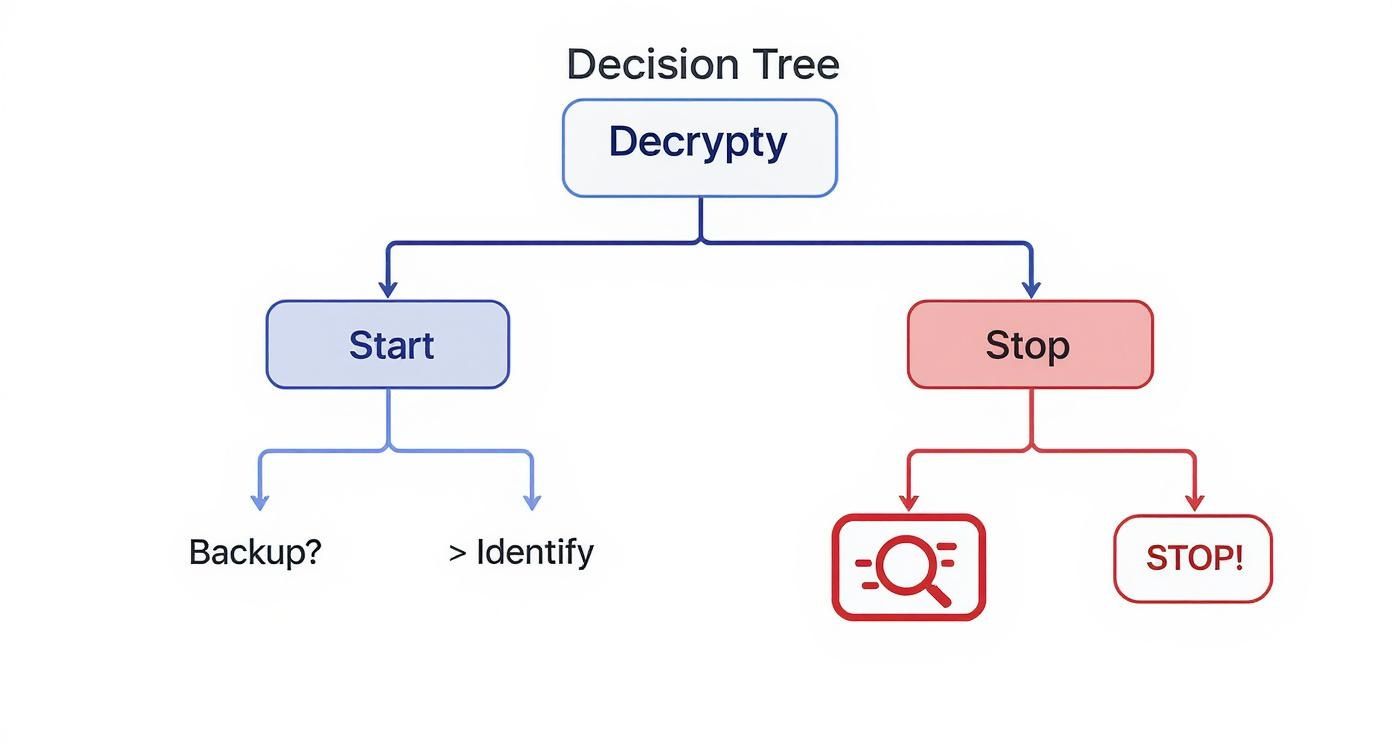
The flowchart drives home the single most important rule: always back up the encrypted file before you do anything else. You don't want to accidentally corrupt your only copy.
Matching the Problem to the Solution
Once you have a solid lead on the encryption type, it's time to find the right tool. The encryption software market is huge—estimated at USD 13.46 billion in 2022 and still growing. This demand is driven by the very real need to protect data, with full-disk encryption holding a massive 36.7% market share.
Thankfully, this means there's a whole ecosystem of legitimate tools out there to help authorized users get back into their own files. For more on this, check out this deep dive into the encryption software market's growth and key segments.
Here’s a quick-reference table I use to match common encryption scenarios with the right tools.
Matching Encryption Types to Decryption Tools
This table breaks down some of the most common encryption methods you'll encounter and the legitimate software or techniques used to handle them.
| Encryption Type | Common Clues | Recommended Tool or Method |
|---|---|---|
| Password-Protected Archives | File extensions like .zip, .rar, .7z. The app asks for a password when you try to open it. |
7-Zip (for opening), John the Ripper or Hashcat (for password recovery on your own files). |
| Full-Disk Encryption | A password prompt on system startup (BitLocker, FileVault). The drive shows up as locked or inaccessible. | The operating system's built-in recovery mechanism (BitLocker Recovery, FileVault Recovery Key). |
| Encrypted Containers | A single large file with an extension like .hc, .tc, or a custom one. Needs specific software to "mount." |
VeraCrypt or whatever software was originally used to create the container. |
| PGP/GPG Encryption | File extensions .gpg, .pgp, or .asc. Typically used for secure email and file transfers. |
GnuPG (GPG) command-line tools or a graphical interface like Kleopatra. |
A Word of Caution: Steer clear of any program that promises to "instantly crack" any file. Modern encryption is incredibly tough, and these claims are almost always scams designed to install malware or just take your money. Stick to well-known, reputable, and preferably open-source software.
What to Do with Ransomware
If you're pretty sure ransomware is the culprit, the game changes completely. Do not try to use standard password recovery tools on these files; it won't work.
Your best first step is to identify the specific strain of ransomware from the note or the file extensions. Once you have a name, head over to a project like No More Ransom. This fantastic initiative, run by law enforcement and top cybersecurity firms, provides free, legitimate decryption tools for dozens of known ransomware families. It's the only safe DIY path forward in a ransomware scenario.
Finding Lost Passwords and Keys
Often, the real roadblock isn't some unbreakable encryption algorithm. It's something far more human: a forgotten password or a key you can't find. Before you even think about complex recovery software, your first and best move is to try and recover the credential itself.
This is about being methodical, not just taking wild guesses. We're going to start with the basics, because the human brain loves patterns, even when we don't realize we're using them. A smart, structured approach to guessing can work surprisingly fast, especially if you were the one who set the password in the first place.
Start with Smart Guessing
Your own memory is the most powerful decryption tool you have. Instead of throwing random words at the problem, let's structure your thinking around the things you know. This low-tech phase often solves the issue without ever needing to install a single piece of software.
Think about the building blocks you might have used:
- Core Words: What are the names of your pets, kids, or favorite places? Think about important dates like anniversaries or birthdays.
- Common Modifiers: We often stick numbers or symbols on the end of our passwords. Did you add the year? Or maybe a
!or a#? - Keyboard Patterns: It sounds silly, but things like
qwertyorasdfgare incredibly common. So are simple number runs like12345678. - Old Habits: Do you have a "formula" you often use? Maybe it's a variation of an old password you remember well.
Jot all of these down in a simple text file. This list will be your starting point and can become a powerful asset if you need to move on to automated methods.
Use Dictionary Attacks and Wordlists
If trying passwords by hand isn't getting you anywhere, you can automate the process using that list you just made. This is the whole idea behind a dictionary attack. Instead of trying every character combination under the sun, you feed the software a "dictionary"—your custom wordlist—of likely candidates.
While you can download massive, generic wordlists with millions of common passwords, the one you build yourself is far more powerful. It’s tailored to the person who set the password: you.
Expert Tip: Don't just list single words. Combine them. If "Fluffy" and "2022" are on your list, you should also add "Fluffy2022", "fluffy2022!", and "Fluffy-2022". The more thought you put into this list, the better your odds.
For a deeper dive into building these lists and other recovery strategies, you can learn more about how to recover lost passwords and create a focused plan.
When Brute-Force Is an Option
A brute-force attack is the dictionary attack's more aggressive, less-refined cousin. It doesn't use a wordlist; it just tries every possible combination of letters, numbers, and symbols. Against modern encryption, this is usually a waste of time. A strong password—say, 12+ characters with mixed types—could take centuries to crack, even on high-end hardware.
But brute-force isn't completely useless. It can be a viable strategy in a few specific scenarios:
- You're certain the password is short (e.g., under 8 characters).
- You remember parts of it, like knowing it starts with "Password" and ends with "77". This is called a "mask attack."
- The encryption itself is known to be old or weak.
Tools like Hashcat are built for this kind of heavy lifting, using your computer's GPU to speed things up immensely. Just be realistic—this is a last resort for very specific situations, not a magic key.
Locating System-Specific Recovery Keys
Sometimes the "password" isn't something you created at all, but a long recovery key generated by the system. This is standard practice for full-disk encryption, and knowing where these keys get stashed can be a lifesaver.
For BitLocker (Windows):
When you first enabled BitLocker, Windows made you save a 48-digit numerical recovery key. Your job is to remember where you put it.
- Your Microsoft Account: This is the most common spot. If you were logged in with a Microsoft account, the key is probably backed up there automatically.
- A USB Flash Drive: Did you save it to a
.txtfile on a thumb drive? Label your recovery drives! - A Physical Printout: You might have printed the key and filed it away with your birth certificate or other important papers.
For PGP/GPG Keys:
If you're stuck on a .gpg or .pgp file, you need the private key that matches the public key it was encrypted with. This key lives in a file on your computer called a "keyring." Search for hidden folders like .gnupg (on Linux/macOS) or look in the AppData directory on Windows. If you find the private key, you can import it into a tool like GPG Suite or Kleopatra and, assuming you remember the passphrase for the key itself, get your data back.
A Practical Walkthrough for Decrypting Common Files

Alright, enough with the theory. Let's get our hands dirty and walk through some of the most common decryption scenarios you'll actually face. This is where the rubber meets the road.
We're going to focus on legitimate recovery situations—cases where you have every right to the data but have just misplaced a password or are unsure of the steps. First rule of thumb, and it's a big one: always work on a backup copy of your encrypted file. Never, ever touch the original.
Unlocking Password-Protected ZIP Archives
We've all been there. You download a file, go to open it, and get hit with a password prompt. Encrypted archives are probably the most common form of encryption the average person runs into.
While Windows and macOS can handle standard ZIP files out of the box, they often stumble when a password is involved. That's where a third-party tool comes in handy. My go-to recommendation is 7-Zip—it's free, open-source, and incredibly powerful.
Here’s the typical game plan:
- Grab 7-Zip: If you don't already have it, download and install it from the official site.
- Try to Extract: Just right-click the ZIP file, find the 7-Zip menu, and hit "Extract files…"
- Enter the Password: You'll get a dialog box asking for the password. Start with the obvious guesses based on where you got the file.
If a few manual attempts don't work, you're not out of luck, but you'll need to move on to more advanced tools. Honestly, for most people, just knowing which program to use is half the battle. If you're stuck and need to bring out the bigger guns, our guide on encrypted archive recovery for ZIP, RAR, and 7z files dives much deeper into the process.
Mounting Encrypted Disk Images
Encrypted disk images are a brilliant way to secure a chunk of data, acting like a virtual vault that needs a password to open. The two big players you'll see most often are VeraCrypt containers and drives locked with BitLocker To Go.
VeraCrypt Containers
VeraCrypt is a fantastic open-source tool for this. If you have a VeraCrypt file (it might have a .hc extension, or none at all), you'll need the VeraCrypt software itself.
The process is surprisingly simple:
- Fire up the VeraCrypt application.
- Pick a drive letter from the list that isn't being used (like Z:).
- Click "Select File…" and point it to your encrypted container.
- Hit the "Mount" button and type in the password when it asks.
If you got the password right, a new drive will pop up in your computer's file explorer, ready to use just like a USB stick. When you're finished, just dismount it from VeraCrypt to lock it back up.
BitLocker To Go Drives
For USB drives encrypted on a Windows machine, the process is built right into the OS. Plug in a BitLocker-protected drive, and Windows will immediately ask for the password.
Crucial Tip: If you can't remember the password, your last hope is the BitLocker Recovery Key. This is the 48-digit numerical key you were told to save when you first set up the encryption. Without the password or this key, that data is almost certainly gone forever.
Decrypting a PGP or GPG File
In the world of business and cybersecurity, PGP (Pretty Good Privacy) and its open-source cousin GPG are the gold standard for sending files securely. It all works with a key pair: someone encrypts a file with your public key, and only you can decrypt it with your matching private key.
The use of this kind of encryption in the corporate world has exploded. Back in 2020, about 55% of tech companies used encryption to protect data. By 2022, that number had jumped to over 72%. It shows just how vital knowing your way around decryption has become in a professional setting.
To decrypt a GPG file (usually ending in .gpg), you'll need a key management tool. For Windows, Gpg4win (which includes the Kleopatra key manager) is excellent. On macOS, GPG Suite is the way to go.
Here's the basic workflow:
- Get Your Private Key Ready: First, you need to make sure the specific private key that matches the file's encryption is imported into your local key manager (like Kleopatra).
- Start the Decryption: With most modern tools, you can just right-click the
.gpgfile and find an option like "Decrypt and Verify." - Unlock Your Key: Your private key is protected by its own passphrase. You'll need to enter this to unlock the key, which then does the work of decrypting the file.
If it works, the original, decrypted file will appear right there in the same folder. If it fails, 99% of the time it's because you're either using the wrong private key or you've typed the passphrase incorrectly.
Alright, let's face it: sometimes the smartest thing you can do is admit you're out of your depth.
When you're trying to crack open an encrypted file, pushing forward blindly can turn a solvable problem into a digital graveyard. It's a tough pill to swallow, but knowing when to stop and call in the cavalry is one of the most important skills in data recovery.
DIY decryption is one thing when you've just forgotten the password to a personal ZIP archive or can't remember your VeraCrypt volume's passphrase. The stakes are low. But the risk shoots through the roof in more complex situations. Fumbling around with different tools or running random scripts you found on a forum can easily overwrite the very data fragments a professional would need to get your files back.
Red Flags That Scream "Stop and Call an Expert"
If you run into any of these scenarios, your very next move should be to power down the device and pick up the phone. The potential for making things permanently worse is just too high to mess around.
- Failing Hardware: Is the encrypted drive making that dreaded clicking or grinding sound? Maybe it keeps randomly disconnecting from your computer? This isn't just an encryption problem; it's a physical one. Every second that drive is powered on, you could be scratching the platters and destroying your data for good.
- Nasty Ransomware: While there are great free tools from projects like No More Ransom that work for older, known ransomware, the new stuff is a different beast entirely. Modern ransomware is sophisticated, and trying to brute-force it or tamper with the encrypted files can sometimes trigger a self-destruct mechanism that permanently deletes the decryption key. Game over.
- A Corrupted File System: This is a big one. If your encrypted drive or partition is suddenly showing up as "RAW" or asking to be formatted, something has gone horribly wrong with the underlying file system. Running a standard tool like
CHKDSKor Disk Utility will almost certainly wipe the critical data structures needed for a successful recovery.
Here's the inside scoop: A real data recovery service isn't just a person with better software. They have specialized hardware, like cleanrooms and platter-swapping tools, to create a perfect, bit-for-bit clone of your failing drive. They work on that copy, leaving your fragile original drive untouched.
How to Find a Service You Can Actually Trust
Picking the right professional is critical. You're handing over your most sensitive data, so you need to be sure it's in good hands. A sketchy "recovery service" can do more harm than good.
When you're vetting a company, don't be shy. Get on the phone and ask them some hard questions:
- Do you charge just to look at it? Reputable pros usually offer a free or low-cost initial evaluation. If they want a huge fee upfront, walk away.
- How do you protect my data? Ask about their security and privacy policies. Look for serious industry certifications like SOC 2 Type II, which means they've been audited and have proven they can handle sensitive data securely.
- What's this actually going to cost me? Avoid anyone who gives you a vague price. A legitimate service will have a clear pricing structure, often based on the complexity of the recovery—not just how many gigabytes you have.
Yes, calling in a professional is an investment. But when the alternative is losing irreplaceable business files, family photos, or personal records forever, it's a calculated decision that gives you the absolute best shot at getting everything back, safe and sound.
Got Questions About File Decryption? We’ve Got Answers.
It’s completely normal to have questions when you’re staring down an encrypted file you can't open. Is this legal? Is it even possible? What if I break something? Let's clear the air and tackle some of the most common concerns people have.
Is It Legal to Decrypt My Own Files?
Absolutely. It is 100% legal to decrypt files that you own or have clear permission to access. Everything we've discussed in this guide is about legitimate data recovery—getting back into your own stuff when you've lost the key.
The line gets crossed, however, when you try to access files that aren't yours. Attempting to decrypt someone else’s data without their consent is a serious offense under laws like the Computer Fraud and Abuse Act (CFAA) in the US and similar regulations worldwide. Bottom line: make sure you have an undeniable right to the data before you even think about starting.
Can I Really Decrypt a File Without the Password?
For any file locked down with modern, robust encryption like AES-256, the short answer is no. It is, for all practical purposes, impossible for an individual to decrypt it without the password or key.
You might hear about brute-force attacks, but the computing power needed to guess a strong password is just staggering. We're talking centuries, even millennia, with today's technology. Methods like dictionary attacks only stand a chance against weak, short, or predictable passwords. If the key to a strongly encrypted file is truly gone, DIY recovery is likely off the table.
What’s the Difference Between Decryption and Cracking?
People often use these terms interchangeably, but they mean very different things in practice.
-
Decryption is the intended process. It’s you, the authorized user, using the correct key to unlock your data and turn it back into a readable format. Think of it as using your own key to open your front door.
-
Cracking is the brute-force effort of finding an unknown password. This is where techniques like dictionary attacks come into play—they are methods of password cracking.
So, cracking is the attempt to find the key, while decryption is the final step of actually using that key.
Will I Damage the File if I Try to Decrypt It?
Using legitimate recovery software is safe for your original file. Reputable tools are designed to be non-destructive; they read the encrypted file and try to create a new, decrypted version. They never touch or overwrite the original.
The real danger comes from built-in security features. Some systems, especially on encrypted hard drives or in corporate networks, are programmed to wipe all data after a certain number of failed password attempts. This is a deliberate defense against brute-force attacks.
The Golden Rule: This is exactly why your first move, before anything else, should be to create a secure backup of the encrypted file. It's your safety net. Never, ever work on your only copy.
When the file you can't access is a crypto wallet, the stakes are so much higher. If you're locked out due to a forgotten password or lost key, Wallet Recovery AI can help. We use specialized, AI-driven techniques to securely help you regain control of your digital assets. Our process is professional, discreet, and tailored to a wide range of wallets.
Learn more and get the help you need at https://walletrecovery.ai.
Leave a Reply