
That feeling of being locked out of your email is unnerving. It's the master key to your digital life, and when it’s gone, panic is a completely normal reaction.
The only legitimate way to get back in is by using the official recovery tools from providers like Gmail, Outlook, or Yahoo. This guide is built exclusively around those secure, provider-approved methods to help you regain access safely.
Why You Urgently Need Access Back
Losing your email password isn't just an inconvenience; it can bring your entire online life to a grinding halt. Your email address is the recovery point for almost everything else you use—social media, banking, shopping sites, and even crypto wallets.
When that single point of failure is compromised, you're not just locked out of one account. You're potentially locked out of all of them. We're all told to use unique, complex passwords for every service, which is great advice in theory but nearly impossible to manage perfectly. Forgetting one is inevitable.
The Real-World Impact of a Locked Account
The need to get back in is almost always immediate. A locked email account can quickly lead to real problems:
- Financial Roadblocks: You could be blocked from approving transactions, viewing bank statements, or resetting the password for a crucial financial app.
- Lost Opportunities: Time-sensitive emails from employers, clients, or family can sit unread, leading to very real personal or professional consequences.
- Stranded Digital Assets: For anyone in crypto, an inaccessible email can be the last line of defense for a lost wallet. A forgotten password could mean those assets are gone for good.
The bottom line is this: your email account is your digital identity. Recovering it isn't just about finding a password. It's about taking back control of your online presence and securing everything connected to it.
We're here to walk you through the official, secure steps to do just that. The goal is to get you back into your account efficiently, without cutting corners or compromising your security. Let's get started on restoring your access and your peace of mind.
Using Official Account Recovery Methods
That sinking feeling when you’re locked out of your email is universal. Before you panic, the first and most reliable place to turn is always the official recovery process. Every major provider—Gmail, Outlook, Yahoo—has a secure, built-in workflow designed for exactly this moment.
These aren't just simple "Forgot Password?" links. They are surprisingly sophisticated systems designed to verify your identity without putting your data at risk. This is your frontline defense and the only safe place to start.
This simple chart shows the immediate path forward when you realize you're locked out.
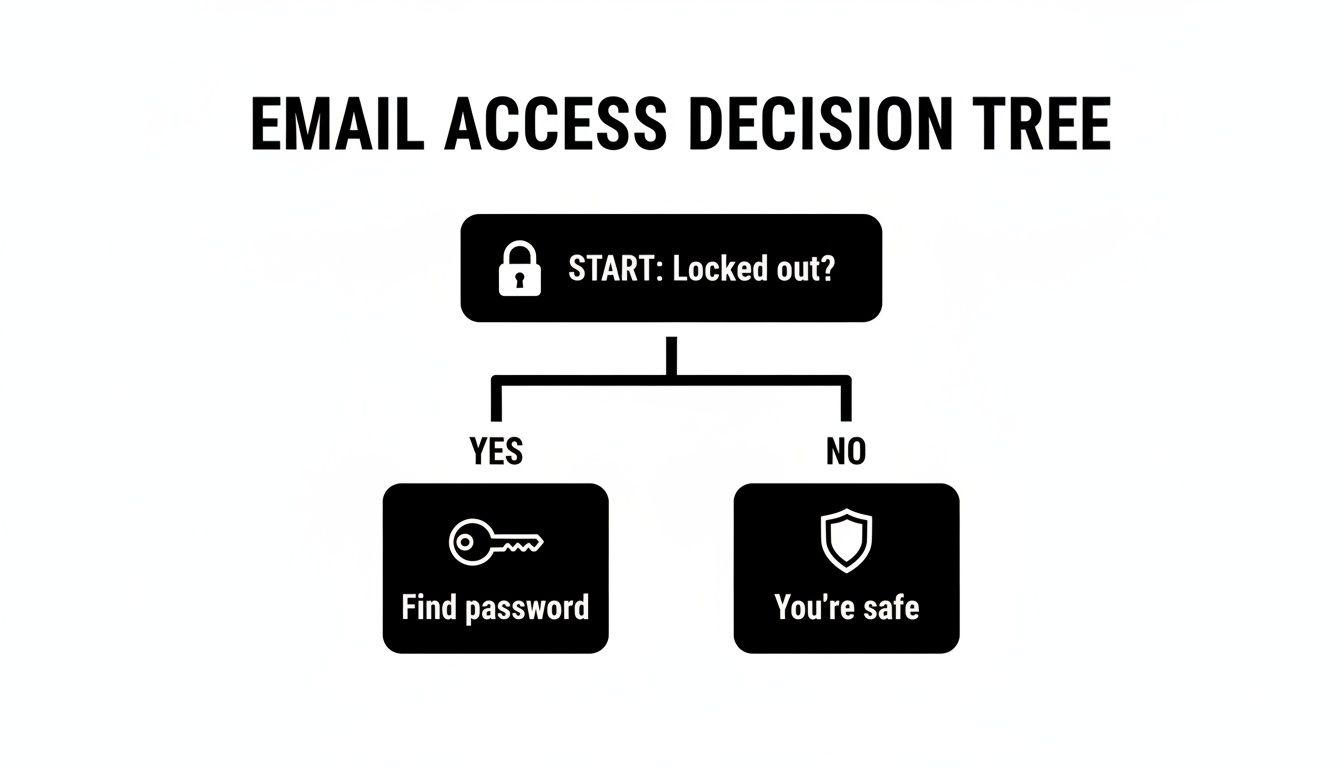
As you can see, getting locked out funnels you down one specific path: recovery, which always begins with the provider's official tools.
What to Do When Recovery Gets Complicated
Of course, life isn't always so simple. The official recovery flow is an interactive process, and its success often depends on how much security information you’ve set up in the past. If that info is outdated, you can hit a wall.
Here are a few common snags I see all the time and how to handle them:
- The phone number on file is ancient. You’re prompted for a code, but the number belongs to a phone you lost years ago. Look for a link that says "Try another way to sign in" or something similar. This is your lifeline.
- You can't get into your recovery email. Maybe it’s an old university or work address you no longer have. Again, you'll need to rely on other verification factors the provider offers.
- You blank on the security question answers. Who really remembers their first-grade teacher's name? If you get these wrong, don't give up. The system will usually move on to other ways to check your identity.
The goal is to follow the prompts and provide as much accurate information as you can. Every correct detail you enter builds a stronger case that you’re the real owner.
Your Secret Weapon: A Trusted Device
One of the most powerful tools you have is a device your email provider already knows. Have you checked your Gmail on your laptop from your home Wi-Fi a thousand times? That history is a massive trust signal.
When you start the recovery process from a familiar device, IP address, or physical location, you dramatically increase your chances of success. The provider’s system sees this as expected behavior, not a red flag.
This is why you should always try to recover your account on your personal computer or smartphone first—not a new or public computer.
The cost of getting this wrong is surprisingly high. A single password reset at a company can cost $70 in IT support time. For individuals, the friction is just as real; a 2025 forecast shows that 48% of shoppers have abandoned a purchase because of a forgotten password. This problem becomes catastrophic for crypto users, where a lost password can mean assets are gone forever. You can learn more about the business impact of password resets from industry research.
What Each Major Provider Asks For
While the basic idea is the same everywhere, each service has its own quirks. To help you prepare, here’s a quick rundown of what the major email providers typically ask for during recovery.
Email Provider Recovery Options at a Glance
This table gives you a quick comparison of the main recovery methods for the most popular email platforms.
| Provider | Primary Recovery Method | Secondary Options | Best For Scenario |
|---|---|---|---|
| Gmail | Recovery Phone/Email: A code is sent to your pre-registered phone or backup email. | Trusted device verification, answering questions about account usage. | When your recovery info is up-to-date and you're using a recognized device. |
| Outlook | Microsoft Authenticator App: A notification is pushed to your app for approval. | Code to recovery phone/email, detailed identity verification form. | Users who have proactively set up MFA with the official Microsoft Authenticator. |
| Yahoo | Recovery Phone/Email: Similar to Gmail, relies on sending a code to a trusted source. | Answering security questions, which are more prominent than in other services. | When you remember the answers to security questions you set up years ago. |
Ultimately, successfully using these official methods boils down to one thing: preparation. The more recovery information you provided in the past—and kept current—the more ways you’ll have to prove you are who you say you are.
Even if some of your info is old, don't stop. Keep working through every available option the provider gives you. One of them might just be the key that gets you back in.
Finding Saved Passwords on Your Devices
Before you hit that "Forgot Password" link, let's check the most obvious places. There's a good chance the password you need is already saved on one of your devices. Most of us click "Save Password" without a second thought, and right now, that habit might just be your saving grace.
Your web browser and phone often act as a personal password vault, holding onto credentials you forgot months or even years ago. You just have to know where to look.
Think of your devices as an interconnected ecosystem. The password you need on your phone could easily be stored on your laptop, and we can use that to get you back into your account.
Uncovering Passwords in Your Web Browser
Your browser is the number one suspect for a saved password. Chrome, Safari, Firefox, and Edge all have built-in password managers that you can access directly from the settings menu. For security, you'll always be asked to enter your computer's password or use a fingerprint to view the saved credentials.
Here’s a quick rundown of where to find this feature in the most popular browsers:
- Google Chrome: Go to
Settings > Autofill and passwords > Google Password Manager. - Apple Safari: Navigate to
Safari > Settings > Passwords. You will need your Mac's password or Touch ID to proceed. - Mozilla Firefox: Open the menu, go to
Settings > Privacy & Security, and find "Logins and Passwords." Click "Saved Logins." - Microsoft Edge: Head into
Settings > Profiles > Passwords.
Once you're in, just search for the website of your email provider. You can typically click an "eye" icon to reveal the password in plain text. For Chrome users, our detailed guide offers more specific steps on how to see saved passwords in Google Chrome.
Checking Your Mobile Device's Keychain
Your smartphone is another prime location, especially if you set up your email account on it. Both iOS and Android feature powerful, system-wide password managers.
For anyone with an Apple device, iCloud Keychain is your best bet. If you’ve ever logged into your email on an iPhone, iPad, or Mac, the password is very likely stored here.
On an iPhone or iPad, just go to
Settings > Passwords. You can use Face ID, Touch ID, or your passcode to open the list, then simply search for your email provider.
The beauty of iCloud Keychain is that it syncs everything automatically. A password you saved on your MacBook five years ago will be waiting for you on your brand new iPhone.
Android's system is just as simple. Saved passwords are linked directly to your Google Account, making them available on any device you're signed into.
To find them, just follow these steps:
- Open
Settings > Google > Manage your Google Account. - Swipe over to the Security tab.
- Scroll down until you see Password Manager and tap it.
This will bring up a searchable list of every credential you've saved using Chrome or Android. It's an incredibly effective tool for account recovery.
The Hidden Danger of Saved Passwords
While incredibly useful in a pinch, relying on saved passwords often points to a much riskier habit: reusing the same password across multiple sites. It's a common shortcut, but it creates a massive security hole. An astonishing 80-85% of internet users reuse passwords, and some studies show that 94% of passwords are used for at least two different accounts.
This means a single data breach could give an attacker the key to 3-5 of your other accounts. You can discover more insights about password reuse statistics and see just how common this problem is.
Finding a saved password is a great way to get back into your account. But once you're in, take it as a sign. This is the perfect opportunity to update your security and start using a unique, strong password for every important service.
Okay, you're back in. That feeling of relief is huge, right? But the real win is making sure this never happens again.
Let's shift from frantic recovery to smart prevention. This isn't just about picking a slightly stronger password; it's about building a simple, tough-as-nails security system around your account so you never have to rely on memory alone.
Get a Password Manager Yesterday
If you do only one thing, make it this: start using a password manager. Think of it as a digital vault that creates, remembers, and fills in brutally complex passwords for every single site you use. You just have to remember one strong master password to unlock everything else.
This single tool eliminates the main reason people get locked out—forgetting things. It also kills the dangerous habit of reusing the same password everywhere.
A good password manager will even watch your back, alerting you if one of your passwords shows up in a data breach so you can change it immediately.
Ditch SMS and Upgrade Your Authentication
Next up is multi-factor authentication (MFA), but let's be clear: not all MFA is created equal. Getting a security code by SMS text is better than nothing, but it's dangerously vulnerable to SIM-swapping attacks.
The smarter move is an authenticator app like Google Authenticator or Microsoft Authenticator. These apps generate time-sensitive codes right on your phone, completely separate from your phone number. It's a huge security upgrade.
Security expert Troy Hunt once detailed how a phishing attack successfully snagged his password and the 2FA code he entered from a text message. An authenticator app might have been tricked the same way, but a physical hardware key would have stopped the attack dead. This is exactly why moving to stronger MFA is so vital.
For ironclad security, you want one of these:
- Authenticator Apps: The best baseline for most people. Codes are generated locally on your device.
- Hardware Security Keys: A physical device like a YubiKey that you plug in or tap to approve a login. They are virtually immune to remote phishing.
- Passkeys: This is the future. Passkeys replace passwords entirely with secure cryptographic keys stored on your device, making logins seamless and incredibly secure.
Getting away from SMS makes it exponentially harder for an attacker to get in.
Use Passphrases You Can Actually Remember
For the very few passwords you do need to memorize (like your new master password), forget about things like Tr0ub4dor&3. Go for length, not complexity. Create a passphrase.
A passphrase is just a string of random words. It's dead simple for you to remember but a nightmare for a computer to brute-force.
Think of something like:correct horse battery staple
That four-word phrase is ridiculously strong because of its length, yet it’s far easier to recall than a short, complicated password. The only rule is to make sure the words are truly random and have nothing to do with you personally.
Do a Security Checkup Twice a Year
Finally, get into the habit of doing a quick security checkup on your main email account. Spend 10 minutes on this every six months to prevent a world of hurt later.
Here's your checklist:
- Check Your Recovery Info: Is your backup email and phone number still correct? If you got a new phone number last year and forgot to update it, your recovery options are useless.
- Review Connected Apps: Go through the list of third-party apps and websites that have access to your account. If you see services you don't use or recognize, kick them out. Revoke their access.
- Inspect Active Sessions: Your email provider will show you every device currently logged into your account. If you see a phone in a city you've never been to, sign it out immediately and change your password.
These aren't complicated chores. They're simple, proactive steps that turn your email from a point of failure into a secure digital hub. This is how you stop searching for passwords for good.
When It’s Time to Call for Backup
Sometimes, you hit a brick wall. You’ve gone through every official recovery flow, checked all your browsers and devices, and you're still stuck on the outside looking in. This is especially true if you suspect your account has been hijacked.
Once a hacker gets in, their first move is almost always the same: they change your password and then cut off your escape routes by changing your recovery phone number and backup email. At that point, the automated systems can't help you anymore. It's time to escalate and talk to a real person at your email provider's support team.
Building Your Case for Support
Before you even think about opening a support ticket, you need to get your story straight. Support agents have to be incredibly careful—they can't just hand over an account without absolute proof of ownership. A well-prepared case with lots of detail is your best shot at a fast resolution.
Think of it as building a case file. The more evidence you can provide, the easier it is for them to verify you're the legitimate owner.
- Account Vitals: When did you create the account? Even the month and year can help. What was the full name you used to sign up?
- Password History: Can you remember any old passwords? The more, the better. Even a partial password is a strong piece of evidence.
- Your Inner Circle: Who did you email most often? List the top 3-5 email addresses you regularly corresponded with.
- Account Details: Did you create any specific email folders or labels? Can you recall the subject lines of any recent important emails?
- Connected Services: Was the account linked to anything else, like Google Photos, Microsoft OneDrive, or an online gaming profile?
The idea here is to give the support agent a rich history of account activity that only the true owner would know. This data acts like a digital fingerprint, giving them the confidence they need to help you.
When to Look at Specialized Services
In some really tough situations, standard customer support might not be enough. The scale of this problem is huge—an estimated 24 billion credentials are exposed every single year. In 2024 alone, security researchers found logs containing 548 million compromised credentials being actively used by attackers. You can learn more about the global scale of credential theft from recent industry reports.
This is where you might consider professional password recovery services. These teams often handle complex cases that go beyond a simple lockout, like recovering crypto wallets that were tied to a compromised email or dealing with corrupted data files.
But it’s important to keep expectations in check. Your email provider holds the ultimate authority over account ownership, and their security rules are strict for good reason. Contacting their official support channels should always be your first move. Specialized services are a secondary path for very specific, technical problems, not a replacement for the provider's own process.
Common Questions About Email Password Recovery
Let's tackle some of the tough "what-if" scenarios that pop up during email recovery. When you're locked out and stressed, these are the questions that really matter.
Is It Legal to Find a Password for Someone Else's Email?
Let me be crystal clear: no. It is absolutely illegal and a serious violation of privacy to access someone's email account without their direct, informed consent. Every method in this guide is intended for recovering access to your own accounts.
Trying to get into an account that isn't yours can land you in serious legal trouble under laws like the Computer Fraud and Abuse Act (CFAA) in the U.S. If you need access to a family member’s account for a legitimate reason—like in the case of incapacitation—you have to go through the proper legal channels. That usually means getting a power of attorney or a court order.
What If My Recovery Email and Phone Number Are Outdated?
This is probably one of the most common and frustrating problems people run into. When your backup email and phone are no longer active, you've lost the easy way back in. But it doesn't mean it's impossible. It just means the process gets a lot tougher.
You'll have to use the email provider’s detailed identity verification form. This is where your ability to recall old details about the account becomes critical.
- Account History: They'll ask for specifics. What month and year did you create the account? Can you name any custom folders or labels you made?
- Frequent Contacts: Who were the top five people you emailed most often? Be precise with their email addresses if you can.
- Previous Passwords: Can you remember any old passwords you used for the account? Even one from years ago can help prove ownership.
This kind of manual review can take several days because a human is often involved to prevent fraud. The moment you get back in, your very first move should be to update your recovery information with a current phone number and a reliable secondary email.
Can I Recover a Hacked Email Account Password?
Yes, but you have to move incredibly fast. Once a hacker is in, their first move is almost always to change your password and then alter your recovery info to lock you out for good. Your window to act is small.
The key is to start the provider's official account recovery process the second you suspect a problem. They have dedicated workflows for compromised accounts that look beyond the standard recovery questions.
For example, your provider can see that you're trying to recover the account from a familiar device or a Wi-Fi network you've used for years. These signals can be enough to prove you're the real owner, even after the hacker has changed your password and recovery options.
Getting back in is just step one. Your work isn't done.
- Change Your Password: Immediately create a new, long, and completely unique passphrase.
- Enable Strong MFA: Turn on multi-factor authentication, preferably with an authenticator app, not SMS.
- Review All Settings: Go through every single account setting. Look for and remove any weird email forwarding rules, connected third-party apps you don't recognize, or anything else that looks out of place.
Acting quickly and methodically is the only way to take back control and lock the door behind you.
If you've lost access to a crypto wallet due to a forgotten password or compromised email, standard recovery methods might not be enough. Wallet Recovery AI offers specialized, secure services to help you regain control of your digital assets across a wide range of wallets and chains, from Bitcoin to MetaMask.
Get professional, confidential help with your wallet recovery now.
Leave a Reply