
Ever felt that moment of panic when you can't remember a password you know you saved somewhere? The good news is, you can often find Windows passwords using tools already built into your system. Things like Credential Manager for network logins, your Wi-Fi settings for wireless keys, or your browser's password manager are all safe, legitimate ways to find your own stored info.
Finding Stored Passwords Inside Windows
Losing track of a password doesn't automatically mean it's gone for good. Your Windows machine is actually designed to remember all sorts of credentials to make your life easier—from the password for your local coffee shop’s Wi-Fi to the login for a shared drive at work.
The trick is simply knowing where to look without downloading sketchy software or messing with complex commands. Think of your PC as a digital lockbox with different keys in different drawers; you just need the right map to find them.
This guide sticks to safe, ethical methods for locating passwords already stored on your system. We won't be touching on password cracking or anything that bypasses security. Instead, the goal is to show you how to access what's rightfully yours.
Your Legitimate Password Toolkit
Before we jump into the step-by-step, it helps to know what tools you have at your disposal. Each one is built for a different kind of password, so you can use the right one for the job.
Here’s a quick overview of these legitimate tools and what they do.
- Credential Manager: This is a built-in Windows vault that securely stores logins for websites, apps, and network locations. It’s your first stop for recovering credentials used for things like Remote Desktop or shared network folders.
- Web Browser Settings: Modern browsers like Chrome, Edge, and Firefox come with powerful password managers. They save your logins for almost every site you visit, and you can easily view them after confirming your identity with your Windows password.
- Network & Internet Settings: This is the easiest way to find the password for any Wi-Fi network you’ve connected to before. It’s perfect for when you need to connect a new device and can't recall that long, complicated key.
To give you a clearer picture, here's a simple table summarizing where to look for what.
Quick Guide to Built-In Windows Password Tools
| Tool | Password Type | Best Use Case |
|---|---|---|
| Credential Manager | Network, Apps, Windows Services | Finding passwords for shared network drives, Remote Desktop, or specific applications. |
| Web Browser | Website & Online Accounts | Viewing saved logins for social media, email, e-commerce sites, etc. |
| Network & Internet | Wi-Fi Networks | Recovering the password for a Wi-Fi network you've previously connected to. |
Think of these tools as your first line of defense against forgotten passwords. They're built right into the OS, they're secure, and they work.
A great real-world example of this is how the newer versions of Task Scheduler in Windows now use Credential Manager to store account credentials for scheduled tasks. If a security policy blocks passwords from being stored for network authentication, Credential Manager can't save them locally, and the task will fail. It just shows how deeply integrated this tool is.
By getting comfortable with these built-in features, you can solve most common password problems quickly and safely. Now, let's walk through exactly how to use each of these tools and turn a frustrating moment into a quick fix.
Using Credential Manager to Reveal Saved Logins
Windows has a little-known digital vault tucked away inside it called the Credential Manager. Most people never even know it’s there, but it can be a lifesaver. Think of it as a secure lockbox where Windows keeps your login details for things like network drives, specific apps, and even some websites.
Getting to it is easy. Just pop open the Start Menu, type “Credential Manager,” and click on the result. You don't need to install anything—it’s a built-in tool designed to help you manage saved logins. It's the perfect first place to check for anything tied directly to your Windows environment.
Web vs. Windows Credentials
Once you're in, you’ll notice two main tabs: Web Credentials and Windows Credentials. Knowing the difference is key to finding what you need fast.
- Web Credentials: This is where you'll find logins for websites you’ve used with Microsoft Edge or other Microsoft services. It’s a bit of a mixed bag, as most modern browsers have their own password managers, but it's always worth a look.
- Windows Credentials: This section is the real powerhouse. It stores the keys to the kingdom—logins for shared office drives, Remote Desktop connections, and any app that relies on Windows authentication.
This simple split makes your search much more efficient. Looking for a website password? Head to Web Credentials. Need the password for that shared network folder you set up ages ago? Windows Credentials is where you want to be.
The interface is clean and lists each saved entry by its network address or name, so you can easily spot what you're looking for.
How to View a Saved Password
Okay, so you've found the entry you need. Now what? To actually see the password, you have to pass a quick security check.
Just click the little dropdown arrow next to the credential you want. This expands the entry and gives you a "Show" link next to the password field. Click that, and Windows will ask for your main account password or PIN.
This verification step is non-negotiable. It's a critical security feature that ensures only someone with administrative access to your account can see these saved passwords. It’s what stops a coworker or family member from peeking at your sensitive data if you step away from your unlocked machine.
Once you enter your credentials, the password appears in plain text. It’s an incredibly handy, legitimate way to recover login details you’ve long forgotten, all without having to reset a thing.
Let's be honest, we've all been there. You click "Save Password" on a new website, thinking you'll remember it forever, and then… poof. It's gone from your mind just seconds later. Thankfully, modern web browsers act like a digital junk drawer for our logins, and learning how to peek inside is a lifesaver.
Tapping into this feature isn't just about jogging your memory; it's a completely legitimate way to manage your digital footprint. Every major browser—whether it's Google Chrome, Mozilla Firefox, or Microsoft Edge—has a secure area where you can view, manage, and even export the credentials it's holding for you.
Finding Logins in Your Browser
Digging up your saved passwords is pretty straightforward, though the exact clicks can differ slightly from one browser to the next. You'll almost always find what you're looking for buried in the main settings menu, usually tucked under a heading like "Privacy & Security" or "Autofill."
Once you navigate to the right spot, you’ll be greeted with a list of every single site you've ever saved a login for. If you're like me, that list is long. The search bar here is your best friend—just start typing the website's name, and the list will filter down in real-time.
Here's a key security check: You can't just click and see a password. The browser will make you prove you're you by asking for your main Windows login password or PIN. It’s a simple but effective barrier to stop anyone who just happens to be using your unlocked computer from seeing your sensitive data.
Viewing and Managing Specific Passwords
After you find the entry you need and authenticate yourself, the browser shows you the username and password in plain text. This is perfect for those moments when you need to sign in on your phone or another computer and can't for the life of you remember what you used.
But these built-in managers do more than just show you passwords. They're actually quite powerful tools for keeping your digital life in order.
- Exporting Passwords: Most browsers let you export your entire vault as a CSV file. This is incredibly handy if you're finally moving to a dedicated password manager. A word of caution, though: treat that file like gold, because it's an unencrypted list of all your logins.
- Checking for Weaknesses: A feature I really appreciate is the "Password Checkup" (or something similar). It scans your saved credentials and flags any that are weak, have been reused across multiple sites, or have shown up in a known data breach. It's a fantastic, proactive way to button up your security.
Getting comfortable with these browser-based vaults is a huge part of learning how to find Windows passwords that are stored right on your machine. Mastering these tools means you can finally stop relying on that "Forgot Password" link and take back control of your accounts.
How to Uncover Your Saved Wi-Fi Passwords
We’ve all been there. A friend comes over, asks for the Wi-Fi password, and your mind goes completely blank.
Before you start digging out the router and squinting at the tiny print on the sticker, just remember: your Windows PC almost certainly has the answer stored away. Finding the password for a network you’ve connected to before is a simple, practical skill that saves a ton of hassle.
This isn’t about hacking or anything sketchy. You’re just accessing information your computer already keeps for you, with your permission. Whether you're setting up a new phone or just helping someone get online, these tricks will get you the key in seconds.
The User-Friendly Settings Menu Approach
For a quick, visual way to find the password for the Wi-Fi you're currently connected to, the Windows settings menu is the easiest path. No technical wizardry required.
Here's the click-by-click:
- Head to Settings, then navigate to Network & Internet, and select Wi-Fi.
- Look for Change adapter options (sometimes it's called "More network adapter options") and click it.
- A new window will pop up. Right-click your current Wi-Fi connection and choose Status.
- In the next little window, click the Wireless Properties button.
- Finally, hop over to the Security tab and tick the Show characters box. Bam. Your Wi-Fi password will appear right there.
This method is perfect when you just need the key for the network you’re actively using. It’s clean, direct, and uses the graphical interface you already know.
Using Command Prompt for a Direct Lookup
If you prefer a more direct route or need to find the password for a network you aren't currently connected to, the Command Prompt is your best friend. This might look a little technical, but it’s really just one simple command.
First, you need to open Command Prompt as an administrator. Once it's open, type netsh wlan show profile and hit Enter. This spits out a list of every Wi-Fi network your computer remembers. Scan the list and find the name of the one you need.
Next, type the following command, but swap out "NETWORKNAME" with the actual network name from that list: netsh wlan show profile name="NETWORKNAME" key=clear.
This command tells Windows to show you everything about that network profile, including the security key in plain text. You’ll find it right next to "Key Content." It's an incredibly fast and powerful way to retrieve passwords for any saved network, not just the one you're on now.
This technique is a lifesaver because it works even when you're not connected to the network in question.
This brings up a bigger point about password habits in general. Credential stuffing attacks, where hackers try stolen passwords on other services, are rampant because people reuse them everywhere. A staggering 94% of passwords are shared across two or more accounts. If you want to dive deeper into password security, check out DeepStrike.io's 2025 analysis. That reality makes protecting every single credential—even your Wi-Fi key—a critical security practice.
When Professional Password Recovery Is the Right Call
Look, sometimes the password you need isn't for Netflix or your Wi-Fi. The stakes get a whole lot higher when you're locked out of encrypted business files, a lifetime of family photos, or—the big one—a cryptocurrency wallet holding real value.
In those moments, the DIY methods we've covered aren't just a long shot; they can be downright dangerous. This is the bright red line between simple password retrieval and complex password recovery.
Trying to guess, crack, or brute-force a forgotten Windows password that’s protecting something valuable is like playing with fire. You’re essentially using the same tactics as a hacker, which can open the door to malware, corrupt your most important files, or even wipe your data for good.
High-Stakes Scenarios Demanding an Expert
Not every locked-out situation is created equal. Forgetting a social media password is a minor headache. Losing access to a crypto wallet can be a financial disaster. This is exactly when calling in a professional shifts from a luxury to an absolute necessity.
Think about these situations:
- Locked Cryptocurrency Wallets: If your wallet file or seed phrase is sitting on a Windows machine and you can't remember the login, every wrong move is a huge risk. Brute-force attempts can easily corrupt the wallet file, making it impossible to open even if you eventually find the right password.
- Encrypted Business Data: Forgetting the password for a drive encrypted with something like BitLocker can bring your entire business to a standstill. An expert knows how to navigate these complex encryption layers without destroying the data you're trying to save.
- Irreplaceable Personal Files: Imagine losing access to decades of photos or personal journals. When the data is priceless, the risk of a DIY attempt gone wrong is just too high.
The scary reality is that password cracking has become incredibly efficient. Modern AI tools like PassGAN can crack 51% of common passwords in under a minute. That’s a staggering number that really shows you the power we’re dealing with. If you're curious, this deep-dive by Nucamp breaks down just how fast these things have gotten. Trying to use those tools yourself without deep expertise is like trying to defuse a bomb with a manual you just found online.
The Professional Advantage: Security and Specialization
Turning to a professional isn't admitting defeat. It's making a smart, strategic choice to protect what's yours. Specialized services use advanced, proprietary methods that go way beyond any cracking tool you can download. They work in secure, offline environments, which means your data stays confidential and your system's integrity is never compromised.
This decision tree gives you a good idea of when to use simple, built-in tools versus when it's time to recognize a more serious problem.
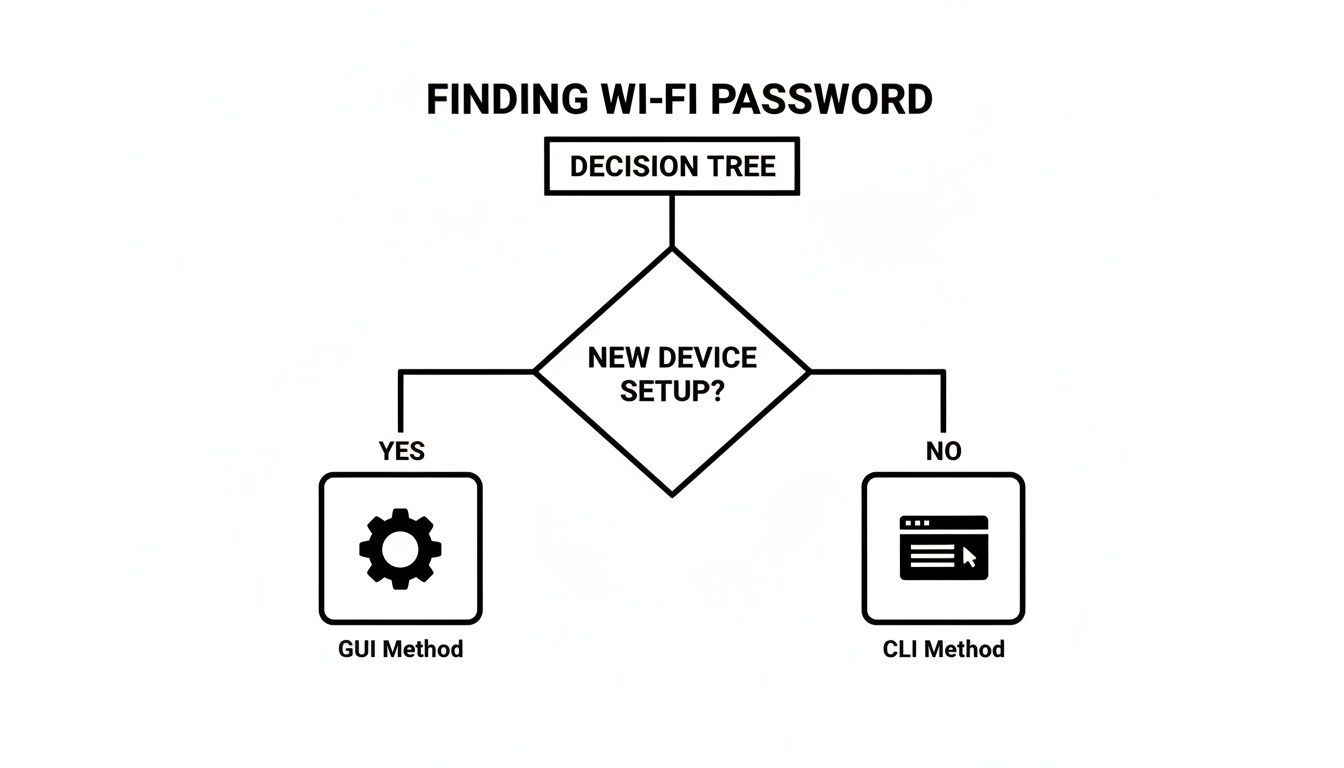
Even for a simple task like finding a Wi-Fi password, you can see there are a few legitimate paths. For high-stakes recovery, however, the only safe path leads to professional help.
Services like Wallet Recovery AI are built for these exact high-consequence scenarios, especially when it comes to digital assets. They bring a level of sophisticated tech and deep expertise you just can't replicate with off-the-shelf software. Their entire process is designed for secure, discreet, and effective recovery.
When your financial future or irreplaceable memories are on the line, going it alone is a risk you can't afford to take. You can learn more about these specialized password recovery services and see how they handle sensitive cases. Trust me, it's the only responsible call.
A Few Common Questions About Finding Windows Passwords
When you start digging into password recovery, it’s natural for some big questions about security and legality to pop up. Getting these things straight is crucial for managing your digital life the right way. Let's clear the air on some of the most common queries I hear.
Think of this as a quick-and-dirty guide to making smart decisions, whether you're just trying to find an old Wi-Fi password or protecting something much more valuable.
Is It Legal to Recover Passwords on My Own Computer?
Yes, absolutely. It is completely legal to poke around and recover passwords on a computer you own. If it’s your machine, you have every right to access your own information.
Every method we've walked through—from peeking into Credential Manager to checking your browser's saved logins—is a legitimate feature built right into Windows to help you manage your own data.
The line gets crossed, legally and ethically, the second you try this on a computer that isn't yours without the owner's explicit permission. Things also get murky if you start using aggressive password cracking tools, as they often use the same tactics as hackers. When the stakes are high, like with crypto wallets, sticking with a professional service keeps everything secure, ethical, and above board.
What If I Forgot My Main Windows Login Password?
Now, this is a different beast altogether. If you can't even get past the Windows login screen, all the built-in tools we've discussed are off the table. What you do next really depends on the kind of account you have.
- Microsoft Account: If you sign in with your Microsoft account, you're in luck. You can just hop on another device, go to their website, and reset your password online. Pretty straightforward.
- Local Account: This is tougher. Your only real options are a password reset disk you made before you got locked out, or answering the security questions you set up.
If you don't have either of those, you're looking at more drastic measures like a system restore or a complete Windows reinstall, both of which come with a serious risk of wiping your files.
If a locked account is the only thing standing between you and critical files—like a crypto wallet—stop what you're doing. Any move that could delete data is a bad move. This is the exact moment when calling a professional recovery service is the only safe play.
How Can I Avoid Losing My Passwords in the Future?
Honestly, the best way to deal with losing passwords is to not lose them in the first place. A little proactive effort here will save you a world of pain later and seriously upgrade your security.
First, get a password manager. Seriously. Apps like 1Password or Bitwarden create and remember ridiculously strong passwords for all your accounts. You just have to remember one master password to unlock everything.
Next, turn on two-factor authentication (2FA) everywhere you can. This is a game-changer. It requires a second code, usually from your phone, before you can log in. Even if someone steals your password, they can't get into your account without your phone.
And for your absolute most important secrets—your master password, a crypto seed phrase—keep a physical, offline backup. Write it down and stick it in a safe. Put it on a secure USB drive. That way, no matter what happens to your tech, you'll always have a way back in.
If you're staring down a high-stakes lockout, especially with a cryptocurrency wallet, don't roll the dice on DIY recovery. The team at Wallet Recovery AI uses advanced, secure techniques to help you regain access without putting your data at risk. Learn how they can help you recover your digital assets safely and discreetly.
Leave a Reply