
That sinking feeling when your device flashes an "SD card unmounted" error is all too familiar. It’s a message that can instantly make you think the worst—that years of photos, important documents, or project files are gone for good.
But here's the good news: this error rarely means your card is a lost cause.
What an Unmounted SD Card Really Means
Think of an "unmounted" error not as a death sentence for your data, but as a communication breakdown. Your device (be it a phone, camera, or computer) knows an SD card is physically plugged in. It sees it. The problem happens when it tries to mount it—the process of accessing the card's file system to actually read the folders and files inside.
When that process fails, the device throws its hands up and gives you the "unmounted" warning. It’s a sign that the connection or the data structure is unreadable, not that your files have been wiped out.
Common Causes of This Communication Breakdown
So, what’s actually causing this digital miscommunication? Most of the time, the culprit is surprisingly simple and falls into one of two buckets: a logical error on the card itself or a physical connection issue. Figuring out which one you're dealing with is the first step to getting your files back.
Here are the usual suspects:
- Improper Ejection: This is the big one. Yanking a card out while it's busy writing a file is like pulling a book off the shelf while someone is still writing in the table of contents. It scrambles the directory, making the whole thing unreadable.
- File System Corruption: Software glitches, unexpected power loss, or even malware can create logical errors within the card's file system over time. This damage makes it impossible for your device to navigate the data.
- Physical Connection Problems: Sometimes, the problem is just plain old dust. A little debris on the card’s gold contacts or inside the device’s slot can be enough to block a stable connection.
- Driver or Software Glitches: The card might be perfectly fine. A temporary hiccup in your device’s operating system can prevent it from properly recognizing and mounting the storage.
Before you start any complex troubleshooting, a quick check of the symptoms can point you in the right direction.
Diagnosing Your Unmounted SD Card
Use this quick table to match your card's behavior with the most likely cause. This will help you decide where to start your troubleshooting efforts.
| Symptom | Likely Cause | First Step |
|---|---|---|
| Error appeared after removing the card | Improper ejection / File system corruption | Re-insert the card and restart the device |
| Card works in one device but not another | Driver issue / Incompatible format | Try a different card reader or computer |
| Device doesn't detect the card at all | Physical damage / Dirty contacts | Clean the card's contacts carefully |
| "Corrupt" or "Unsupported" errors appear | Severe file system corruption | Use data recovery software before formatting |
Remember, a methodical approach is your best friend here.
Key Takeaway: An unmounted SD card is almost always an access problem, not a data loss event. Your goal is to re-establish that broken communication link so your device can read the card's contents again.
By starting with the simple fixes, you can often solve the problem without panicking or resorting to drastic measures. The following sections will walk you through the initial checks and device-specific solutions to get your card mounted and your files back safely.
Essential First Aid for Your SD Card
Before you even think about complex software repairs, just take a breath. The simplest checks are often all it takes to fix an "SD card unmounted" error, saving you a massive headache. Think of these as the first things a pro would do—they're quick, safe, and surprisingly good at spotting the real culprit behind physical glitches or minor software bugs.
The first thing to try, always, is a good old-fashioned restart. Power down your device completely, whether it's your camera, Android phone, or computer. Give it a few seconds, then turn it back on. This simple reboot can clear out temporary conflicts or driver issues that were stopping the device from recognizing the card in the first place.
Check and Clean the Physical Connections
If the restart didn't cut it, the problem might be physical. It's amazing how a tiny speck of dust or lint on the card’s gold contacts can completely kill the connection.
Gently pop the SD card out and take a close look at the contacts. A soft, lint-free microfiber cloth is perfect for wiping them clean. While you're at it, peek inside the device's SD card slot. If you spot any debris, a quick blast from a can of compressed air should clear it out. Whatever you do, never stick metal objects like paperclips in there—you'll risk causing permanent damage.
A solid physical connection is everything. Dirty contacts are one of the most common—and thankfully, most fixable—reasons a device can't talk to an SD card.
Another thing to consider is how you're removing the card. Yanking it out while the device is still writing data is a classic way to corrupt the file system and make the card unreadable. This kind of user error is responsible for a huge number of data loss cases. You can read more about how physical handling affects card connectors from these community discussions on dpreview.com.
Test with Different Hardware
Finally, it's time to play detective and isolate the variable. The problem might not be your SD card at all, but the hardware you're using.
- Try a different card reader: If you're using a cheap USB adapter, it could easily be the weak link. Test the SD card in another reader or try a different computer's built-in slot.
- Use another device: Pop the card into a different camera or smartphone. If it works there, you know the problem is with your original device, not the card.
By running through these simple checks, you can figure out if you're dealing with a minor hiccup or a more serious issue that needs a software-level fix.
When the usual tricks don't work and your device still refuses to acknowledge your SD card, it’s time to roll up your sleeves and dig into your operating system's built-in repair tools. You'd be surprised how often a seemingly dead card can be revived using the utilities that are already on your computer or phone.
Before diving into software fixes, it's always smart to run through a quick "first aid" checklist. Think of it as ruling out the simple stuff first—a quick restart, a gentle cleaning of the contacts, and trying the card in another device.
This flowchart gives you a great visual roadmap for those initial steps.
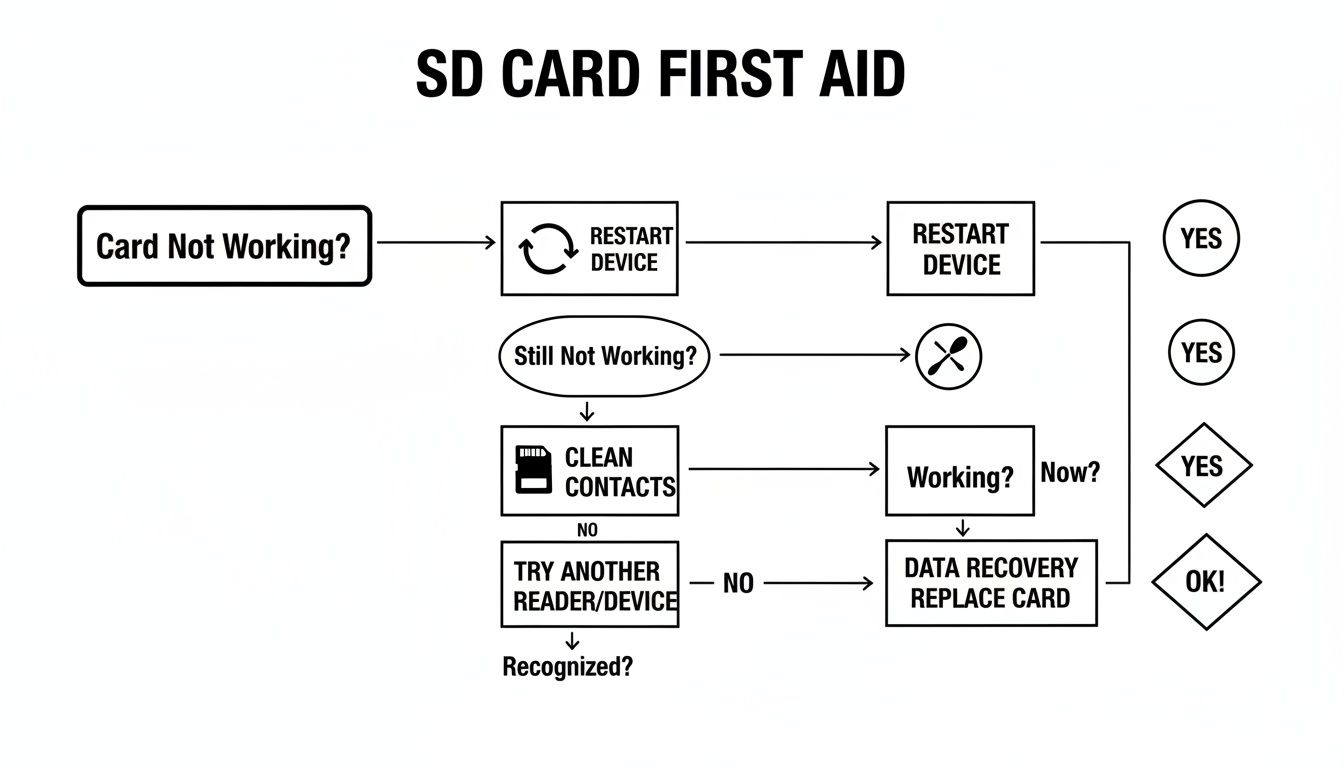
Running through these basics ensures you’re not spending an hour on a software fix when the real problem was just a speck of dust.
Using Windows to Repair an SD Card
Windows has some powerful command-line tools that are perfect for tackling file system corruption. The one I always turn to first is chkdsk. It’s a workhorse that scans a drive for errors and fixes them on the spot.
First, plug your SD card into your PC and figure out its drive letter (like E: or F:).
Then, open Command Prompt as an administrator. You can do this by searching for "cmd" in the Start Menu, right-clicking it, and choosing "Run as administrator." In the black window that pops up, type chkdsk E: /f (replacing 'E:' with your card's actual letter).
The /f part is crucial—it tells chkdsk to actually fix the errors it finds. The scan can take a few minutes, but it’s incredibly effective for logical errors that stop a card from mounting.
Sometimes the problem is even simpler. Windows might see the card but fail to give it a drive letter, making it invisible in File Explorer. Here’s how to fix that:
- Press the Windows Key + X and pick Disk Management from the menu.
- Find your SD card in the bottom panel. It might be the one without a letter.
- Right-click on it and select Change Drive Letter and Paths.
- Click Add, choose any available letter, and hit OK.
This little trick often brings a "lost" SD card right back. It's also a key step when you're working with encrypted drives. For more on that, check out our guide on BitLocker recovery for Windows drives.
Fixing an SD Card on macOS
On a Mac, your go-to tool is Disk Utility. It’s much more user-friendly than the Windows command line and just as effective for these kinds of problems. When your Mac throws a fit and won’t mount an SD card, the First Aid feature is your best bet.
Pop the SD card in and open Disk Utility (you'll find it in Applications > Utilities). Your SD card should show up in the list on the left.
Pro Tip: If you don't see your card, click the View button at the top and select Show All Devices. Sometimes macOS hides drives it can't properly mount, and this brings them out of the shadows.
Once you’ve selected the card, just click the First Aid button at the top and then click Run. Disk Utility will get to work, scanning for and repairing file system inconsistencies that could be causing the mounting issue.
Mounting an SD Card on Android Devices
Android phones aren't immune to unmounted SD card errors, especially if a card was pulled out abruptly. Thankfully, the fix is usually right in your phone's settings.
Just head into your phone’s Settings and find the Storage or Device Care section. You should see the SD card listed there, probably with a "not mounted" status.
Tap on the SD card entry. You'll almost always see an option to Mount. Give it a tap, and Android will try to reconnect to the card's file system. If it works, you’ll have your files back in seconds. If it fails, the corruption might be too severe for the phone to handle, and you'll need to use a computer.
Device-Specific SD Card Repair Tools
Every operating system has its own way of dealing with storage problems. This table gives you a quick rundown of the native tools you can use to get your SD card working again.
| Operating System | Built-in Tool | Primary Function |
|---|---|---|
| Windows | chkdsk (Command) |
Scans and repairs file system errors and bad sectors. |
| Windows | Disk Management | Assigns or changes drive letters to make drives visible. |
| macOS | Disk Utility (First Aid) | Verifies and repairs disk permissions and directory structures. |
| Android | Storage Settings | Mounts or formats SD cards recognized by the system. |
While these tools are powerful, they are designed to fix file system structures. If the card has severe physical damage, these software-based solutions might not be enough.
What to Do When Formatting Is the Only Option Left
So, you've tried everything else, and the standard fixes just aren't cutting it. When your SD card still refuses to play nice, the mission objective changes from repair to rescue. The absolute priority now is to get your files off that card before you even think about doing something drastic like formatting.
This is where you bring in the heavy hitters: dedicated data recovery software.
These tools are built to do one thing—ignore the broken file system and go straight to the source. They scan the raw data on the card, looking for the digital signatures of your photos, videos, and documents. It's like reassembling a shredded document; even if the index is gone, the pieces are often still there. Always, always do this before you consider formatting.
Choosing the Right File System for a Fresh Start
Formatting is the nuclear option. It wipes everything clean, but it's often the only way to make a corrupted card usable again. Once you've either recovered your data or made peace with its loss, you need to choose the right file system to get the card back in working order. This choice really matters for performance and compatibility.
Here’s a quick breakdown:
- FAT32: The old reliable. It's compatible with just about everything, but it's showing its age. Its biggest drawback is a 4GB individual file size limit. It's best suited for smaller cards, think 32GB or less.
- exFAT: This is the modern go-to for pretty much all removable storage. It blows past the file size limits of FAT32 and works seamlessly with modern Windows, macOS, Android devices, and most cameras. If your card is 64GB or larger, this is what you want.
A pro tip: whenever possible, format the card inside the device you'll be using it with most. If it's for your camera, format it in the camera. This lets the device set up the card's structure exactly how it likes it, which can prevent future headaches.
When You Absolutely Can't Afford to Lose the Data
Sometimes, the data isn't just a collection of vacation photos. What if that unmounted SD card is holding the only backup of your crypto wallet's seed phrase? It happens more than you'd think. Data recovery firms report that around 25% of their cases come from unexpected manufacturing defects or firmware corruption. You can read more about SD card failure and recovery statistics on platinumdatarecovery.com.
For someone in the crypto space, having an SD card with a Trust Wallet or Trezor backup suddenly go dark can be terrifying. In these high-stakes situations, off-the-shelf software might not be enough. The methods for pulling wallet data off a failing drive are a whole different ballgame than recovering JPEGs. The complexities are significant, and you can get a sense of what's involved by learning about recovering corrupted files from hard drives.
When you're dealing with irreplaceable assets like wallet backups, don't take chances. Specialized data recovery services are your best and safest option. These experts have cleanroom labs and advanced hardware tools that can tackle deep-level corruption that consumer software simply can't touch, giving you a real lifeline for your most critical data.
How to Prevent Future SD Card Errors
Fixing an sd card unmounted error is a huge relief, but the real win is making sure it never happens again. You don't need to be a tech wizard to keep your cards healthy; a few simple, proactive habits can dramatically extend their lifespan and save you a ton of stress down the road.
Honestly, it all boils down to treating your SD card with a bit of respect, both physically and digitally.
The single most important habit you can build—and I can't stress this enough—is to always safely eject your card. Whether you're using a PC, Mac, or camera, just yanking a card out while it's busy is like pulling the power cord on your computer in the middle of a Windows update. It's asking for trouble.
Always use the "Safely Remove Hardware" option on Windows or the "Eject" function on macOS. This simple action tells your device to finish writing whatever it's doing and properly disengage from the card, which is critical for keeping its file structure intact.
Smart Habits and Quality Gear
Beyond just ejecting it correctly, how you handle your cards day-to-day plays a massive role in their longevity. It's not just about keeping them out of the laundry; it’s about understanding their limits.
I've found these simple practices make a world of difference:
- Format in the Primary Device: The very first thing you should do with a new card is format it inside the camera or phone you'll be using it with. This makes sure the file system is perfectly tailored to that specific device's needs.
- Don't Skimp on Brands: It’s tempting to grab cheap, no-name cards, but they often cut corners on memory quality and the internal controllers. Stick with reputable brands like SanDisk, Samsung, or Lexar. You're paying for reliability.
- Leave Some Breathing Room: Constantly maxing out your card's storage to 100% puts a lot of stress on it and increases the odds of file system errors. As a rule of thumb, I try to leave at least 10% of the space free.
All flash memory, including your SD cards, has a finite number of read/write cycles. Every time you save or delete a file, the memory cells degrade just a tiny bit. High-quality cards can handle thousands of these cycles, but this wear-and-tear is an unavoidable part of the technology.
This limited lifespan is exactly why an sd card unmounted error can sometimes be a sign that the card is simply nearing the end of its life. In some high-intensity use cases, a card's median failure can occur after just 3100 read/write cycles. This is a big deal for people in the crypto space who might run things like Raspberry Pi nodes with wallet data on a microSD, as the constant activity can burn through a card's lifespan surprisingly fast. You can find some fascinating real-world data points on SD card endurance on news.ycombinator.com.
Got Questions? We've Got Answers
After wrestling with an SD card that won't mount, it's natural to have a few questions lingering. Let's clear up some of the most common ones so you know exactly what to do next and how to protect your files.
Can I Get My Files Back After Formatting an SD Card?
Believe it or not, yes—most of the time. When you format a card, the data isn't immediately wiped clean. Instead, the system just marks that space as "available" for new files to be written over the old ones.
The catch? It’s a race against the clock. As soon as you save anything new to that card—even a single small photo—you start overwriting and permanently erasing your old data. If you need your files back, the single most important thing you can do is stop using the card immediately and get it into a data recovery program.
Why Does My Phone Keep Saying “SD Card Unexpectedly Removed”?
That annoying, persistent error usually boils down to one of three culprits:
- A shaky connection: The card might be just a tiny bit loose in its slot, or the gold contacts on either the card or inside the phone are dirty or oxidized.
- A software hiccup: Sometimes Android just gets confused. A temporary glitch in the operating system can make it lose track of the SD card, and a simple restart is often all it takes to fix it.
- A failing card: If the error follows the card to other devices, it’s a bad sign. The card itself is likely on its last legs from wear and tear.
A Quick Tip From The Trenches: Before you even think about a factory reset, try this sequence first. Go to Settings > Storage, properly unmount the card, and then physically pull it out. Reboot your phone completely, then pop the card back in. This forces a clean reset of the connection and solves the "unexpectedly removed" error more often than you'd think.
Is It Safe to Keep Using a Card After an Unmount Error?
It really depends on why it happened. If the issue was a simple software bug or some dust on the contacts that you've since cleaned, the card is probably fine. Just be smart about it: back up everything important and keep a close eye on it for a few days to see if the problem returns.
But if the unmounting errors are happening randomly and frequently, that card is no longer trustworthy. It’s a ticking time bomb for your data. I’d strongly recommend replacing it, especially if you’re using it to store precious photos or critical backups. Continuing to rely on an unstable card just isn't worth the risk.
Lost access to your crypto wallet stored on an SD card? Standard recovery software often isn't equipped for the job. Wallet Recovery AI uses highly specialized techniques to help you securely regain access to your locked wallets. Find out how we can help at https://walletrecovery.ai.
Leave a Reply